Quick Answer
When managing files on Unix-like operating systems, system administrators, developers, and DevOps engineers constantly require fast, reliable ways to inspect and merge text streams. The linux cat utility stands as one of the most ubiquitous and enduring tools in the entire shell ecosystem. Whether you are debugging an application running inside a Docker container, merging configuration snippets in a Kubernetes deployment script, or inspecting log files on a remote cloud server via SSH, understanding how to wield this utility safely and efficiently is a fundamental skill for any technical professional.
Quick Answer: What Is the Linux cat Command?
The term cat is shorthand for concatenate. At its core, the linux cat utility reads data from one or more files sequentially and writes that data to standard output, which is typically your terminal screen. While its most common day-to-day use is simply viewing the contents of a single text file, its original design intention—joining multiple files together into a single stream—makes it indispensable for shell scripting, log aggregation, and pipeline construction. Unlike full-screen text editors like vim or nano, cat does not load an interactive interface; it operates instantly as a stream processor, making it fast and script-friendly.
Understanding linux cat and Its Core Concepts
To truly master the linux cat command, you must understand how Unix shells handle streams of data. In the GNU/Linux operating system architecture, every process interacts with standard input (stdin), standard output (stdout), and standard error (stderr). When you execute cat without redirection, it reads from standard input if no file arguments are provided, or it reads the specified files from the underlying filesystem and streams their byte contents directly to standard output.
This behavior makes cat a pillar of text processing. Filesystem permissions govern what cat can read; if the current user account lacks read permissions on a target file, the operating system kernel returns a permission denied error via standard error. Because cat handles files as raw streams without interpreting their contents unless specific formatting flags are passed, it treats plain text, source code, comma-separated values, and binary blobs identically. However, streaming binary data directly to a terminal emulator without redirection can corrupt your terminal session's character encoding, which is an important operational nuance for engineers working over remote connections.
How It Works: Syntax, Flags, and Core Mechanics
The basic syntax of the utility is straightforward:
cat [OPTION]... [FILE]...
When multiple files are passed as arguments, cat reads the first file from start to finish, immediately transitions to the second file, and continues until the final file is processed, emitting a continuous combined output stream. The GNU coreutils implementation of cat supports numerous command-line flags that alter how text is displayed on your terminal.
The -n or --number flag prefixes every single line of output with its corresponding line number, starting from one. This proves helpful when reviewing short scripts or configuration files where line references matter. Conversely, the -b or --number-nonblank flag numbers only non-empty lines, skipping blank lines entirely. Another commonly used flag is -s or --squeeze-blank, which compresses consecutive empty lines into a single blank line, cleaning up densely spaced text files.
For debugging invisible formatting issues, developers frequently rely on the -A or --show-all flag, which is equivalent to -vET. This flag displays non-printing characters, highlights trailing spaces, and marks the exact end of every line with a dollar sign character ($). This is particularly useful when troubleshooting shell script syntax errors caused by Windows-style carriage returns (CRLF) introduced by cross-platform git checkouts. Version-sensitive behavior across different Linux distributions is generally minimal because cat is a core component of GNU coreutils, though BusyBox implementations found in minimal Alpine Docker images may support a more restricted subset of flags.
Practical Commands and Examples for Developers and DevOps
Developers and DevOps practitioners encounter scenarios daily where streaming and combining files directly in the terminal accelerates troubleshooting and deployment automation. Here are several practical examples demonstrating how linux cat integrates into modern engineering workflows.
To view the contents of a configuration file in a readable format, you simply pass the file path:
cat /etc/hosts
The expected behavior is an immediate dump of the IP address mappings to standard output. If you need to inspect a large log file without cluttering your terminal buffer, you usually pipe the output into a pager, though cat itself reads straight through:
cat /var/log/syslog | grep "error"
To combine multiple separate log files into a single archival file during a post-mortem analysis, you provide multiple file paths and redirect the combined output stream to a new file using the redirection operator:
cat app.log.1 app.log.2 app.log.3 > combined_app.log
The expected behavior here is the creation of a new file named combined_app.log containing all records from the three source files in chronological order. You can verify the success of this operation by comparing line counts:
wc -l app.log.1 app.log.2 app.log.3 combined_app.log
In containerized environments such as Docker and Kubernetes, cat plays a vital role in inline file creation and inspection. For instance, when building multi-stage Dockerfiles or debugging container runtimes, engineers frequently use cat with a "here-doc" structure to generate configuration files dynamically inside a shell script:
cat << 'EOF' > /app/config.json
{
  "environment": "production",
  "debug": false
}
EOF
This pattern ensures exact file creation without relying on complex file-transfer utilities. Similarly, in CI/CD pipelines running on GitHub Actions or GitLab CI, developers use cat to display environment variables or verify generated build artifacts before publishing them to artifact repositories.
Common Mistakes and Safe Verification Practices
Despite its simplicity, developers frequently commit common mistakes when using the utility. The most famous anti-pattern is known as the "Useless Use of Cat" (UUOC). This occurs when a user pipes the output of a single file directly into another command that already accepts file paths as arguments, such as cat file.txt | grep "pattern". Because grep can read files directly (grep "pattern" file.txt), introducing cat creates an unnecessary subshell and wastes CPU cycles. While harmless on small files, this habit becomes inefficient in high-throughput automation scripts.
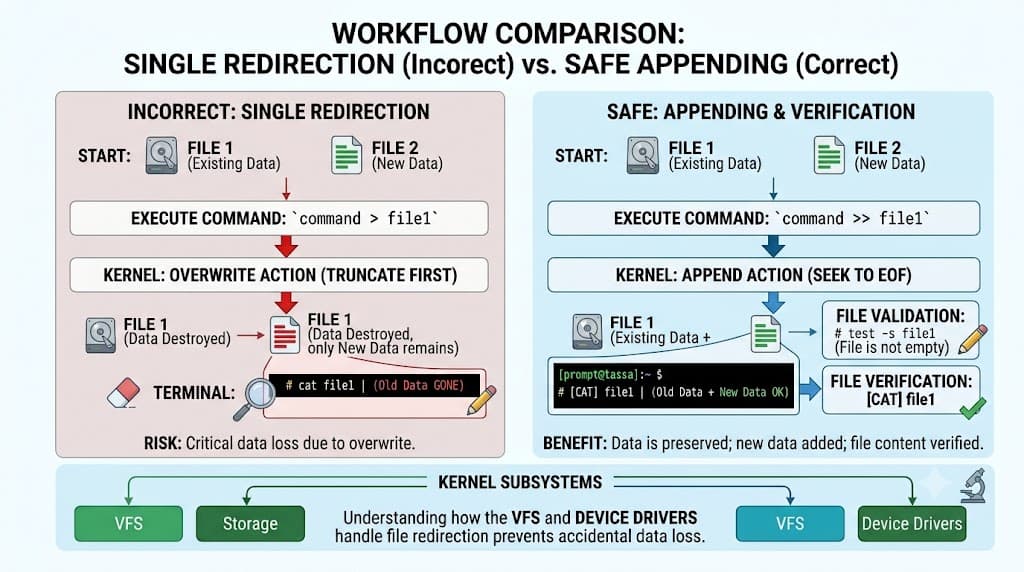
Another critical mistake involves accidental file truncation or overwriting. If you mistakenly use single redirection (>) instead of appending (>>), you will instantly overwrite an existing file with the output of your cat command, destroying its previous contents:
# DANGEROUS: This overwrites important_data.txt completely
cat new_data.txt > important_data.txt
To prevent data loss, developers must practice safe verification. Before running destructive redirection operations, always verify the target file's existence and permissions. You can use verification commands like ls -l or perform a dry run by printing to standard output first without any redirection operators.
Troubleshooting and Safe Troubleshooting Examples
When working in restricted production environments, you will inevitably encounter errors while executing terminal commands. Permission denied errors occur when your user account lacks read access to the target file. To diagnose this, inspect file ownership using long-format directory listings:
ls -la /var/log/secure
If the file belongs to the root user and your deployment user lacks privileges, running cat directly will fail. In authorized administrative contexts, you would escalate privileges using sudo:
sudo cat /var/log/secure
Another frequent issue is attempting to read missing files, which yields a "No such file or directory" error.
Here is a safe troubleshooting example when dealing with corrupted binary files or unreadable encodings. If you accidentally execute cat on a compiled binary executable or compressed archive, your terminal may display garbled characters and stop responding correctly to keystrokes because control characters alter terminal state flags:
# Unsafe execution example that can scramble terminal display
cat /bin/bash
If your terminal becomes unresponsive due to binary streaming, do not panic. The safe troubleshooting recovery procedure is to blindly type the reset command and press Enter, which reinitializes your terminal display attributes to a clean state. For safe binary inspection, always prefer dedicated tools like hexdump, strings, or less rather than cat.
Best Practices for Using linux cat in Production
Adopting production-grade standards ensures that your use of command-line utilities remains robust, secure, and performant. When writing shell scripts for CI/CD pipelines, always quote your variables and filenames to prevent word-splitting and globbing errors caused by spaces in paths. Avoid chaining unnecessary cat commands inside pipelines where standard input redirection or direct file arguments suffice.
Furthermore, exercise extreme caution when streaming files that contain sensitive secrets, API keys, or private SSH keys. Ensure that your CI/CD runner logs do not accidentally capture the output of cat commands streaming sensitive configuration files, as this exposes credentials in public build logs. By following these operational disciplines, you can harness the full power of basic text manipulation utilities while maintaining a secure and stable infrastructure.
📌 Recommended Next Guides & References
  <li>
    <a href="/article/docker-and-kubernetes-how-they-work-together-2" class="text-primary hover:underline font-semibold flex items-center gap-2">
      <span>→</span> <span>Docker and Kubernetes: How They Work Together</span>
    </a>
  </li>

  <li>
    <a href="/article/kubernetes-ingress-explained" class="text-primary hover:underline font-semibold flex items-center gap-2">
      <span>→</span> <span>Kubernetes Ingress Explained: Routing, Controllers, and TLS</span>
    </a>
  </li>

  <li>
    <a href="/article/kubernetes-ingress-controller-explained" class="text-primary hover:underline font-semibold flex items-center gap-2">
      <span>→</span> <span>Kubernetes Ingress Controller Explained: Architecture, Routing, and Implementation</span>
    </a>
  </li>