Quick Answer
The Linux command line is the definitive interface for interacting with Unix-like operating systems. For developers, system administrators, and DevOps engineers, mastering the shell is not merely an optional skill; it is the core mechanism for configuring servers, running local containerized workloads, inspecting logs, and automating deployments. Unlike graphical user interfaces that hide system operations behind buttons and dialog boxes, the command line gives you direct, unmitigated access to processes, network sockets, file descriptors, and system memory. This level of control enables engineers to execute complex workflows with remarkable speed and precision, transforming repetitive administrative burdens into single-line scripted commands or robust continuous integration pipelines.
Understanding how to effectively navigate, query, and manipulate your operating system via terminal inputs unlocks a deeper comprehension of software execution environments. Whether you are troubleshooting an unresponsive microservice in a production Kubernetes cluster, inspecting build logs inside a Docker container, or orchestrating infrastructure provisioning through SSH, fluency in terminal utilities is indispensable. This guide explores the architectural foundations of the shell, provides practical syntax examples for everyday tasks, examines common pitfalls, and outlines robust verification practices to ensure your commands execute safely and effectively.
Quick Answer: What is the Linux Command Line?
The Linux command line is a text-based interface used to interact with the operating system, allowing users to execute text commands that manipulate files, run programs, and configure system resources. It consists of a terminal emulator window and a shell interpreter (such as Bash or Zsh) that processes user inputs and communicates directly with the Linux kernel. Developers use it daily to manage codebases, execute unit tests, manage remote servers, and run container runtimes.
Understanding the Linux Command Line and Architecture
To use the terminal effectively, it is essential to understand the architectural layers that separate your keystrokes from hardware execution. When you open a terminal emulator—whether in a desktop Linux environment, a macOS terminal, or an embedded container console—you are launching an application that provides a graphical or text window into a shell interpreter. The shell itself is a command language interpreter that executes commands read from standard input devices or from files. Common shells include Bourne Again SHell (Bash), Z shell (Zsh), and the newer, feature-rich Fish shell. When you type a command and press Enter, the shell parses the string, resolves the command path, expands variables, and system-calls the Linux kernel to perform the requested operation.
The Linux filesystem is another fundamental concept that every developer must grasp. Unlike Windows, which separates drives into distinct partition letters (like C:\ or D:), Linux organizes all system resources, physical disks, mounted network shares, and hardware devices into a single, unified hierarchical directory tree originating from a root directory denoted by a forward slash (/). Understanding this tree structure is critical when navigating projects, locating configuration files, or mounting volumes into container environments. Every file and directory in this unified tree is governed by strict access permissions and ownership models. Linux uses a three-tier permission scheme that restricts read, write, and execute capabilities across three distinct entities: the file owner, the owning group, and all other system users. Misunderstanding these file permissions is a primary source of permission denied errors during software deployments and build processes.
Beyond file management, the Linux kernel manages system processes, which are instances of running programs. Every process is assigned a unique Process ID (PID) and exists in a parent-child hierarchy. The command line provides powerful tooling to monitor resource consumption, alter process scheduling priorities, and terminate unresponsive background tasks. In modern cloud-native development, these exact kernel-level primitives—namespaces and control groups (cgroups)—form the underlying isolation technology that makes containerization platforms like Docker and orchestration engines like Kubernetes possible. When you run a container, you are essentially spawning an isolated process tree that shares the host Linux kernel while maintaining its own distinct filesystem view and network stack.
How the Linux Command Line Works in Development Workflows
Modern software development and DevOps engineering heavily rely on terminal-driven workflows. When writing code locally, developers use terminal commands to initialize Git repositories, compile source code, and run test suites. As applications move toward production, the command line remains the primary interface for remote administration. Secure Shell (SSH) allows engineers to establish encrypted network connections to remote Linux servers, enabling them to inspect live logs, update system packages, and debug runtime anomalies securely without graphical overhead.
In containerized environments, terminal commands are essential for building, running, and debugging microservices. Developers frequently interact with container runtimes using command-line interfaces to inspect container internals, copy artifacts, and execute interactive shells inside running application containers. Similarly, when deploying applications to Kubernetes clusters, the command-line tool kubectl acts as the primary bridge for querying pod health, viewing cluster events, and rolling out configuration updates. Furthermore, continuous integration and continuous delivery (CI/CD) pipelines—such as GitHub Actions, GitLab CI, or Jenkins—execute their build, test, and deployment steps as sequences of shell commands running inside ephemeral runner environments. Writing clean, deterministic command-line scripts ensures that your deployment pipelines remain reliable, repeatable, and easy to audit.
Practical Linux Terminal Commands and Examples
Mastering everyday terminal commands is the fastest way to accelerate your daily workflow. Below are practical examples of essential commands, their expected behaviors, and verification steps.
Navigating and Inspecting Filesystem Objects
Navigating directories and examining file contents are the most frequent tasks performed in any terminal session. The pwd (print working directory) command outputs your current absolute path, while ls lists directory contents. For detailed inspection, combine flags to reveal hidden configuration files and permissions.
pwd
ls -la /var/log/
Expected behavior: The pwd command prints the full directory path (e.g., /home/developer). The ls -la command prints a detailed, long-format list of all files—including hidden files starting with a dot—along with their permissions, owner, size, and modification timestamp. You can verify the success of these commands by checking that the output matches your expected directory location and that file permissions display correctly.
Managing Processes and Resource Utilization
When an application hangs or consumes excessive CPU, you need to locate and manage the offending process. The ps command combined with aux flags provides a snapshot of all running processes, while grep filters the output for specific application names.
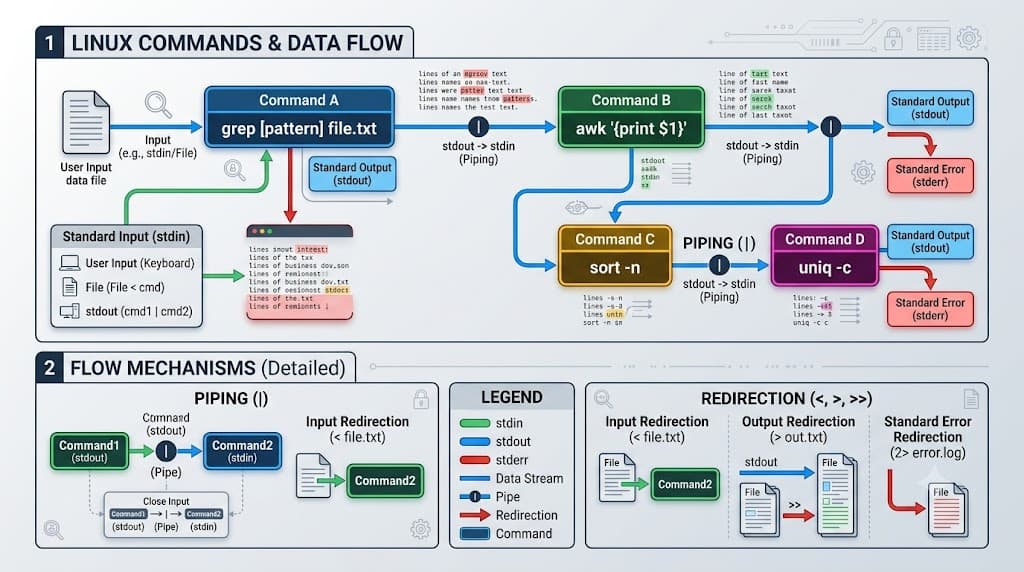
ps aux | grep node
Expected behavior: The system outputs a table of active processes matching the search term 'node', displaying the PID, CPU usage, memory consumption, and start time. To verify the process is running, inspect the PID column; if you need to terminate an unresponsive process safely, you can pass its PID to the kill command.
Searching File Contents and Logs
Searching through large log files or configuration outputs is streamlined using grep and redirection operators. This is particularly useful when debugging CI/CD pipeline failures or inspecting application error traces.
grep -i "error" /var/log/syslog
Expected behavior: The command scans the specified log file and outputs every line containing the case-insensitive substring 'error'. Verification is immediate: matching log entries are highlighted and printed directly to your terminal standard output.
Common Mistakes and Safe Verification Practices
Working directly in a powerful shell environment carries inherent risks, especially when executing administrative tasks or interacting with production servers. One of the most common mistakes is executing commands with elevated privileges unnecessarily. Running every command as the root user bypasses standard safety guardrails, drastically increasing the likelihood of accidental file corruption or data loss. Developers should operate as standard unprivileged users and invoke elevation only when specifically required using tools like sudo.
Another frequent pitfall involves improper flag usage, particularly with recursive or force options. For instance, combining recursive deletion flags with wildcard characters can wipe out entire directory trees if a path variable evaluates unexpectedly. Before executing any destructive command, you should verify path variables by echoing them to the terminal or running the command with a harmless variant first.
Safe Verification Strategies
To prevent destructive errors, adopt a verification-first mindset. When dealing with complex file modifications or deletions, practice dry runs or inspect target lists before executing actions.
find /app/logs -type f -name "*.log" -mtime +30
Expected behavior: This command lists all log files older than thirty days in the specified directory without deleting them. By reviewing the printed list, you can verify precisely which files will be affected before chaining a deletion flag.
Troubleshooting and Best Practices for DevOps Engineers
When command line operations fail, systematic troubleshooting is required to diagnose the root cause. Start by inspecting the command's exit status. In Linux, every executed command returns an exit code ranging from 0 (success) to 255 (indicating various error states). You can immediately check the exit status of the most recent command by inspecting the special variable $?.
echo $?
If the exit code is non-zero, consult the command's manual page using man <command> or check official distribution documentation to understand specific error flag meanings. For permission errors, verify file ownership using ls -l and ensure your user account possesses the necessary read or execute bits. For network-related command failures—such as failed API requests or SSH connection timeouts—verify name resolution and socket connectivity using diagnostic utilities like ping or curl -v.
To maintain clean, robust, and maintainable terminal workflows and automation scripts, adhere to these operational best practices:
- Always quote shell variables to prevent word-splitting and globbing vulnerabilities in scripts.
- Use explicit absolute paths in cron jobs and CI/CD pipelines where environmental
PATHvariables might not be fully populated. - Incorporate error handling blocks (such as
set -ein Bash scripts) to ensure scripts fail fast upon encountering unexpected errors rather than continuing execution into dangerous states. - Document complex pipeline commands with descriptive comments to ensure team maintainability across collaborative development cycles.
📌 Recommended Next Guides & References
  <li>
    <a href="/article/docker-and-kubernetes-how-they-work-together-2" class="text-primary hover:underline font-semibold flex items-center gap-2">
      <span>→</span> <span>Docker and Kubernetes: How They Work Together</span>
    </a>
  </li>

  <li>
    <a href="/article/kubernetes-ingress-explained" class="text-primary hover:underline font-semibold flex items-center gap-2">
      <span>→</span> <span>Kubernetes Ingress Explained: Routing, Controllers, and TLS</span>
    </a>
  </li>

  <li>
    <a href="/article/kubernetes-ingress-controller-explained" class="text-primary hover:underline font-semibold flex items-center gap-2">
      <span>→</span> <span>Kubernetes Ingress Controller Explained: Architecture, Routing, and Implementation</span>
    </a>
  </li>


