Quick Answer
The linux kernel is the absolute core of any GNU/Linux operating system, serving as the primary software bridge between physical computer hardware and the running processes, utilities, and applications above it. When you interact with a server, a local workstation, or a cloud virtual machine, the kernel manages CPU scheduling, system memory allocation, hardware devices, storage file systems, and network communication under the hood. For developers, system administrators, and DevOps engineers, understanding how the kernel functions is essential for diagnosing performance bottlenecks, troubleshooting elusive bugs, optimizing containerized workloads, and ensuring reliable production deployments.
Quick Answer
The linux kernel is the central, low-level control program of a Linux operating system that runs in privileged memory space (Ring 0) and directly controls physical hardware resources. It matters to developers and DevOps practitioners because every application, script, container, and compilation process ultimately relies on kernel system calls to execute tasks like reading files, spawning threads, or opening network sockets. Without it, user-space software cannot interact with storage drives, network interfaces, or processors.
Understanding the Linux Kernel
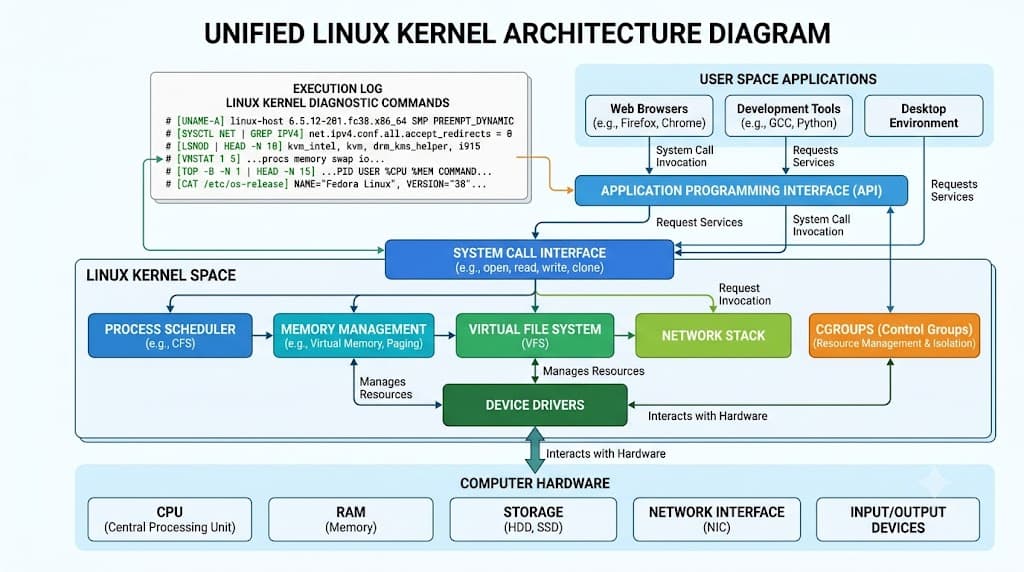
To fully appreciate the linux kernel, it helps to examine how an operating system is structured. A typical Linux environment is divided into two distinct domains: user space and kernel space. User space is where standard developer utilities, shells, text editors, databases, and custom applications run. These programs operate under strict security restrictions and cannot access hardware directly. Instead, when a user-space application needs to perform a privileged action, it must request assistance from the kernel via a well-defined interface known as system calls, or syscalls.
The kernel itself is monolithic in design, meaning core subsystems—such as the virtual file system, process scheduler, memory manager, network stack, and device drivers—all execute within the same privileged address space for maximum performance. However, unlike traditional monolithic designs of the past, the modern linux kernel is highly modular. It allows developers and administrators to load and unload drivers and extensions dynamically at runtime using kernel modules without requiring a full system reboot.
For developers, the kernel sets the absolute boundaries of what is possible on a system. Resource limits, file descriptor constraints, network buffer sizes, and execution priorities are all governed by kernel parameters. Whether you are debugging a memory leak in a Node.js application, tuning a PostgreSQL database for high concurrency, or building a CI/CD pipeline runner on a dedicated Linux runner node, understanding how user-space actions translate into kernel activity is a defining skill for senior engineering roles.
How the Linux Kernel Works
At its core, the linux kernel operates as a resource arbiter and event dispatcher. When a CPU core executes instructions, it switches constantly between user mode and kernel mode. When a process invokes a system call—such as opening a file via sys_open—the processor transitions into kernel mode, executes the requested kernel routine safely, and then switches back to user mode to return the result.
Memory management is another critical function. The kernel implements virtual memory, giving every process its own isolated virtual address space. Using hardware memory management units (MMUs), the kernel maps these virtual addresses to physical RAM or swap space, protecting processes from accidentally reading or writing to each other's memory regions. If a process attempts an illegal memory access, the kernel intercepts the action and terminates the offending process with a Segmentation Fault.
In modern DevOps environments, container technologies like Docker and Kubernetes rely entirely on specific linux kernel features to function. Containers are not standalone virtual machines; rather, they are standard Linux processes isolated from the rest of the host system using two core kernel mechanisms:
- Namespaces: Kernel namespaces wrap global system resources into an isolated abstraction. For instance, the mount namespace isolates filesystem mount points, the PID namespace isolates process IDs, and the network namespace provides separate network interfaces and routing tables. This is why a containerized application running inside Docker has its own process ID 1 and cannot see host processes.
- Control Groups (cgroups): While namespaces control what a process can see, cgroups control how much resource it can consume. The kernel uses cgroups to limit, account for, and isolate resource usage—such as CPU shares, memory limits, disk I/O bandwidth, and network traffic—across collections of processes. When Kubernetes enforces resource requests and limits on a Pod, it is actively configuring kernel cgroups on the underlying worker node.
Practical Commands and Examples
Interacting with the linux kernel directly from the command line is a routine task for system administrators and DevOps engineers. Standard diagnostic tools allow you to inspect runtime parameters, verify kernel versions, and manage loaded modules safely.
To check the currently running kernel version and architecture, use the uname command:
uname -r
Expected behavior:
5.15.0-88-generic
To get a complete overview of the system architecture, hostname, and kernel release, run uname -a:
uname -a
Expected behavior:
Linux ip-10-0-1-50 5.15.0-88-generic #98-Ubuntu SMP Mon Oct 2 15:18:56 UTC 2023 x86_64 x86_64 x86_64 GNU/Linux
To inspect runtime kernel parameters and modify them dynamically without a reboot, administrators use the sysctl utility. For example, to view all active kernel parameters, list them with grep or view the configuration directory under /proc/sys:
sysctl vm.swappiness
Expected behavior:
pm.swappiness = 60
To verify loaded kernel modules—such as filesystem drivers or network protocols—use lsmod:
lsmod | head -n 10
Expected behavior:
Module                  Size  Used by
nft_fib_inet           16384  1
nft_fib_ipv4           16384  1
nft_fib_ipv6           16384  1
nft_fib                16384  1
nft_netdev             16384  1
nft_chain_nat_dem      16384  0
nf_nat                 57344  1 nft_chain_nat_dem
nf_tables             274432  22 nft_inft_inet,nft_netdev,nf_nat
libcrc32c              16384  1 nf_nat
If you need to investigate kernel logs for hardware errors, driver failures, or Out-Of-Memory (OOM) killer events, use the dmesg utility combined with a pager or grep:
dmesg | grep -i oom
Expected behavior:
[    3.451200] oom_enabled: active
[ 1420.124500] python3 invoked oom-killer: gfp_mask=0xce1(GFP_KERNEL|__GFP_HIGHMEM|__GFP_MOVABLE), order=0, oom_score_adj=0
Common Mistakes and Verification
Working with low-level system settings introduces significant risk if commands are executed carelessly. One frequent mistake is making temporary kernel parameter changes using sysctl -w without updating configuration files in /etc/sysctl.d/, resulting in reverted settings after a system reboot.
Another common error is unloading active kernel modules with rmmod without checking dependencies. If a module is currently in use by a storage controller or network interface, removing it can instantly crash the kernel or cause a kernel panic.
Verification is critical before applying any persistent change. Always test sysctl modifications in a staging environment or non-production container node before rolling them out to production Kubernetes clusters. To safely verify a syntax change to a sysctl configuration file without applying it immediately, use the dry-run flag or load the specific file explicitly:
sysctl --system
This command reloads all configuration files from /etc/sysctl.d/, /run/sysctl.d/, and /etc/sysctl.conf, printing each applied parameter so you can verify correct syntax and expected values instantly.
Troubleshooting and Best Practices
When troubleshooting a misbehaving server or containerized workload, having a structured diagnostic methodology prevents wasted time. Suppose an application in your CI/CD pipeline or Docker container crashes unexpectedly under heavy load without a clear stack trace in the application logs. The root cause is frequently a kernel-level intervention, such as the OOM killer terminating the process due to memory exhaustion.
To diagnose this safely without rebooting or risking production stability, follow this diagnostic workflow:
- Inspect kernel message ring buffer immediately for OOM events using
dmesg -T(which displays human-readable timestamps):
dmesg -T | tail -n 50
- Verify current system memory and swap utilization using standard reporting tools:
free -h
- Check system resource limits configured for the specific service or user:
ulimit -a
Best practices for managing linux kernel environments in production include:
- Never modify live kernel parameters blindly in production; document every change in infrastructure-as-code configurations.
- Keep kernels updated security-wise, but establish a rigorous testing pipeline in staging environments before applying upgrades across Kubernetes worker nodes.
- Monitor kernel metrics (such as context switches, load averages, and interrupt rates) via Prometheus and Grafana rather than relying solely on reactive troubleshooting.
- Understand the exact kernel version requirements of container runtimes and orchestration tools to avoid compatibility bugs.
📌 Recommended Next Guides & References
  <li>
    <a href="/article/docker-and-kubernetes-how-they-work-together-2" class="text-primary hover:underline font-semibold flex items-center gap-2">
      <span>→</span> <span>Docker and Kubernetes: How They Work Together</span>
    </a>
  </li>

  <li>
    <a href="/article/kubernetes-ingress-explained" class="text-primary hover:underline font-semibold flex items-center gap-2">
      <span>→</span> <span>Kubernetes Ingress Explained: Routing, Controllers, and TLS</span>
    </a>
  </li>

  <li>
    <a href="/article/kubernetes-ingress-controller-explained" class="text-primary hover:underline font-semibold flex items-center gap-2">
      <span>→</span> <span>Kubernetes Ingress Controller Explained: Architecture, Routing, and Implementation</span>
    </a>
  </li>