Quick Answer
Mastering the terminal is one of the most high-leverage skills a software engineer can acquire. While graphical user interfaces offer convenience for basic tasks, professional development, infrastructure management, and cloud deployments rely heavily on the command line interface. Whether you are debugging a production container, setting up a continuous integration pipeline, or navigating a remote Linux server via Secure Shell, knowing how to interact directly with the operating system is indispensable. This guide explores fundamental and advanced concepts, structured to give you a deep, practical understanding of how to operate efficiently in any Unix-like environment.
Quick Answer: What Are Linux Commands and Why Do They Matter?
Linux commands are instruction utilities executed within a shell environment that interact directly with the Linux kernel to manage files, execute processes, configure networking, and control system resources. They matter because they provide programmatic, repeatable, and low-overhead control over operating systems. Developers and DevOps engineers rely on linux commands to automate deployments, inspect server health, manage containerized services, and troubleshoot complex runtime issues in environments where graphical interfaces are absent. By utilizing the command line, engineers can string together specialized utilities to manipulate text, monitor resource consumption, and orchestrate complex multi-container systems with speed and precision.
Understanding Linux Commands and the Shell Environment
To use the terminal effectively, it helps to understand the relationship between the hardware, the kernel, the shell, and user commands. The Linux kernel is the core component of the operating system that manages CPU scheduling, memory allocation, and hardware device drivers. Because raw kernel interaction is complex, the shell acts as an intermediary command language interpreter. Popular shells include Bash (Bourne Again SHell) and Zsh (Z Shell).
When you type a command into the terminal prompt, the shell parses the input string, resolves the executable path, and spawns a child process to run the utility. A typical command structure consists of three primary components: the command name itself, options (or flags) that modify behavior, and arguments that specify the target files, directories, or variables. Options are typically prefixed with a single hyphen for short flags or double hyphens for descriptive long flags. Understanding how shells parse whitespace, interpret special characters, and expand wildcards is critical for writing predictable commands and avoiding unintended modifications to your filesystem.
How the Linux Command Line Works Under the Hood
Every time a process runs in Linux, it interacts with three standard data streams: Standard Input (stdin, file descriptor 0), Standard Output (stdout, file descriptor 1), and Standard Error (stderr, file descriptor 2). By default, stdin reads from your keyboard, while stdout and stderr print to your terminal screen. The true power of the Linux command line emerges when you redirect these streams.
Redirection operators allow you to capture output and send it elsewhere. For instance, using the greater-than sign (>) overwrites a file with stdout, while double greater-than (>>) appends to it. Piping, represented by the vertical bar (|), takes the stdout of one command and feeds it directly as the stdin of the next command. This composability allows engineers to chain small, single-purpose utilities together to perform complex data extraction, log filtering, and text transformation without writing custom scripts. Understanding how file descriptors handle exit codes—where zero indicates success and any non-zero integer indicates a specific error condition—is equally essential for writing robust automation scripts.
Practical Commands and Examples for Developers and DevOps
Filesystem Navigation and File Manipulation
Navigating directories and managing files efficiently is the foundation of daily terminal work. The print working directory command (pwd) shows your current location, while ls -la lists all files including hidden ones with detailed permissions and sizes. To change directories, use cd /path/to/directory. For locating files across large directory trees, the find command is invaluable.
find /var/log -name "*.log" -type f -mtime -7
This command searches the /var/log directory for regular files (-type f) whose names end in .log and were modified within the last seven days (-mtime -7). Always verify the search path before executing bulk operations to prevent unintended modifications.
Process Management and System Monitoring
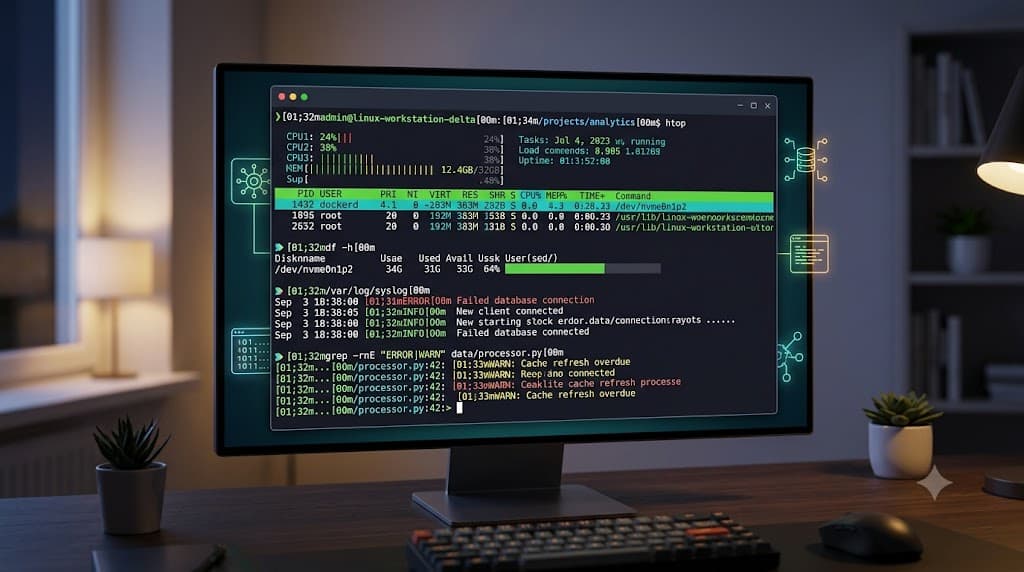
When applications consume excessive CPU or memory, developers must identify and terminate the runaway processes. The ps command provides a snapshot of current processes, while top or htop offers dynamic, real-time monitoring.
ps aux | grep node
Here, ps aux lists all running processes across all users, piped into grep node to isolate Node.js application processes. To terminate a misbehaving process gracefully, use kill <PID>, where PID is the process identifier. If a process fails to respond, kill -9 <PID> forces immediate termination at the kernel level.
Text Processing and Log Inspection
Logs are the primary diagnostic tool in production environments. Utilities like grep, awk, and sed allow developers to filter and parse text streams instantly. To view the end of a rapidly updating log file, use tail.
tail -n 100 /var/log/nginx/error.log | grep "connection refused"
This command retrieves the last 100 lines of an Nginx error log and filters for specific connection refusal messages. Combining tail -f with grep allows real-time monitoring of application errors during deployment.
Network Troubleshooting
Network connectivity issues between microservices or external APIs require specialized diagnostic utilities. The curl command tests HTTP endpoints, while netstat or ss inspects active socket connections.
curl -I https://api.github.com/zen
The -I flag fetches only the HTTP headers, allowing developers to inspect response codes, content types, and caching headers without downloading the full response body.
Docker, Kubernetes, and CI/CD Integration
In modern cloud-native workflows, Linux commands form the backbone of container management and deployment pipelines. Docker container interactions and Kubernetes cluster administration rely heavily on command-line tools.
docker ps --filter "status=exited"
This command lists all stopped Docker containers, helping developers clean up unused disk space on local development machines or CI runner nodes. In Kubernetes environments, kubectl logs -f deployment/my-app streams container logs directly from active pods, mirroring the familiarity of traditional file-based log monitoring.
Common Mistakes and Safe Troubleshooting Strategies
One of the most frequent mistakes developers make is executing destructive commands without verifying paths or targets. For instance, running rm -rf / or mistyping a recursive deletion path can wipe out critical system files instantly. Always double-check path variables and use absolute paths carefully when performing bulk deletions or file moves.
Another common error is ignoring file permissions and ownership, leading to permission denied errors when running scripts or building containers. Before troubleshooting an unfamiliar application failure, verify file permissions using ls -l and ensure the executing user has appropriate read, write, or execute rights. When troubleshooting unexpected command failures, always check the exit status of the previous command by running echo $$? immediately afterward. This reveals whether the failure stemmed from a missing dependency, invalid syntax, or a permission restriction.
Best Practices for Writing and Automating Shell Commands
Translating ad-hoc terminal commands into repeatable scripts requires adherence to professional engineering standards. Always start shell scripts with a proper shebang line, such as #!/usr/bin/env bash, to ensure portability across different Linux distributions. Enable strict error handling at the top of your scripts using set -euo pipefail. This ensures the script exits immediately if any command fails (-e), if an unset variable is referenced (-u), or if a failure occurs within a piped command chain (-pipefail).
Furthermore, always quote your shell variables (e.g., "$FILE_PATH") to prevent word splitting and globbing issues when file paths contain spaces or special characters. When integrating shell scripts into CI/CD pipelines—such as GitHub Actions or GitLab CI—break complex multi-line inline scripts into dedicated script files. This improves readability, simplifies local testing, and ensures proper logging and error tracking across automated build agents.
📌 Recommended Next Guides & References
  <li>
    <a href="/article/docker-and-kubernetes-how-they-work-together-2" class="text-primary hover:underline font-semibold flex items-center gap-2">
      <span>→</span> <span>Docker and Kubernetes: How They Work Together</span>
    </a>
  </li>

  <li>
    <a href="/article/kubernetes-ingress-explained" class="text-primary hover:underline font-semibold flex items-center gap-2">
      <span>→</span> <span>Kubernetes Ingress Explained: Routing, Controllers, and TLS</span>
    </a>
  </li>

  <li>
    <a href="/article/kubernetes-ingress-controller-explained" class="text-primary hover:underline font-semibold flex items-center gap-2">
      <span>→</span> <span>Kubernetes Ingress Controller Explained: Architecture, Routing, and Implementation</span>
    </a>
  </li>