Quick Answer
Linux ssh is a cryptographic network protocol and command-line tool used for secure remote logins, administrative tasks, and data transfers over unsecured networks. By replacing insecure legacy protocols like Telnet and rsh, the Secure Shell protocol ensures that all terminal commands, file transfers, and administrative actions are encrypted from end to end using robust cryptographic algorithms. For developers, DevOps engineers, and system administrators, mastering linux ssh is a fundamental prerequisite for managing cloud infrastructure, deploying containerized applications, and interacting with remote version control systems like GitHub.
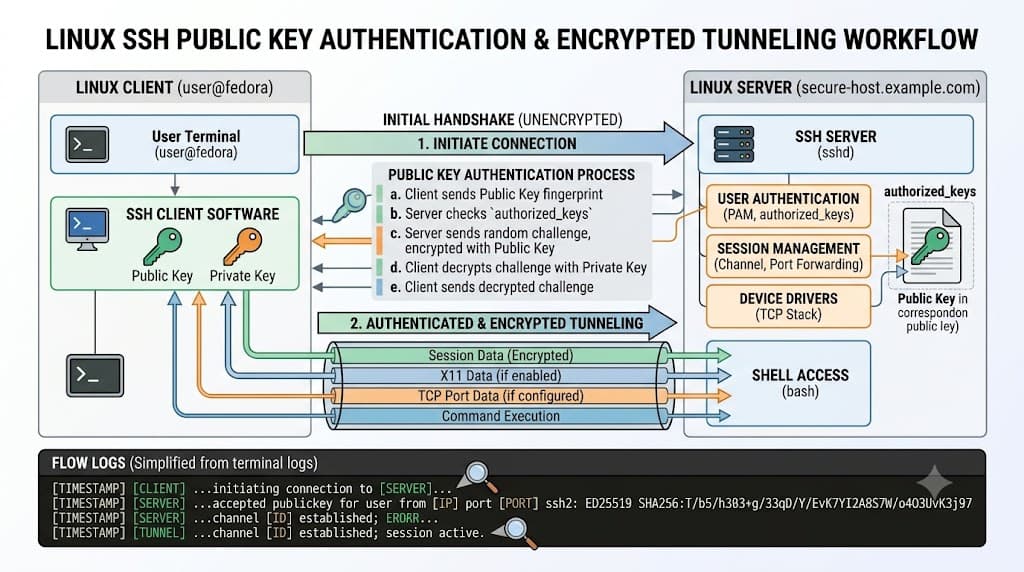
At its core, the utility establishes an encrypted tunnel between a local client machine and a remote server. When you run your first connection command in the terminal, the client and server negotiate cryptographic parameters, verify host identities, and authenticate the session. This process prevents common network attacks such as eavesdropping, session hijacking, and man-in-the-middle attacks. Whether you are troubleshooting a production bug in a Kubernetes cluster or pushing code updates through an automated continuous integration and continuous deployment pipeline, secure shell connections form the backbone of modern infrastructure management.
Quick Answer: What Is Linux SSH?
Linux ssh is both a network protocol defined in RFC 4253 and a suite of command-line tools (such as ssh, scp, and sftp) used to securely connect to remote systems. It operates over TCP port 22 by default and utilizes public-key cryptography to authenticate users and encrypt all transmitted data. If you need immediate remote access to a cloud virtual private server, you typically execute ssh username@hostname_or_ip in your terminal. This opens an interactive shell session where you can execute commands as if you were sitting physically at the server console.
Beyond simple interactive terminals, the protocol enables secure file copying via scp or rsync over ssh, port forwarding to access internal databases or web interfaces securely, and automated script execution without requiring manual password entry. Developers use these capabilities daily to interact with remote build servers, inspect container logs inside Docker environments, and manage configuration files on production nodes safely and efficiently.
Understanding Linux SSH and How It Works
To use linux ssh effectively, it helps to understand the underlying mechanics of its client-server architecture, key exchange mechanisms, and authentication methods. The entire interaction relies on a clear separation of roles. The client initiates the connection request, while the daemon running on the remote host listens for incoming requests, validates credentials, and spawns the shell environment upon successful verification.
The connection lifecycle begins with the transport layer negotiation. When the client contacts the server, both parties exchange version strings and agree upon encryption ciphers, hashing algorithms, and a key exchange method. Modern secure shell implementations rely heavily on robust algorithms such as Curve25519 for key exchange, AES-GCM for symmetric encryption, and Ed25519 for digital signatures, deprecating older weaker algorithms like RSA with small key sizes or Diffie-Hellman groups.
Once cryptographic parameters are established, the server proves its identity to the client using a host key. The client checks this key against its local ~/.ssh/known_hosts file. If the key has changed unexpectedly, the client halts the connection to warn you against potential man-in-the-middle attacks. Following host verification, the client authenticates itself to the server. While password authentication is widely supported, modern secure DevOps environments mandate public-key authentication. In this setup, you generate an asymmetric key pair consisting of a private key kept securely on your local machine and a public key installed in the ~/.authorized_keys file on the remote server. The server challenges the client to sign a random challenge string with the private key, proving ownership without ever transmitting the secret key over the network.
Practical Commands and Examples
Working with linux ssh on the command line involves several core utilities and configuration files. The fundamental command syntax follows a straightforward pattern: specifying the binary, optional configuration flags, the remote username, and the target server address. For instance, connecting to a specific port other than the default port 22 requires the -p flag:
ssh -p 2222 developer@example.com
When managing multiple servers with different SSH keys, usernames, and ports, typing long commands becomes inefficient. Instead, you can define host aliases in your local configuration file located at ~/.ssh/config. This file allows you to map clean shortcuts to complex connection parameters. Consider the following configuration block:
Host prod-server
    HostName 192.0.2.50
    User admin
    Port 22
    IdentityFile ~/.ssh/id_ed25519_prod
    AddKeysToAgent yes
Once this block is saved, you can connect instantly by typing ssh prod-server without remembering IP addresses or specifying key paths manually.
Beyond interactive shells, developers frequently need to transfer files securely. The secure copy utility (scp) leverages the same authentication and encryption layer:
scp -i ~/.ssh/id_ed25519_prod local-app.tar.gz prod-server:/var/www/releases/
In modern DevOps workflows, secure shell protocols integrate deeply with containerization and orchestration platforms. For example, when debugging containerized microservices in Docker or Kubernetes, developers often establish port forwarding tunnels to access debugging endpoints or internal databases safely. You can forward a local port to a remote service using the -L flag:
ssh -L 8080:localhost:5432 prod-server -N -f
In this example, traffic sent to localhost:8080 on your local machine is securely tunneled through the SSH connection to port 5432 on the remote server, allowing you to connect a local database management tool to a remote production database without exposing the database port directly to the public internet. The -N flag tells the client not to execute a remote command, and -f places the process in the background.
Common Mistakes and Verification
Even experienced engineers encounter hurdles when setting up linux ssh environments. The most frequent errors stem from incorrect file and directory permissions on the remote server. The SSH daemon is security-conscious and will reject public-key authentication if the permissions on the ~/.ssh directory or the authorized_keys file are overly permissive. Specifically, the ~/.ssh directory must have permissions set to 700 (readable, writable, and executable by the owner only), and the authorized_keys file must be set to 600 (readable and writable by the owner only).
You can verify and fix these permissions on the remote server using the following terminal commands:
chmod 700 ~/.ssh
chmod 600 ~/.ssh/authorized_keys
Another common mistake is mismanaging host keys. When rebuilding a virtual machine or recreating a cloud instance with the same IP address, the server generates a new host key. Your local client will detect this mismatch and display a warning indicating a potential security breach. If you are certain the change is legitimate, you can safely remove the old host key entry from your local known hosts file using the built-in removal tool:
ssh-keygen -R 192.0.2.50
Verification is an essential step after any configuration change. To test your connection and confirm that public-key authentication is functioning without requiring a password prompt, run the client with the verbose flag enabled (-v). This outputs detailed diagnostic information showing the key loading process, algorithm negotiation, and successful authentication confirmation:
ssh -v -i ~/.ssh/id_ed25519 developer@example.com
Reviewing the verbose output allows you to verify exactly which private key was offered to the server and whether the server accepted it.
Troubleshooting SSH Failures
When a linux ssh connection fails, deciphering the error message is critical for rapid resolution. Connection failures typically manifest as standard exit codes or descriptive terminal error messages. For instance, encountering Permission denied (publickey) indicates that the server successfully reached the daemon, but rejected your authentication credentials because your public key was not found in authorized_keys, or permissions were incorrectly configured.
To diagnose complex connection drops, timeouts, or authentication rejections, increase the verbosity level by adding multiple v flags up to three levels (-vvv). This provides exhaustive tracing of the socket connection, packet encryption exchange, and debugging events:
ssh -vvv developer@example.com
Common troubleshooting scenarios and their resolutions include:
-
Connection Timed Out (
Connection timed out): This usually indicates a network firewall blocking TCP port 22, an incorrect hostname, or the remote server being offline. Verify network connectivity usingpingornc(netcat), and ensure cloud security groups or local firewall rules allow inbound traffic on the designated port. -
Connection Refused (
Connection refused): This implies that the network path is open, but no service is listening on the target port. Check whether the SSH daemon is actively running on the remote host by connecting via a physical console or cloud management panel and inspecting the service status usingsudo systemctl status sshorsudo systemctl status sshd. -
Too Many Authentication Failures: If you have many SSH keys loaded into your local authentication agent (
ssh-agent), the client may attempt them all sequentially, exceeding the server's maximum retry limit before trying your correct key. Fix this by specifying the exact identity file via the-iflag or configuring specific IdentityFile entries in your~/.ssh/configfile.
Best Practices for Secure DevOps Environments
Securing linux ssh access in production environments requires adherence to industry-standard hardening guidelines. Leaving default configurations enabled introduces significant security vulnerabilities. System administrators and DevOps engineers should implement the following hardening practices on all remote servers:
First, disable password authentication entirely in the SSH daemon configuration file (/etc/ssh/sshd_config). Setting PasswordAuthentication no and ChallengeResponseAuthentication no forces all users to authenticate using robust cryptographic key pairs, eliminating risks associated with brute-force password guessing attacks and weak user passwords.
Second, disable root login over the network. Allowing root to log in directly via secure shell creates a high-value target for attackers. Instead, configure PermitRootLogin no in sshd_config, requiring administrators to log in using their personal named user accounts and elevate privileges locally using sudo when administrative commands are required.
Third, change the default listening port from 22 to a non-standard high-numbered port. While this does not stop targeted port scans, it drastically reduces automated bot traffic and log noise from malicious actors probing public IP addresses.
Fourth, leverage SSH agent forwarding carefully. When running commands on a remote build server or CI/CD runner that needs to pull code from private GitHub repositories, agent forwarding (ssh -A) allows the remote host to use your local SSH keys without copying private keys onto the server disk. However, be cautious when forwarding your agent to untrusted hosts, as users with root privileges on the remote server can hijack the forwarded agent socket while your session is active.
Finally, integrate automated key rotation and monitoring into your infrastructure lifecycle. Regularly audit authorized_keys files across your fleet, remove access for departed team members immediately, and utilize configuration management tools or infrastructure-as-code platforms to enforce consistent security baselines across all Linux distributions.
📌 Recommended Next Guides & References
  <li>
    <a href="/article/docker-and-kubernetes-how-they-work-together-2" class="text-primary hover:underline font-semibold flex items-center gap-2">
      <span>→</span> <span>Docker and Kubernetes: How They Work Together</span>
    </a>
  </li>

  <li>
    <a href="/article/kubernetes-ingress-explained" class="text-primary hover:underline font-semibold flex items-center gap-2">
      <span>→</span> <span>Kubernetes Ingress Explained: Routing, Controllers, and TLS</span>
    </a>
  </li>

  <li>
    <a href="/article/kubernetes-ingress-controller-explained" class="text-primary hover:underline font-semibold flex items-center gap-2">
      <span>→</span> <span>Kubernetes Ingress Controller Explained: Architecture, Routing, and Implementation</span>
    </a>
  </li>


