Quick Answer
Extracting compressed archives is an essential daily task for developers, system administrators, and DevOps engineers working within GNU/Linux environments. Whether you are provisioning a new container image, downloading release artifacts in a build pipeline, or unpacking source code bundles, knowing how to efficiently manipulate archive files via the terminal is a fundamental competency. This comprehensive guide details everything you need to know about the linux unzip utility, going far beyond basic syntax to cover advanced filtering, integrity verification, error recovery, and seamless automation in modern deployment workflows.
Quick Answer
To extract a ZIP archive in Linux, use the unzip command followed by the target filename:
unzip archive.zip
If the unzip utility is missing from your minimal container or server distribution, install it using your package manager (e.g., sudo apt install unzip on Ubuntu/Debian or sudo dnf install unzip on RHEL/Fedora). To extract files into a specific destination directory rather than the current working directory, pass the -d flag:
unzip archive.zip -d /path/to/destination/
For developers who need to inspect archive contents before extracting, list files using the -l flag:
unzip -l archive.zip
Understanding Linux Unzip and How It Works
To truly master archive extraction on Unix-like operating systems, it helps to understand how the unzip package fits into the broader GNU/Linux toolchain. Unlike tar and its associated gzip or bzip2 compressors (tar.gz), which were historically engineered around tape archives and continuous stream processing, the ZIP format was designed for random access. This structural difference means that a ZIP archive contains a central directory at the end of the file, allowing extraction tools to locate and decompress specific individual files inside the archive without necessarily reading the entire byte stream sequentially.
The standard unzip utility in Linux is a portable implementation maintained independently of the original PKZIP specification, optimized for POSIX-compliant environments. It respects standard Linux filesystem semantics, user permissions, and file modification timestamps. However, because ZIP files historically originated on non-Unix platforms (such as MS-DOS and Windows), archive headers often store file attributes, permission bits, and line-ending conventions differently than native Linux filesystems expect.
When you execute an extraction command, the utility parses the archive headers, recreates the necessary directory tree inside your current working directory (or the specified target path), and writes out the uncompressed payload. By default, it preserves original file modification times stored inside the archive metadata. Understanding how these permissions and metadata translate across different operating systems is critical when dealing with executable scripts, configuration files, and deployment bundles downloaded from external sources.
Practical Commands and Examples
Basic Archive Extraction
The most common operation is extracting an archive into the current working directory. Simply pass the filename as an argument:
unzip release-v1.0.zip
Expected behavior: The terminal will output a verbose list of extracted files, indicating whether each file was inflated successfully, skipped, or overwritten. If the archive contains nested directory structures, those folders will automatically be created relative to your current location.
Extracting to a Specific Directory
When writing automated scripts or organizing project downloads, dumping files into your current working directory can clutter your workspace. Use the -d flag to redirect the output to an explicit destination path:
unzip project-source.zip -d /var/www/html/app/
Expected behavior:
The utility creates the target directory /var/www/html/app/ if it does not already exist, then extracts all internal archive paths directly inside it.
Listing Archive Contents Without Extracting
Before committing to a full extraction—especially with untrusted archives from the internet—you should inspect what files are packed inside. The -l flag lists contents in a clean tabular format showing file sizes, modification dates, and relative paths:
unzip -l framework-dependencies.zip
Expected behavior: A detailed list prints to standard output, displaying total file counts and aggregate uncompressed sizes without touching your disk storage.
Extracting Specific Files or Omitting Files
If you only need a single configuration file from a massive archive, you do not need to unpack the entire contents. Specify the exact file path after the archive name:
unzip large-bundle.zip config/production.env
Conversely, if you want to extract everything except a particular set of files or directories, use the -x exclusion flag:
unzip large-bundle.zip -x "*.log" "tests/*"
Expected behavior: The command processes the archive while filtering out any matching patterns, saving disk space and reducing clutter.
Handling File Overwrites Safely
By default, if an extracted file already exists on disk, unzip pauses execution and prompts the user with an interactive query asking whether to overwrite the file, skip it, or rename it. In automated scripts, this interactive prompt will hang your pipeline. Control overwrite behavior with explicit flags:
-o: Overwrite existing files without prompting.-n: Never overwrite existing files (skip extraction for matches).
unzip -o updated-assets.zip -d /var/www/public/
Common Mistakes and Warnings
Working with compressed archives via the command line introduces several common pitfalls, particularly regarding file security, disk exhaustion, and permission handling.
Blindly Overwriting Critical Files
Using the -o flag without caution can lead to catastrophic data loss if an archive unpacks files that overwrite existing configuration files, databases, or application code in production environments. Always verify the contents of an archive using -l before running bulk overwrite extractions.
Ignoring Directory Traversal Risks (Zip Slip)
Untrusted archives can occasionally contain malicious paths utilizing relative directory traversal sequences (such as ../../etc/passwd or similar paths) designed to write files outside the intended destination directory when extracted. While modern versions of unzip include built-in safeguards against absolute paths and traversal attacks, auditing untrusted third-party archives remains a critical security best practice.
Assuming File Permissions Transfer Cleanly
Because ZIP archives created on Windows systems do not store standard POSIX permission bits (such as owner read/write/execute flags), extracting executable scripts or binary utilities from such archives often results in permission denied errors when you attempt to run them. Always verify and correct file permissions post-extraction using chmod.
chmod +x scripts/deploy.sh
Troubleshooting and Verification
When an extraction fails or produces unexpected results, systematic troubleshooting ensures your environment remains stable. Below is a safe, reproducible troubleshooting example for diagnosing corrupted or problematic archives.
Diagnosing Corrupted Archives
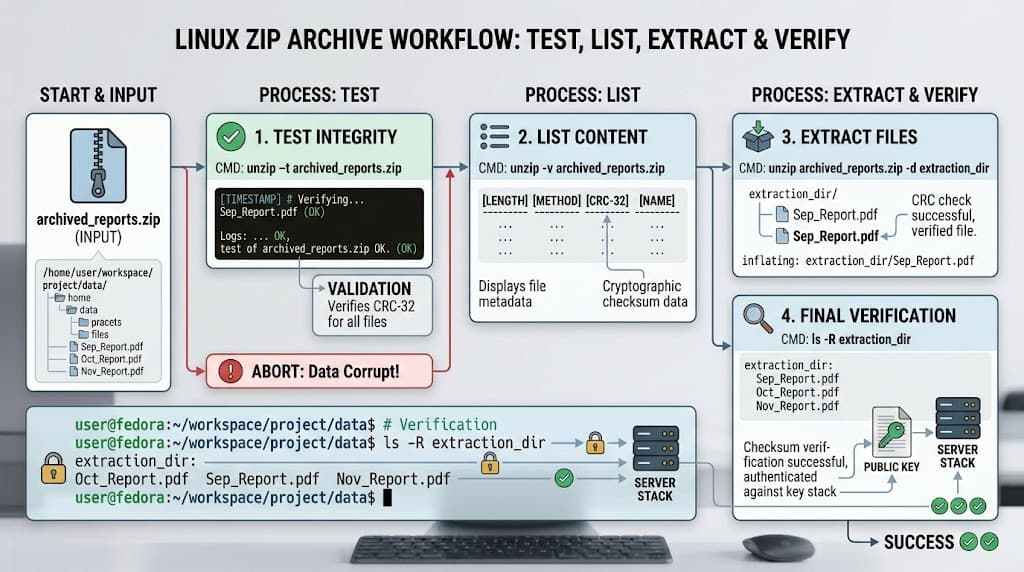
If an archive fails to extract or throws unexpected end-of-file errors, test its structural integrity without writing any files to disk using the -t test flag:
unzip -t broken-download.zip
Expected behavior: The utility reads every file in the archive, calculates and verifies internal checksums, and reports whether the archive is valid or corrupted. If the test fails, do not attempt to force extraction; re-download or regenerate the archive file.
Verifying Successful Extraction
After extracting an archive, verify that all expected files exist in the correct directory structure and check disk utilization:
find /var/www/html/app/ -maxdepth 2 -type f
Expected behavior: A clean list of newly unpacked files appears in your terminal, confirming correct placement and structural integrity.
Resolving Encoding and Character Set Mismatches
Archives created on non-Linux operating systems often encode filenames using legacy character sets (such as CP437 or Shift-JIS) rather than UTF-8. When extracted on a modern Linux system, these filenames can appear garbled or throw invalid character errors. Use the -O (capital o) flag to specify the correct source character encoding:
unzip -O CP437 legacy-archive.zip
Developer and DevOps Context
In modern software engineering, raw terminal commands rarely exist in isolation. Integrating archive management into containers, orchestration tools, and CI/CD pipelines requires specific patterns to maintain reliability, reproducibility, and minimal image sizes.
Using Unzip in Dockerfiles
When building custom Docker container images, you frequently need to download and unpack third-party binaries or source code bundles. To keep container image layers lean, install the utility, perform the extraction, and clean up package manager caches within a single RUN instruction:
FROM ubuntu:22.04
RUN apt-get update && apt-get install -y --no-install-recommends unzip \
    && rm -rf /var/lib/apt/lists/*
ADD https://example.com/app-release.zip /tmp/app.zip
RUN unzip /tmp/app.zip -d /opt/app/ && rm /tmp/app.zip
Managing Archives in Kubernetes Init Containers
In Kubernetes deployments, initialization containers (initContainers) are frequently utilized to fetch application assets, static web content, or plugins from secure object storage before the primary application container starts. Using a lightweight Alpine or Debian pod running extraction commands ensures static assets are unpacked into shared emptyDir volumes securely and reliably.
Automation in GitHub Actions and CI/CD Pipelines
Continuous integration pipelines often handle build artifacts, cached dependencies, and test datasets packaged as ZIP files. In GitHub Actions workflows, executing extraction commands inside step definitions allows you to prepare test workspaces dynamically:
- name: Extract Test Fixtures
  run: |
    unzip -q tests/fixtures.zip -d ./test-data/
    ls -la ./test-data/
Using the quiet flag (-q) suppresses verbose terminal output in CI logs, keeping build output clean and readable while ensuring that automation scripts remain robust and verifiable.
📌 Recommended Next Guides & References
  <li>
    <a href="/article/docker-and-kubernetes-how-they-work-together-2" class="text-primary hover:underline font-semibold flex items-center gap-2">
      <span>→</span> <span>Docker and Kubernetes: How They Work Together</span>
    </a>
  </li>

  <li>
    <a href="/article/kubernetes-ingress-explained" class="text-primary hover:underline font-semibold flex items-center gap-2">
      <span>→</span> <span>Kubernetes Ingress Explained: Routing, Controllers, and TLS</span>
    </a>
  </li>

  <li>
    <a href="/article/kubernetes-ingress-controller-explained" class="text-primary hover:underline font-semibold flex items-center gap-2">
      <span>→</span> <span>Kubernetes Ingress Controller Explained: Architecture, Routing, and Implementation</span>
    </a>
  </li>