Quick Answer
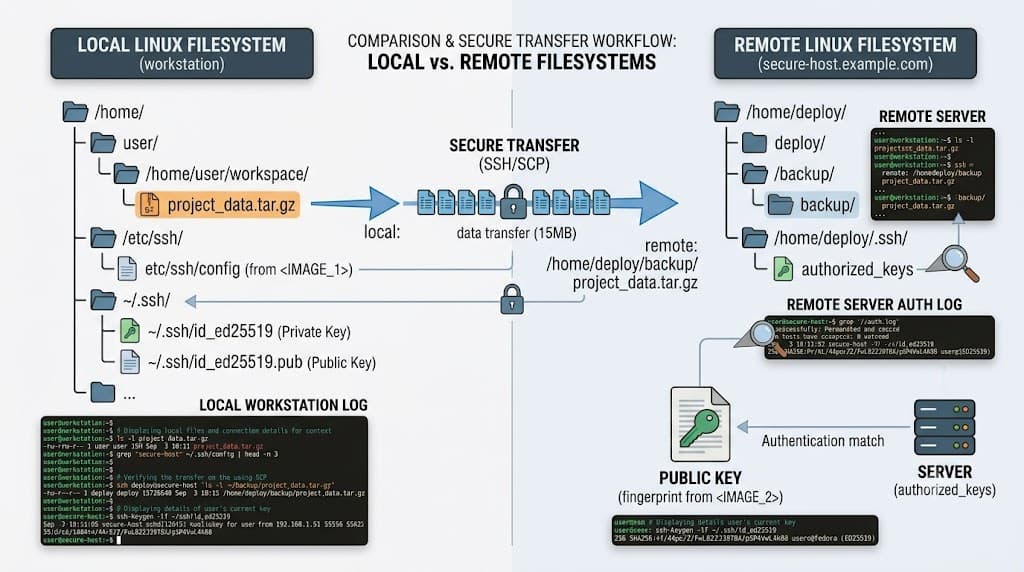
When managing remote Linux infrastructure, moving files between local and remote environments is a routine requirement. Whether you are deploying a hotfix, retrieving a diagnostic log, or synchronizing build artifacts in a continuous deployment pipeline, you need a reliable method that does not compromise security. The Secure Copy Protocol tool on Linux systems fulfills this exact need by leveraging the Secure Shell protocol for encrypted, authenticated file transmissions across networks.
Quick Answer: What Is SCP Linux and How Do You Use It?
Secure Copy Protocol on Linux is a command-line utility used to securely copy files and directories between a local host and a remote server, or between two remote servers, using SSH for authentication and data encryption. Because it relies on the same underlying daemon as standard remote shell logins, it requires no separate server setup beyond an active SSH service.
To download a single remote file to your local machine, run the following terminal command:
scp user@remote-server.com:/path/to/remote/file.txt ./local-directory/
To upload a local file to a remote server, use:
scp ./local-file.txt user@remote-server.com:/path/to/remote/directory/
This utility integrates seamlessly into daily developer workflows, shell scripts, and administrative automation tasks. By utilizing existing SSH keys and configuration files, it avoids plaintext password transmission, making it a foundational tool for system administrators and DevOps engineers alike.
Understanding SCP Linux and How Do You Work With It?
To master secure file transfers, you must understand the underlying architecture and protocol mechanics. The tool operates as a client-side utility that initiates an SSH connection to a designated remote host. Once authenticated, it invokes a secure remote process—historically a modified remote shell session or an SFTP subsystem under the hood—to stream byte streams across the network socket.
In modern Linux distributions, the traditional standalone binary is often a symbolic link or wrapper around the SFTP client implementation, yet the command-line interface remains backward compatible. Understanding this relationship helps clarify why your SSH configuration settings, custom ports, identity files, and proxy jump configurations automatically apply to your file transfer operations.
For developers and system administrators working across heterogeneous environments, secure file copying replaces obsolete, plaintext protocols like FTP and unencrypted remote copying utilities. In modern development lifecycles, you might use it to push configuration files to staging nodes, retrieve core dumps from production instances, or seed data into ephemeral Docker containers during manual debugging sessions. Because it respects standard file permissions, ownership properties, and user masks, it ensures that your transferred assets retain their necessary security posture upon arrival.
Practical Commands and Examples
Practical command execution requires precise syntax mapping. The general structure follows standard source and destination arguments, where either argument can represent a local filesystem path or a remote target formatted as username@hostname:/absolute/or/relative/path.
Uploading Files and Directories
To send a single local file to a remote destination, specify the local path first, followed by the remote target:
scp /path/to/local/config.yaml devops@192.168.1.50:/etc/myapp/
When transferring entire directory trees, you must supply the recursive flag (-r). This instructs the client to traverse all nested subdirectories and files:
scp -r ./dist/ devops@192.168.1.50:/var/www/html/
Expected behavior includes a progress meter displaying transfer speed, estimated time remaining, percentage complete, and file sizes. If the remote directory does not exist or lacks write permissions, the command terminates with a non-zero exit code and an explanatory error message.
Downloading Files and Directories
To retrieve data from a remote machine to your local workstation, invert the argument order by placing the remote source first:
scp devops@192.168.1.50:/var/log/application.log ./logs/
For recursive downloads of remote folders, append the recursive flag:
scp -r devops@192.168.1.50:/etc/nginx/sites-available/ ./backup-nginx/
Advanced Flags and Custom Ports
By default, SSH connections target port 22. If your target server runs SSH on a non-standard port, use the uppercase -P flag to specify it:
scp -P 2222 ./artifact.tar.gz deploy@server.internal:/opt/artifacts/
If you manage multiple SSH keys or need to point to a specific private identity file without editing your SSH config, use the -i flag:
scp -i ~/.ssh/custom_id_rsa ./release.zip admin@prod-server:/home/admin/
Integrating with Docker and Kubernetes Workflows
While containerized workflows rely heavily on image registries and volume mounts, situations arise where direct file transfer into a running container or cluster node is necessary. For example, if you need to copy a diagnostic script onto a Kubernetes worker node, you can combine administrative access with secure copying:
scp ./diagnostics.sh cluster-admin@node-1:/tmp/
For Docker environments running on remote virtual machines, copying files to the host precedes building or mounting them into containers:
scp ./Dockerfile user@docker-host:/srv/app/
ssh user@docker-host "cd /srv/app && docker build -t myapp ."
Verification and Safe Results
Executing file transfers in production environments demands rigorous verification to ensure data integrity and operational safety. Because network interruptions or disk space limitations can corrupt or truncate transferred files, verifying output before marking a deployment successful is vital.
Cryptographic Hash Verification
To guarantee that a large binary or archive transferred correctly, compare cryptographic hashes on both the source and destination systems. Generate an MD5, SHA-256, or SHA-512 checksum before and after the transfer:
# On the local source machine
sha256sum artifact.tar.gz

# On the remote destination machine via SSH
ssh user@remote-server "sha256sum /path/to/artifact.tar.gz"
If the resulting hexadecimal strings match identically, you can proceed with confidence that no bit-rot or network packet drop occurred during transit.
Preserving File Attributes
To ensure modification times, access times, and mode permissions remain unchanged across the transmission, use the -p flag:
scp -p ./secure_script.sh user@server:/usr/local/bin/
This maintains the precise execution permissions of scripts, preventing runtime authorization failures when applications attempt to execute the transferred binaries.
Dry-Run and Limit Options
To inspect transfer behavior or constrain bandwidth usage on congested networks, use the -l flag to limit bandwidth in Kilobits per second:
scp -l 1024 ./large-dataset.sql user@database-server:/tmp/
Common Mistakes and Troubleshooting
Even experienced engineers encounter intermittent obstacles when moving files across networks. Recognizing typical failure modes and diagnostic procedures accelerates resolution.
Common Mistakes
- Forgetting the recursive flag (
-r) when attempting to transfer a directory, resulting in an immediate error stating that the target is a directory. - Specifying local file paths incorrectly by omitting relative path indicators (
./), which causes the shell to interpret target strings ambiguously. - Hardcoding plaintext passwords in automated scripts instead of utilizing pre-configured SSH key pairs and agent forwarding.
- Overwriting critical production files due to missing destination checks or accidental path misconfigurations.
Troubleshooting Connection Refusals and Permission Denied Errors
When encountering a Permission denied (publickey) error, verify that your local SSH agent has loaded the appropriate private key and that the remote ~/.ssh/authorized_keys file contains your public key with correct permissions (0600 for authorized_keys, 0700 for the .ssh directory).
To diagnose connection timeouts or authentication failures in detail, run the command with verbose logging enabled via the -v flag:
scp -v ./file.txt user@remote-host:/tmp/
The verbose output reveals exact handshake stages, authentication method negotiations, and configuration file parsing, allowing you to pinpoint where the connection stalls.
If you experience disk space exhaustion on the remote end during a massive transfer, inspect available storage prior to execution:
ssh user@remote-host "df -h"
Production Best Practices for DevOps Workflows
Integrating secure file copying into enterprise production pipelines requires adherence to established security and automation principles. While the standard utility excels at ad-hoc transfers, enterprise environments often demand more robust orchestration.
When to Transition to Advanced Synchronization Tools
While secure copying is ideal for single files and occasional administrative transfers, continuous integration (CI) pipelines and massive file synchronizations benefit from transitioning to specialized tools like rsync. Unlike standard copying, which re-transfers entire files on every run, rsync performs delta-transfers, sending only the modified byte blocks across the network. This drastically reduces network utilization in continuous deployment workflows.
Security Hardening Guidelines
- Restrict SSH access on destination servers by disabling password authentication entirely and enforcing strict key-based access.
- Utilize restricted shell environments (such as
rbash) or forced commands inauthorized_keysif specific service accounts should only have permission to execute designated file transfer tasks. - Avoid running file transfer operations as the root user unless strictly necessary; instead, copy files to a user-owned staging directory and use
sudoor container orchestration tools to move them into system-protected locations.
By combining robust key management, careful verification checks, and appropriate tool selection, you can maintain secure, repeatable, and failure-resistant file transfer workflows across all your Linux infrastructure.
📌 Recommended Next Guides & References
  <li>
    <a href="/article/docker-and-kubernetes-how-they-work-together-2" class="text-primary hover:underline font-semibold flex items-center gap-2">
      <span>→</span> <span>Docker and Kubernetes: How They Work Together</span>
    </a>
  </li>

  <li>
    <a href="/article/kubernetes-ingress-explained" class="text-primary hover:underline font-semibold flex items-center gap-2">
      <span>→</span> <span>Kubernetes Ingress Explained: Routing, Controllers, and TLS</span>
    </a>
  </li>

  <li>
    <a href="/article/kubernetes-ingress-controller-explained" class="text-primary hover:underline font-semibold flex items-center gap-2">
      <span>→</span> <span>Kubernetes Ingress Controller Explained: Architecture, Routing, and Implementation</span>
    </a>
  </li>