Quick Answer
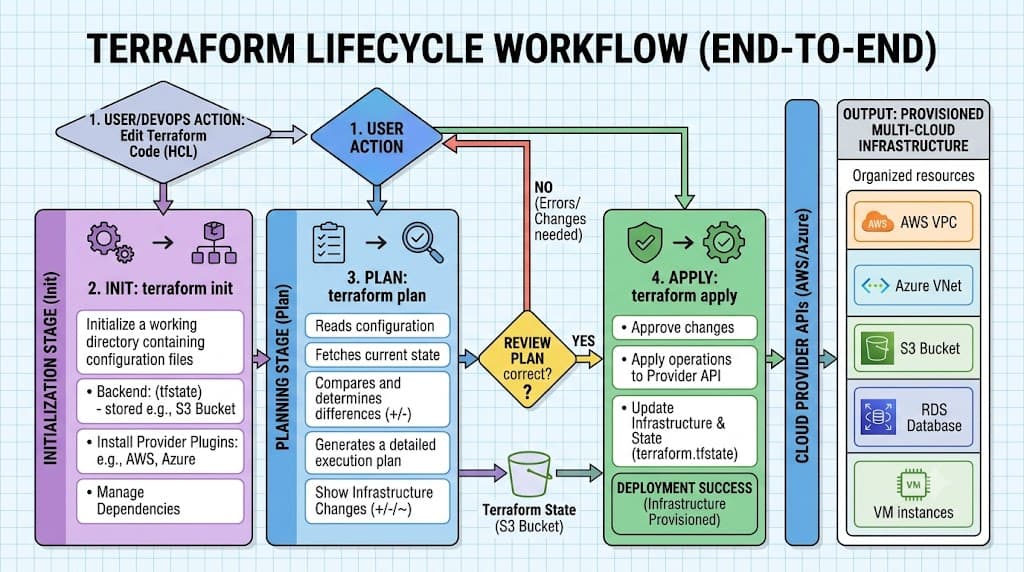
Running terraform apply executes the actions proposed in a Terraform plan, provisioning or updating cloud infrastructure to match your HashiCorp Configuration Language (HCL) files. When you execute the terraform apply command, the underlying execution engine evaluates your local or remote configuration, compares it against the existing state file, calculates the necessary cloud API calls, and applies those changes directly to your target providers such as AWS, Kubernetes, or GitHub. Because this operation alters real infrastructure resources, every engineer operating in production environments must understand how execution plans, locking mechanisms, and state synchronization work together.
Quick Answer
Terraform apply is the core operational command used to instantiate, modify, and destroy cloud and on-premises infrastructure defined in declarative configuration files. It reads a saved execution plan or generates a new one on the fly, prompting the user for confirmation before sending API requests to cloud providers. For example, running terraform apply in a directory containing a valid configuration file will first display a detailed addition and modification preview, wait for user confirmation unless automated with the -auto-approve flag, and then provision the requested resources while updating the local or remote state file to record the exact resource attributes and metadata.
Understanding the Concept
Infrastructure as Code (IaC) relies heavily on declarative configuration models. Instead of scripting manual click-ops procedures in a cloud console, engineers write declarative files using HashiCorp Configuration Language (HCL). These configuration blocks define providers, resources, variables, and data sources that describe the desired end state of your systems. The terraform apply workflow is the bridge between this static desired state and the dynamic reality of cloud environments.
When you build an infrastructure stack, you define resources such as virtual private clouds, virtual machines, container registries, or database clusters. Each resource block maps to specific provider APIs. Terraform tracks what it has deployed by utilizing a state file. This state file maps your HCL configuration to real-world cloud IDs, ensuring that subsequent runs know whether a resource needs to be created from scratch, modified in place, or destroyed and recreated due to immutable provider constraints.
How It Works
The execution lifecycle of Terraform is divided into distinct phases: initialization, planning, and application. Understanding how terraform plan and terraform apply interact is vital for maintaining stability. The planning phase queries provider APIs, inspects current state, and builds a dependency graph. It then computes an execution plan highlighting additions with plus signs, modifications with tildes, and deletions with minus signs. When you invoke terraform apply, Terraform takes that calculated graph and executes the instructions sequentially or in parallel based on dependency relationships.
State file synchronization happens concurrently during this execution phase. If an apply operation succeeds, the state file is updated immediately and written back to your configured backend, such as an AWS S3 bucket with DynamoDB locking, a Terraform Cloud workspace, or local storage. If an apply operation fails midway due to a network timeout, rate limiting, or permission denial, the state file reflects a partial deployment. This requires careful inspection and remediation to prevent configuration drift between your cloud environment and your state tracking mechanism.
Syntax and configuration
The syntax of the command line offers various flags to control behavior in automated pipelines and interactive terminals. The standard syntax is terraform apply [options] [DIR]. Key flags include -auto-approve to bypass the interactive confirmation prompt, -var and -var-file to supply input variables dynamically, -target=resource to restrict execution to a specific resource subgraph, and -lock=false to disable state locking in special troubleshooting scenarios.
From an HCL perspective, configuration blocks work in tandem with the apply phase. A typical root module contains a terraform block specifying required providers and backend storage, provider blocks detailing authentication parameters and regions, and numerous resource blocks defining the actual infrastructure. Variables parameterize these modules, while output blocks extract specific attributes after a successful apply operation for consumption by other systems or CI/CD pipelines.
CLI workflow
A standard, disciplined command-line workflow ensures predictable deployments. First, you run terraform init to download required provider plugins and initialize the backend state storage. Next, you run terraform validate to check your HCL syntax and internal consistency. Following validation, executing terraform plan -out=tfplan saves a binary execution plan to disk.
This saved plan guarantees that the exact changes you reviewed will be the ones executed. Finally, you execute terraform apply tfplan. By passing the saved plan file directly to the apply command, you eliminate the risk of race conditions where someone else modifies the infrastructure between the time you reviewed the plan and the moment you executed the apply command.
Practical Terraform Example
To understand the real-world behavior of deployment commands, consider a practical scenario deploying an AWS security group and an associated network resource. Building concrete examples helps illustrate how HCL translates into actual cloud API calls during execution.
Example
Here is a complete HCL configuration snippet defining an AWS security group resource:
provider "aws" {
  region = "us-east-1"
}

resource "aws_security_group" "web_server" {
  name        = "web-server-sg"
  description = "Allow HTTP and SSH traffic"

  ingress {
    from_port   = 80
    to_port     = 80
    protocol    = "tcp"
    cidr_blocks = ["0.0.0.0/0"]
  }

  ingress {
    from_port   = 22
    to_port     = 22
    protocol    = "tcp"
    cidr_blocks = ["192.0.2.0/24"]
  }

  egress {
    from_port   = 0
    to_port     = 0
    protocol    = "-1"
    cidr_blocks = ["0.0.0.0/0"]
  }
}
When you execute terraform apply against this configuration, the terminal displays the calculated execution plan showing that one security group will be created with specific ingress and egress rules. Upon confirming with 'yes', Terraform communicates with the AWS API, provisions the security group, and outputs the resulting resource identifier.
Verification
Verifying that your infrastructure was provisioned correctly is a critical step that must never be skipped. Automated apply operations can return success codes while leaving underlying configuration misaligned with security or operational requirements.
Verification
To confirm that resources were successfully created and match expectations, you can combine Terraform inspection commands with native cloud CLI tools. First, run terraform show to inspect the current state file contents and verify resource attributes. Second, run terraform output if you have defined any output values in your HCL code.
For deeper validation in cloud environments like AWS, run corresponding CLI verification commands such as:
aws ec2 describe-security-groups --group-names web-server-sg
Checking the returned JSON payload confirms that the security group exists, has the correct ingress ports open, and is attached to the expected VPC. Similar verification steps apply when managing Kubernetes manifests or GitHub repository webhook settings through specialized Terraform providers.
Common Mistakes
Deploying infrastructure at scale introduces numerous operational hazards. One of the most frequent mistakes is skipping the planning phase and executing unreviewed changes directly in shared environments. Another dangerous practice is hard-coding sensitive credentials directly into HCL resource blocks or variable files instead of using environment variables, secret managers, or secure vaults.
Misunderstanding state implications also causes severe issues. Deleting state files manually, failing to configure remote state locking, or running concurrent apply operations from multiple developer laptops leads to state file corruption and divergent cloud resource states. Furthermore, relying on outdated provider versions can lead to unexpected syntax deprecations and failed deployments during maintenance windows.
Failure modes
When execution fails, understanding common failure modes helps expedite recovery. Partial applications occur when a multi-resource dependency tree breaks halfway through creation due to quota limits, network timeouts, or invalid configuration attributes. This leaves orphaned resources in the cloud provider that are tracked partially or not at all in the state file.
Locking issues represent another frequent failure mode. If a previous terraform apply command crashed or was forcefully terminated, the remote state backend may retain a stale state lock. Subsequent attempts to run plans or applies will throw locking errors until the stale lock is safely released using state management commands.
Best Practices
Production-grade infrastructure management requires rigorous adherence to operational best practices. Always configure a secure remote backend with encryption at rest and state locking enabled, such as an AWS S3 bucket paired with a DynamoDB table. Enforce strict role-based access controls to limit who can execute production deployments.
Integrate Terraform into automated CI/CD pipelines to standardize reviews and approvals. Pull request workflows should automatically execute terraform plan and post the output as a comment on the code review, allowing team members to audit proposed infrastructure changes before any human or machine triggers the final application step.
Troubleshooting
Effective troubleshooting requires methodically reading error messages, inspecting state files, and isolating failing resource blocks using targeted execution flags.
Troubleshooting
When encountering an apply failure, such as a cloud provider reporting a resource conflict or naming collision, follow this diagnostic procedure:
- Review the exact error message returned in the terminal output to identify the failing resource address (e.g.,
aws_security_group.web_server). - Inspect the current state file or run
<a href="/article/terraform-state-explained-2" class="text-primary font-semibold hover:underline">terraform state</a> show aws_security_group.web_serverto see if Terraform believes the resource already exists. - If the resource exists out-of-band, use
<a href="/article/terraform-import-bring-existing-infrastructure-under-management" class="text-primary font-semibold hover:underline">terraform import</a>to bring the existing cloud resource under Terraform state management. - If the error stems from a transient network timeout, re-run the apply command using the
-targetflag to retry only the affected resource subgraph once the underlying issue is resolved. - If state locking prevents execution due to a crashed pipeline, verify that no other process is running, then manually release the lock using
terraform force-unlock <LOCK_ID>after thorough investigation.
📌 Recommended Next Guides & References
  <li>
    <a href="/article/docker-and-kubernetes-how-they-work-together-2" class="text-primary hover:underline font-semibold flex items-center gap-2">
      <span>→</span> <span>Docker and Kubernetes: How They Work Together</span>
    </a>
  </li>

  <li>
    <a href="/article/kubernetes-ingress-explained" class="text-primary hover:underline font-semibold flex items-center gap-2">
      <span>→</span> <span>Kubernetes Ingress Explained: Routing, Controllers, and TLS</span>
    </a>
  </li>

  <li>
    <a href="/article/kubernetes-ingress-controller-explained" class="text-primary hover:underline font-semibold flex items-center gap-2">
      <span>→</span> <span>Kubernetes Ingress Controller Explained: Architecture, Routing, and Implementation</span>
    </a>
  </li>


