Quick Answer
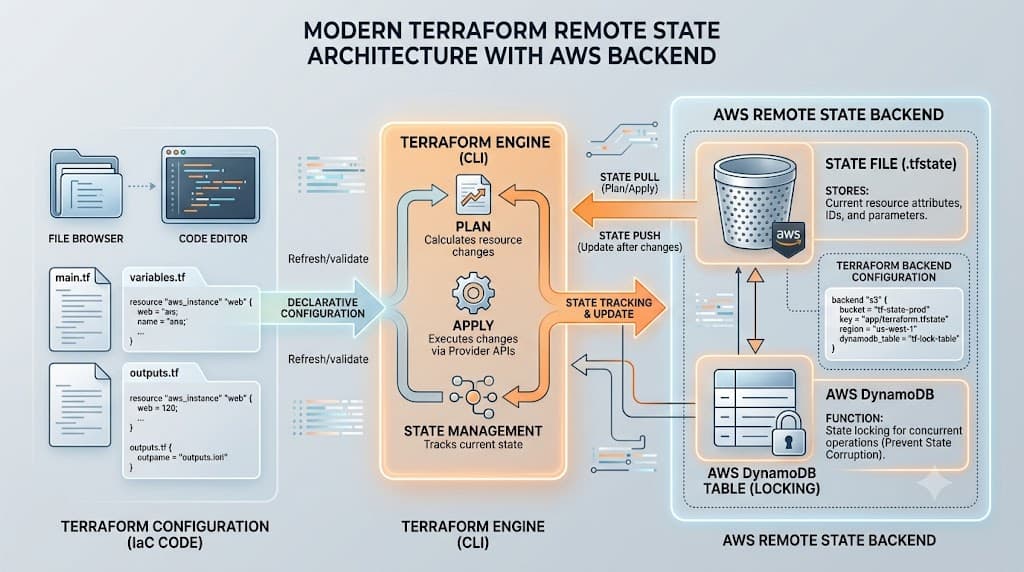
A terraform backend determines how Terraform loads and stores its state data. By default, Terraform uses a local backend, storing your state in a local terraform.tfstate file on your machine. While this works well for individual experimentation, real-world engineering requires a remote backend. A remote backend stores the state file in a centralized, shared storage provider such as AWS S3, Google Cloud Storage, or Azure Blob Storage, while often supporting native state locking to prevent concurrent write collisions. This architecture enables distributed teams, automated CI/CD pipelines, and cloud engineers to collaborate safely on the same infrastructure without overwriting each other's changes or risking state drift.
Quick Answer
A terraform backend is the configuration block that dictates where and how Terraform stores its state file. Instead of keeping local files on a single engineer's laptop, a remote backend secures the state in centralized object storage equipped with locking mechanisms. To get started, you define a backend block within your terraform configuration block, run terraform init to migrate your local state, and execute commands like terraform plan and terraform apply safely against shared infrastructure.
Understanding the Concept
Infrastructure as Code tools require a source of truth to map real-world resources to your configuration files. In Terraform, this mapping is known as the state. Without state, Terraform would have no way of knowing which cloud resources it previously provisioned, making incremental updates or deletions impossible. When multiple engineers or automated deployment scripts begin working on the same cloud environment, local state files quickly become out of sync. This divergence leads to race conditions, orphaned resources, and broken deployments.
Transitioning to a remote storage model shifts the responsibility of state maintenance away from individual local environments and into a durable, version-controlled cloud datastore. This shift brings immense benefits, including centralized visibility, disaster recovery, and audit trails. However, it also introduces new operational requirements, such as ensuring that your storage buckets have proper access control lists, encryption at rest, and state locking enabled to protect against concurrent modifications.
Syntax and configuration
The backend configuration block resides inside the primary terraform block in your HCL code. It specifies the provider-specific parameters required to connect to your remote storage. Below is a production-grade example using Amazon Web Services as the remote datastore.
terraform {
  required_version = ">= 1.6.0"
  required_providers {
    aws = {
      source  = "hashicorp/aws"
      source  = "hashicorp/aws"
      version = "~> 5.0"
    }
  }
  backend "s3" {
    bucket         = "my-company-terraform-state-prod"
    key            = "networking/vpc/terraform.tfstate"
    region         = "us-east-1"
    dynamodb_table = "terraform-state-locks"
    encrypt        = true
  }
}
Every argument in this block serves a specific operational purpose. The bucket argument specifies the unique name of the S3 bucket where state files live. The key argument defines the exact file path and name inside that bucket, allowing you to scope state files by environment and microservice. The region argument ensures Terraform targets the correct geographical cloud endpoint. The dynamodb_table argument points to a DynamoDB table used exclusively for state locking, preventing two engineers from applying changes simultaneously. Finally, encrypt = true ensures that the state file—which may contain sensitive metadata or output values—is encrypted on the storage server.
It is critical never to hard-code sensitive credentials, account numbers, or secret access keys directly into your backend configuration block. Instead, supply AWS credentials via environment variables, shared credential files, or IAM instance profiles to maintain a secure posture.
How It Works
When you execute any Terraform command that interacts with infrastructure, Terraform goes through a precise sequence of initialization, locking, reading, planning, writing, and unlocking. Understanding this lifecycle helps demystify how remote backends coordinate team activity.
When a command starts, Terraform reads the backend configuration and establishes a secure connection to the remote storage provider. Before performing any read or write operations against the state file, Terraform checks if a locking mechanism is configured. If a DynamoDB table or native locking provider is specified, Terraform attempts to write a lock item containing a unique lock ID. If the lock write succeeds, Terraform knows it has exclusive access to the state. If the write fails because another lock item already exists, Terraform halts execution and reports who holds the lock and when it was acquired.
Once the lock is secured, Terraform downloads or reads the remote state into memory, compares it against your local HCL configuration files, and queries the target cloud provider APIs to inspect current real-world resource attributes. This comparison generates the execution plan. If you proceed with an apply command, Terraform sends the necessary API calls to create, update, or destroy cloud resources. Upon completion, Terraform uploads the updated state file back to the remote storage bucket and releases the state lock.
CLI workflow
The Terraform command-line interface manages the transition between local and remote states through distinct operational phases. Running terraform init is the foundational first step. When you add a backend block to an existing configuration and run terraform init, Terraform detects the new block and prompts you to migrate your existing state from local storage to the remote backend.
$ terraform init

Initializing the backend...

Successfully configured the backend "s3Swami"! Terraform will automatically
use this backend unless the backend configuration changes.

Do you want to migrate all existing state to the new backend?
Terraform will copy all existing state, with the previous local state
remaining unencrypted on your local disk.

  Enter a value: yes
Answering yes instructs the CLI to upload the local state file to the remote bucket and clean up the local reference. Once initialized, standard workflows resume. You execute terraform plan to preview infrastructure changes without modifying actual resources, carefully reviewing the output to ensure no unexpected modifications are scheduled. When satisfied, you execute terraform apply to execute the plan, which triggers remote state updates and lock management automatically.
Practical Terraform Example
To see how a remote backend integrates into a complete provisioning workflow, let us examine a working example that provisions a secure AWS S3 bucket while utilizing an S3 remote backend for state persistence.
First, configure your provider and backend blocks in a main.tf file. Ensure your AWS credentials are exported in your terminal session via environment variables such as AWS_ACCESS_KEY_ID and AWS_SECRET_ACCESS_KEY, or authenticated via your cloud provider's official CLI tool.
terraform {
  required_version = ">= 1.6.0"
  required_providers {
    aws = {
      source  = "hashicorp/aws"
      version = "~> 5.0"
    }
  }
  backend "s3" {
    bucket         = "example-org-tf-state-store"
    key            = "app/storage/terraform.tfstate"
    region         = "us-west-2"
    dynamodb_table = "example-org-locks"
    encrypt        = true
  }
}

provider "aws" {
  region = "us-west-2"
}

resource "aws_s3_bucket" "data_lake" {
  bucket = "example-org-analytics-data-lake-bucket"
}

resource "aws_s3_bucket_ownership_controls" "example" {
  bucket = aws_s3_bucket.data_lake.id
  rule {
    object_ownership = "BucketOwnerEnforced"
  }
}
Example
Walking through the execution script demonstrates how the CLI interacts with the backend during a standard infrastructure deployment. First, initialize your working directory to configure the remote state connection:
$ terraform init
Next, generate an execution plan to verify what resources Terraform will create. This is a read-only operation that inspects the remote state and compares it against your HCL code:
$ terraform plan -out=tfplan
Review the terminal output carefully. If the plan matches your intent, apply the saved plan file to provision the actual cloud infrastructure. Terraform will acquire the state lock, apply the changes, upload the new state to S3, and release the lock:
$ <a href="/article/terraform-apply-create-and-update-infrastructure-2" class="text-primary font-semibold hover:underline">terraform apply</a> tfplan
Verification
Verifying that your remote backend and state synchronization are operating correctly is an essential quality gate before rolling out infrastructure changes across a wider engineering team. Verification involves both inspecting local CLI state metadata and examining the remote storage bucket directly to confirm that state files are successfully written, versioned, and locked during execution.
Verification
You can inspect your active backend configuration at any time directly from your terminal without making network calls to your cloud provider. Run the following command to print backend details:
$ terraform workspace show
default
To verify that the remote state is actively being read and written, inspect the state contents without modifying anything by running terraform show or terraform state list. These commands query the remote bucket, download the current state into memory, and display managed resources:
$ terraform state list
aws_s3_bucket.data_lake
aws_s3_bucket_ownership_controls.example
For deeper verification, you can log into your cloud provider's management console or use the cloud CLI to inspect the underlying storage bucket. For instance, using the AWS CLI, verify that the state file exists at the correct S3 object key and that versioning is enabled on the bucket:
$ aws s3 ls s3://example-org-tf-state-store/app/storage/
2026-03-30 10:15:22        4210 terraform.tfstate
Checking the DynamoDB lock table during an active plan or apply operation also lets you verify that state locking is functioning as expected, preventing concurrent write collisions.
Common Mistakes
Working with remote state introduces several recurring pitfalls that can disrupt team workflows, corrupt state files, or expose sensitive infrastructure data if left unaddressed. One of the most frequent mistakes is skipping terraform plan and directly executing terraform apply in shared production environments. Without reviewing the execution plan, operators risk making unintended destructive changes, such as replacing critical databases or terminating active compute instances.
Another severe mistake is hard-coding sensitive cloud credentials or access tokens directly into the backend HCL configuration block. If code repositories are shared on platforms like GitHub, exposing these credentials compromises your entire cloud account. Always inject authentication tokens dynamically via environment variables or secure vault integrations.
Misunderstanding state locks is also common. Engineers sometimes panic when a lock fails to release after a crashed CI/CD pipeline, attempting to manually delete files rather than investigating the locking mechanism. Finally, failing to enable state bucket versioning leaves teams vulnerable to accidental state deletion or corruption with no straightforward recovery path.
Failure modes
When things go wrong with remote backends, specific failure modes typically manifest during initialization, planning, or execution. Lock contention is a frequent failure mode where a previous Terraform process crashed or was forcefully terminated, leaving an active lock entry in the DynamoDB table. Subsequent runs fail with an error message indicating that the state is locked:
Error: Error acquiring the state lock

Error message: ConditionalCheckFailedException: The conditional request failed
Lock Info:
  ID:        a1b2c3d4-e5f6-7890-abcd-ef0123456789
  Path:      example-org-tf-state-store/app/storage/terraform.tfstate
  Operation: OperationTypeApply
  Who:       runner@ci-cd-agent-node-4
  Created:   2026-03-30 10:00:00 UTC
Another common failure mode involves provider and version mismatches. If Engineer A runs Terraform version 1.8 and updates the remote state file, Engineer B attempting to run Terraform version 1.5 against the same backend will encounter serialization errors because older CLI versions cannot parse state formats generated by newer releases. Always pin your required Terraform and provider versions in the configuration block.
Best Practices
Implementing a robust remote state strategy requires adhering to industry-proven best practices around security, automation, and lifecycle management. First and foremost, always enable encryption at rest and encryption in transit for your remote state storage. State files frequently contain sensitive outputs, database passwords, and resource identifiers that must be protected from unauthorized access.
Enforce strict access control policies using cloud IAM roles and bucket policies. Only authorized service accounts and specific engineering groups should have read and write permissions to the state storage bucket and locking tables. Never grant broad public access or overly permissive wildcard policies.
Integrate your Terraform workflows into automated CI/CD pipelines rather than running applies from local developer laptops whenever possible. CI/CD runners provide a consistent, audited execution environment where terraform plan results can be reviewed in pull requests before being automatically or manually applied. Finally, always enable object versioning and lifecycle retention rules on your state storage buckets so you can roll back to previous state iterations in the event of accidental corruption or deletion.
Troubleshooting
When you encounter stubborn issues with remote state synchronization, having a reliable troubleshooting methodology is critical to restoring normal operations without losing infrastructure data. Common issues range from persistent state locks to backend initialization failures caused by altered network policies or missing permissions.
Troubleshooting
When a state lock becomes permanently stuck because a CI/CD job timed out or crashed, you must manually release the lock after verifying that no active Terraform process is running. Never force-unlock a state if another engineer is actively applying changes.
To safely resolve a stuck lock, use the terraform force-unlock command paired with the specific lock ID provided in the error message:
$ terraform force-unlock a1b2c3d4-e5f6-7890-abcd-ef0123456789

Terraform will unlock the remote state with the given ID.
Do you want to thực hiện this? Only a 'yes' will be accepted to support automation.

  Enter a value: yes

Terraform successfully unlocked the remote state!
After executing the force-unlock command, verify that the lock item has been cleared from your locking table, then re-initialize your working directory using terraform init -reconfigure if backend storage parameters have changed. This clears local cache files and re-establishes a clean connection to your remote backend.
📌 Recommended Next Guides & References
  <li>
    <a href="/article/docker-and-kubernetes-how-they-work-together-2" class="text-primary hover:underline font-semibold flex items-center gap-2">
      <span>→</span> <span>Docker and Kubernetes: How They Work Together</span>
    </a>
  </li>

  <li>
    <a href="/article/kubernetes-ingress-explained" class="text-primary hover:underline font-semibold flex items-center gap-2">
      <span>→</span> <span>Kubernetes Ingress Explained: Routing, Controllers, and TLS</span>
    </a>
  </li>

  <li>
    <a href="/article/kubernetes-ingress-controller-explained" class="text-primary hover:underline font-semibold flex items-center gap-2">
      <span>→</span> <span>Kubernetes Ingress Controller Explained: Architecture, Routing, and Implementation</span>
    </a>
  </li>