Quick Answer
Deploying virtual servers in cloud environments requires repeatable, version-controlled workflows to eliminate manual configuration drift and reduce human error. A terraform ec2 instance setup allows engineers to define Amazon Web Services virtual machines using HashiCorp Configuration Language (HCL). By declaring the desired end state of your infrastructure in configuration files, the Terraform CLI computes an execution plan and provisions the required computing resources safely and predictably.
To accomplish this quickly, you define an AWS provider and a target resource block inside your working directory. For example, initializing the AWS provider and declaring a basic virtual machine involves configuring your target region, selecting a valid Amazon Machine Image ID, and choosing an appropriate instance type. Once saved, executing the standard initialization and application workflow instructs the tool to communicate with the AWS API and spin up the hardware according to your exact specifications, integrating smoothly into modern CI/CD pipelines.
Quick Answer
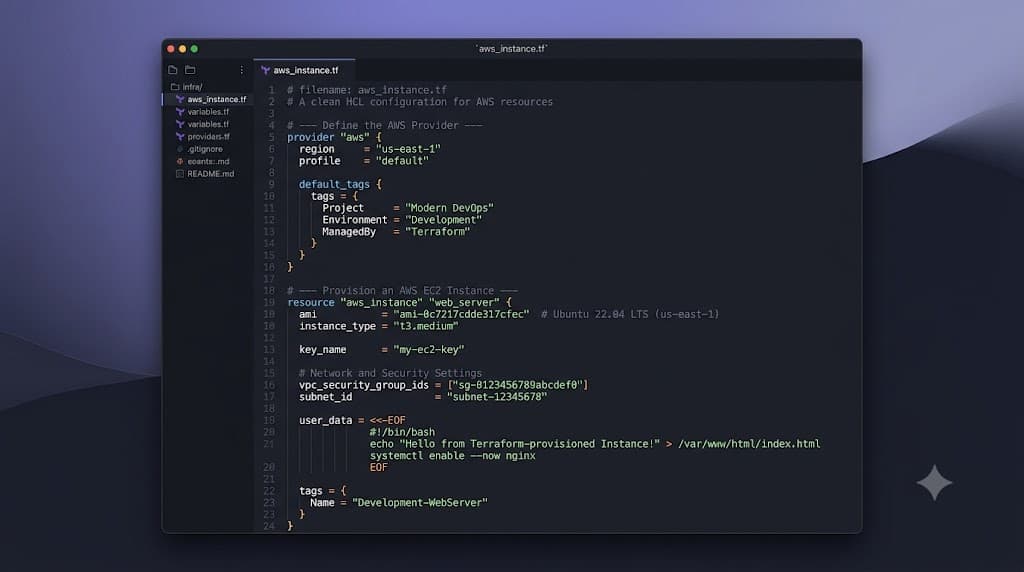
A terraform ec2 instance is a declared virtual server resource managed via HashiCorp's Infrastructure as Code tooling. Instead of clicking through the AWS Management Console, you write declarative HCL code that tells Terraform what infrastructure should exist. Here is a minimal working configuration block that provisions a basic virtual machine using an Amazon Linux image:
provider "aws" {
  region = "us-east-1"
}

resource "aws_instance" "web" {
  ami           = "ami-0c55b159cbfafe1f0"
  instance_type = "t2.micro"

  tags = {
    Name = "HelloWorldServer"
  }
}
When you execute this code through the Terraform CLI lifecycle, it authenticates against your AWS account, compares your local configuration against the current state file, and executes the necessary API calls to launch the server. This guarantees that your cloud environment matches your exact code declaration.
Understanding the Concept
Infrastructure as Code shifts the paradigm of managing cloud environments from manual administrative tasks to software development workflows. Instead of logging into a web console or running imperative shell scripts, engineers use declarative languages like HCL to describe the desired state of their infrastructure. The core engine reads these files, resolves dependencies between components, and determines the most efficient path to achieve the target state.
Central to this architecture is the concept of state management. Terraform maintains a state file, typically named terraform.tfstate, which acts as a single source of truth mapping your real-world AWS resources to your HCL configurations. When you define a terraform aws ec2 resource, the engine records its unique cloud identifier, metadata, and configuration attributes in this state file. During subsequent runs, Terraform uses this state to calculate whether resources need to be created, modified, or destroyed.
Understanding providers is equally vital. A provider is a plugin that translates your HCL code into the specific API requests required by your cloud platform. The AWS provider handles everything from security groups and virtual private clouds to compute instances. Because these configurations are stored in text files, they can be version-controlled in Git, reviewed through pull requests, and tested automatically before being deployed into production environments.
How It Works
Syntax and configuration
Configuring a production-ready virtual machine requires specific blocks that establish authentication, networking, and instance parameters. The provider block specifies which cloud platform and region you are targeting, while the resource block defines the specific type of component you want to build. For an aws_instance terraform resource, mandatory attributes include the Amazon Machine Image identifier and the instance sizing tier.
Beyond basic parameters, robust configurations incorporate networking elements such as Virtual Private Clouds, subnets, and security groups. Hard-coding credentials inside these configuration files introduces severe security risks. Instead, modern workflows rely on environment variables, shared credentials files, or IAM instance profiles to authenticate securely. Furthermore, utilizing input variables and output blocks allows engineers to parameterize their code, making templates reusable across staging and production environments without duplicating logic.
CLI workflow
The Terraform command-line interface provides a structured sequence of commands to safely move infrastructure from code to reality. The workflow always begins in a clean working directory containing your HCL files. First, you run the initialization command to download necessary provider plugins and configure your state backend. Next, you format your code files and run a validation check to catch syntax errors early.
The core of the execution workflow relies on generating an execution plan. This plan inspects your current state, queries the target cloud provider, and displays a detailed preview of what changes will occur. Reviewing this output ensures that no unintended modifications or destructive replacements will happen when you apply the configuration. Once verified, you execute the apply command to commit the changes to your cloud environment.
Practical Terraform Example
Example
Deploying a secure and maintainable virtual machine involves more than just a single resource block. Below is a complete, production-ready HCL configuration demonstrating how to deploy a secure terraform aws ec2 resource complete with tagging, networking references, and secure shell access:
terraform {
  required_version = ">= 1.0.0"
  required_providers {
    aws = {
      source  = "hashicorp/aws"
      version = "~> 5.0"
    }
  }
}

provider "aws" {
  region = "us-west-2"
}

resource "aws_vpc" "main" {
  cidr_block           = "10.0.0.0/16"
  enable_dns_hostnames = true

  tags = {
    Name = "production-vpc"
  }
}

resource "aws_subnet" "public" {
  vpc_id                  = aws_vpc.main.id
  cidr_block              = "10.0.1.0/24"
  map_public_ip_on_launch = true

  tags = {
    Name = "production-public-subnet"
  }
}

resource "aws_security_group" "web_sg" {
  name        = "web-server-sg"
  description = "Allow inbound HTTP and SSH traffic"
  vpc_id      = aws_vpc.main.id

  ingress {
    description = "Allow SSH from trusted IPs"
    from_port   = 22
    to_port     = 22
    protocol    = "tcp"
    cidr_blocks = ["203.0.113.50/32"]
  }

  ingress {
    description = "Allow HTTP traffic"
    from_port   = 80
    to_port     = 80
    protocol    = "tcp"
    cidr_blocks = ["0.0.0.0/0"]
  }

  egress {
    description = "Allow all outbound traffic"
    from_port   = 0
    to_port     = 0
    protocol    = "-1"
    cidr_blocks = ["0.0.0.0/0"]
  }

  tags = {
    Name = "web-security-group"
  }
}

resource "aws_instance" "web_server" {
  ami                  = "ami-07fee15f4a7c645d9"
  instance_type        = "t3.micro"
  subnet_id            = aws_subnet.public.id
  vpc_security_group_ids = [aws_security_group.web_sg.id]

  tags = {
    Name        = "ProductionWebServer"
    Environment = "Production"
  }
}

output "instance_public_ip" {
  description = "Public IP address of the web server"
  value       = aws_instance.web_server.public_ip
}
To execute this configuration successfully, run the following terminal command sequence:
terraform init
terraform fmt
terraform validate
terraform plan -out=tfplan
<a href="/article/terraform-apply-create-and-update-infrastructure-2" class="text-primary font-semibold hover:underline">terraform apply</a> tfplan
The initialization step downloads the AWS provider plugin. Formatting and validation ensure your syntax is clean. The planning phase saves a binary execution plan to a file, which is then explicitly applied to provision the VPC, subnet, security group, and virtual machine in your AWS account.
Verification
Ensuring that your infrastructure deployed correctly requires checking both your local execution state and the remote cloud environment. After a successful apply operation, Terraform outputs any defined variables, such as the public IP address of your newly launched server. You can inspect the current local state at any time by running list or show inspection commands in your terminal.
<a href="/article/terraform-state-explained-2" class="text-primary font-semibold hover:underline">terraform state</a> list
terraform state show aws_instance.web_server
Beyond local state checks, you should verify the resource directly using the AWS Command Line Interface or the cloud management console. Running an AWS CLI describe command confirms that the virtual machine status is running and that its networking attributes match your expectations:
aws ec2 describe-instances --filters "Name=tag:Name,Values=ProductionWebServer"
This multi-layered verification process guarantees that the cloud provider has actually accepted and initialized your hardware, ruling out silent failures or asynchronous provisioning errors.
Common Mistakes
Operating Infrastructure as Code at scale exposes engineers to several frequent pitfalls. One of the most dangerous mistakes is hard-coding sensitive credentials, access keys, or secret tokens directly inside your HCL configuration files. If committed to a shared version control repository like GitHub, these secrets can be compromised instantly. Always rely on secure environment variables or IAM roles.
Another critical error is skipping the execution plan review phase. Running apply without carefully inspecting a plan can result in accidental resource destruction or unintended modifications. Similarly, mishandling state files—such as storing state locally on a developer laptop without locking—leads to race conditions, state corruption, and conflicting updates when multiple engineers work on the same infrastructure. Finally, using outdated provider arguments or deprecated resource types can cause sudden upgrade failures and unpredictable runtime behavior.
Best Practices
Production environments demand rigorous standards for reliability, security, and maintainability. A foundational best practice is implementing remote state storage using cloud object storage paired with a state locking mechanism. Storing state remotely ensures that your team shares a single source of truth, while locking prevents simultaneous conflicting applies from corrupting the state file.
Parameterization is equally important. Avoid scattering hard-coded strings throughout your code; instead, leverage input variables, local values, and output modules to make your configurations reusable and clean. Integrating your workflow into automated pipelines ensures that code formatting, static analysis, and security scanning happen consistently before any infrastructure change reaches production.
Troubleshooting
Failure modes
When provisioning cloud infrastructure, engineers frequently encounter specific failure modes that halt execution. Provider authentication errors occur when local credentials are expired, misconfigured, or lack the necessary IAM permissions to create virtual servers. Region mismatches happen when you reference an AMI ID that does not exist in the specific AWS region declared in your provider block.
State locking conflicts arise when a previous Terraform run terminated abruptly, leaving an active lock on your remote state backend. To resolve authentication errors, verify your active credentials using identity inspection commands. For region mismatches, ensure your AMI IDs align perfectly with your target region. If a state lock becomes stuck due to a crashed process, you can safely release the lock using the force-unlock command after confirming no other apply operations are actively running:
terraform force-unlock <LOCK-ID>
Carefully reading error messages returned by the cloud provider API during execution will quickly guide you to the exact line of configuration requiring adjustment.
FAQ
-
Question: What is terraform ec2 instance? Answer: A terraform ec2 instance is a cloud computing resource declared using HashiCorp Configuration Language (HCL) and managed via the Terraform CLI, allowing engineers to automate the provisioning and lifecycle of AWS virtual servers.
-
Question: How does terraform ec2 instance work? Answer: It works by comparing your declarative HCL configuration files against a local or remote state file, calculating an execution plan of necessary API changes, and applying those changes to create or update the virtual machine in AWS.
-
Question: Which commands or HCL blocks are used? Answer: The primary HCL blocks are the provider block and the aws_instance resource block. The primary CLI commands used in the workflow are terraform init, terraform plan, and terraform apply.
-
Question: What are the common mistakes? Answer: Common mistakes include hard-coding credentials in source files, skipping the terraform plan review step, failing to use remote state locking, and using outdated provider arguments or deprecated resource types.
-
Question: How can the result be verified safely? Answer: You can verify the result safely by inspecting the local state using terraform state show and by querying the remote environment using the AWS CLI or cloud management console to confirm the instance status.
📌 Recommended Next Guides & References
  <li>
    <a href="/article/docker-and-kubernetes-how-they-work-together-2" class="text-primary hover:underline font-semibold flex items-center gap-2">
      <span>→</span> <span>Docker and Kubernetes: How They Work Together</span>
    </a>
  </li>

  <li>
    <a href="/article/kubernetes-ingress-explained" class="text-primary hover:underline font-semibold flex items-center gap-2">
      <span>→</span> <span>Kubernetes Ingress Explained: Routing, Controllers, and TLS</span>
    </a>
  </li>

  <li>
    <a href="/article/kubernetes-ingress-controller-explained" class="text-primary hover:underline font-semibold flex items-center gap-2">
      <span>→</span> <span>Kubernetes Ingress Controller Explained: Architecture, Routing, and Implementation</span>
    </a>
  </li>