Quick Answer
GitHub Actions can automate Docker image builds and registry publishing after code changes pass the required checks, turning a manual deployment chore into a reliable, repeatable automated pipeline. Containerizing applications ensures that your software runs consistently across development, staging, and production environments. However, moving from local container builds to an automated continuous integration and continuous delivery pipeline requires careful configuration of runner environments, secure credential management, optimized caching layers, and rigorous security verification. This comprehensive guide walks through building robust container workflows using modern best practices, tooling, and official GitHub Actions components.
Pipeline Architecture
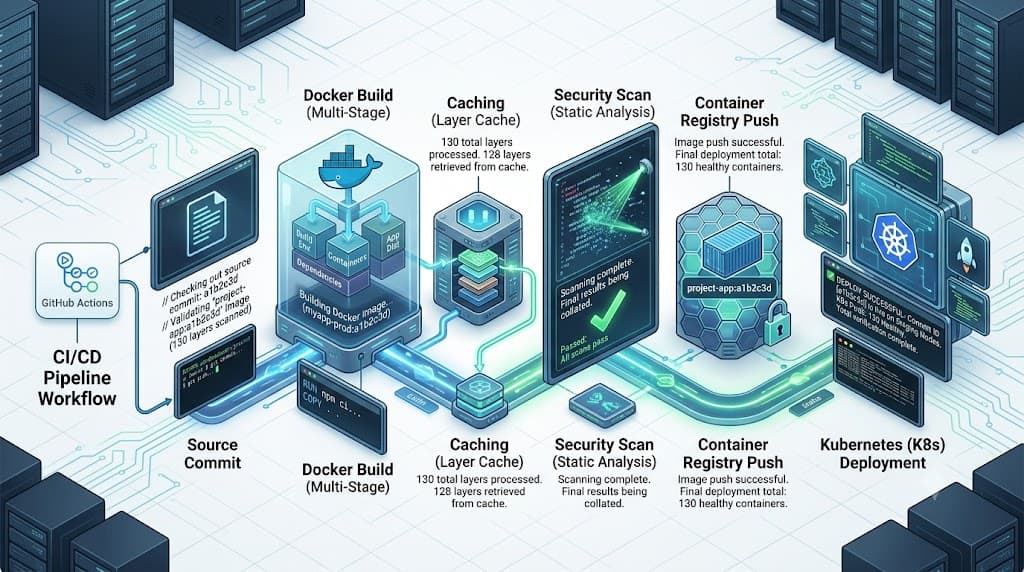
Designing a reliable container pipeline requires understanding how runner environments, event triggers, and permission boundaries interact. A typical GitHub Actions workflow for container CI/CD is triggered by specific Git events, such as pushing code to a main branch, opening a pull request, or publishing a release tag. Each workflow runs inside a secure, isolated runner virtual machine provided by GitHub or hosted on your own infrastructure.
The pipeline architecture generally follows a staged progression. First, the repository checkout step clones the source code onto the runner. Next, the environment initializes the container builder tool, typically Docker Buildx, which provides advanced multi-platform build capabilities and caching integrations. After the build and verification steps complete successfully, the pipeline authenticates with the target container registry—such as GitHub Packages (GHCR), Docker Hub, or a private cloud registry—and pushes the verified artifact.
Workflow permissions play a vital role in security. By default, GitHub Actions workflows run with read-write or read-only GITHUB_TOKEN permissions depending on repository settings. For secure container publishing, it is essential to restrict workflow permissions explicitly in the YAML configuration. Granting only the required permissions prevents compromised workflow steps from altering repository settings or accessing unintended resources. Ensuring that your runner environment is clean, ephemeral, and properly isolated protects both your source code and your downstream container consumers from supply chain tampering.
Docker Build
Building container images inside GitHub Actions efficiently requires leveraging the official docker/build-push-action alongside Docker Buildx. While you can run raw docker build commands directly in a shell step, using dedicated builder actions offers superior performance, native multi-architecture support, and built-in export capabilities for caching.
Below is a practical workflow configuration demonstrating how to set up Docker Buildx and execute a container build using a standard project Dockerfile:
name: Build Container

on:
  push:
    branches: [ "main" ]

jobs:
  build:
    runs-on: ubuntu-latest
    permissions:
      contents: read
      packages: write
    steps:
      - name: Checkout repository
        uses: actions/checkout@v4

      - name: Set up Docker Buildx
        uses: docker/setup-buildx-action@v3

      - name: Build container image
        uses: docker/build-push-action@v5
        with:
          context: .
          file: ./Dockerfile
          push: false
          tags: user/app:latest
In this configuration, the actions/checkout@v4 action fetches your repository source code onto the runner. Following that, docker/setup-buildx-action@v3 initializes Buildx, enabling modern build features. Finally, docker/build-push-action@v5 compiles the image based on the local Dockerfile. Setting push: false ensures that the image is built and tested locally on the runner before any registry upload occurs, allowing you to run integration tests or vulnerability scans against the built artifact first.
When writing your Dockerfile, keep build contexts clean by utilizing a comprehensive .dockerignore file. Excluding unnecessary directories such as .git, local test results, node_modules, or virtual environments drastically reduces the build context size transmitted to the Docker daemon, speeding up both local development and CI/CD pipeline execution.
Authentication
Securely authenticating to a container registry is one of the most critical steps in pipeline design. Never publish container images using plaintext credentials or hardcoded passwords stored directly inside your workflow YAML files. Instead, leverage GitHub Actions secrets to store sensitive tokens, usernames, and passwords securely.
To authenticate with GitHub Packages (GHCR) or Docker Hub without exposing secrets in logs, use the official docker/login-action. This action securely passes credentials to the Docker daemon without echoing sensitive strings to the standard output.
Here is an example demonstrating how to log into GitHub Packages using the automatically generated GITHUB_TOKEN:
      - name: Log in to Container Registry
        uses: docker/login-action@v3
        with:
          registry: ghcr.io
          username: ${{ github.actor }}
          password: ${{ secrets.GITHUB_TOKEN }}
When publishing to Docker Hub or an external private registry, you should store your specific access token or service account password within your repository or organization settings under Settings > Secrets and variables > Actions. You can then reference that secret in your workflow using ${{ secrets.DOCKER_HUB_TOKEN }}.
Properly scoping your registry credentials is vital. If you are using personal access tokens, ensure they possess only the minimum required scopes—such as write:packages and read:packages for GitHub Packages—rather than granting broad administrative access to your entire account or organization.
Tags
Image tagging strategies dictate how consumers identify, pull, and track specific versions of your containerized application. Relying exclusively on mutable tags like latest introduces deployment risks, as an upstream overwrite can unexpectedly change the code running in production.
A robust tagging strategy combines semantic versioning, commit shas, and immutable digests. Semantic tags (e.g., 1.2.0, 1.2, 1) allow users to track stable releases and minor patches automatically. Meanwhile, tagging images with the short Git commit SHA ensures complete traceability between a running container and the exact source code commit that generated it.
The docker/build-push-action allows you to dynamically generate and apply multiple tags during a single build operation:
      - name: Build and push container
        uses: docker/build-push-action@v5
        with:
          context: .
          push: true
          tags: |
            ghcr.io/${{ github.repository }}:latest
            ghcr.io/${{ github.repository }}:${{ github.sha }}
            ghcr.io/${{ github.repository }}:v1.0.0
While tags are convenient, mutable tags can be repushed to point to entirely different image contents over time. For maximum production safety, reference container images in deployment manifests by their immutable content digest (e.g., sha256:abcdef...) rather than a mutable tag. This guarantees that the exact container binary tested in your CI pipeline is the exact binary deployed to production.
Cache
Building container images from scratch on every workflow run wastes valuable computing resources and significantly increases CI/CD pipeline duration. Implementing build caching mechanisms within GitHub Actions allows Docker to reuse layers from previous successful builds, dramatically accelerating build times.
Docker Buildx supports multiple caching backends, with GitHub Actions cache backend (type=gha) being the most seamless option for GitHub-hosted runners. It automatically stores and retrieves build cache artifacts using GitHub's native caching infrastructure.
Here is how you integrate GitHub Actions caching into your build step:
      - name: Build and push with caching
        uses: docker/build-push-action@v5
        with:
          context: .
          push: true
          tags: ghcr.io/${{ github.repository }}:latest
          cache-from: type=gha
          cache-to: type=gha,mode=max
Using cache-from: type=gha instructs Buildx to pull existing cache layers from previous workflow runs, while cache-to: type=gha,mode=max exports all intermediate build stages to the cache storage. The mode=max setting ensures that caching is applied not just to the final image layer, but to all intermediate stages in multi-stage Dockerfiles, yielding maximum build acceleration.
Optimizing your Dockerfile layer order further enhances caching efficiency. Place instructions that change infrequently—such as installing base operating system packages or copying dependency manifest files (e.g., package.json or requirements.txt)—near the top of your Dockerfile. Place frequently modified source code changes near the bottom. This ensures that dependency installation layers are cached and skipped when only application source code is updated.
Push
Once your container image has been successfully built, tagged, and optionally tested, the final step in the publishing workflow is executing the push to your target container registry. When using the docker/build-push-action, pushing is handled natively by setting the push: true parameter within the action configuration.
Executing docker push safely requires ensuring that authentication steps have completed successfully and that network errors or transient registry outages are handled gracefully. GitHub Actions runners provide reliable network connectivity, but registry rate limits—particularly on Docker Hub for anonymous or free-tier authenticated requests—can cause unexpected build failures.
To mitigate registry rate limits and network flakiness, authenticate your builds even when pulling public base images, and consider caching your base images in an internal private registry mirror if you run high-volume enterprise pipelines. Additionally, ensure that your build jobs include appropriate timeout settings so that hung registry connections do not block your runner pool indefinitely.
After a successful push, the workflow should output the image digest and published tags to the action logs. This visibility assists developers in verifying that the correct artifact was pushed and provides immediate reference values for subsequent deployment workflows.
Security
Securing your container supply chain goes beyond protecting registry credentials. Modern CI/CD pipelines must actively inspect container images for known vulnerabilities, misconfigurations, and embedded secrets before those images are deployed to production environments.
Image scanning should be integrated directly into your workflow between the build phase and the push phase. Popular container scanning tools, such as Trivy or Grype, can analyze the filesystem and installed package versions of your built container image against comprehensive vulnerability databases.
Here is an example of adding an image scan step using Trivy in your GitHub Actions workflow:
      - name: Run Trivy vulnerability scanner
        uses: aquasecurity/trivy-action@0.16.0
        with:
          image-ref: 'ghcr.io/${{ github.repository }}:${{ github.sha }}'
          format: 'table'
          exit-code: '1'
          severity: 'CRITICAL,HIGH'

      - name: Push verified image
        if: success()
        uses: docker/build-push-action@v5
        with:
          context: .
          push: true
          tags: ghcr.io/${{ github.repository }}:latest
Configuring exit-code: '1' ensures that the workflow fails immediately if critical or high-severity vulnerabilities are detected, preventing insecure artifacts from ever reaching your container registry. Combined with strict least-privilege token permissions and immutable digest tracking, automated scanning creates a robust defense against software supply chain attacks.
Verification
Testing and verifying published containers ensures that the image not only builds correctly but functions as expected in a runtime environment. A common mistake in container CI/CD is assuming that a successful build equates to a functional application. Subtle runtime errors—such as missing configuration files, incorrect file permissions, or broken entrypoint scripts—often only manifest when the container is actually executed.
To verify your containers within GitHub Actions, you can run integration tests against the newly built image directly on the runner before pushing. Spin up the container using Docker Compose or standard docker run commands, and execute health checks or automated API integration tests against the exposed ports.
Common failure modes to watch out for include incorrect working directories, missing environment variables, and architecture mismatches when building on x86_64 runners for ARM64 targets. If you encounter architecture issues, ensure you configure QEMU emulators using docker/setup-qemu-action alongside Buildx.
When evaluating trade-offs in container pipelines, balance build speed against thoroughness. While comprehensive multi-architecture builds, exhaustive vulnerability scans, and extensive integration tests increase pipeline duration, they provide essential safety guarantees that prevent costly outages in production environments.
📌 Recommended Next Guides & References
  <li>
    <a href="/article/docker-and-kubernetes-how-they-work-together-2" class="text-primary hover:underline font-semibold flex items-center gap-2">
      <span>→</span> <span>Docker and Kubernetes: How They Work Together</span>
    </a>
  </li>

  <li>
    <a href="/article/kubernetes-ingress-explained" class="text-primary hover:underline font-semibold flex items-center gap-2">
      <span>→</span> <span>Kubernetes Ingress Explained: Routing, Controllers, and TLS</span>
    </a>
  </li>

  <li>
    <a href="/article/kubernetes-ingress-controller-explained" class="text-primary hover:underline font-semibold flex items-center gap-2">
      <span>→</span> <span>Kubernetes Ingress Controller Explained: Architecture, Routing, and Implementation</span>
    </a>
  </li>