Quick Answer
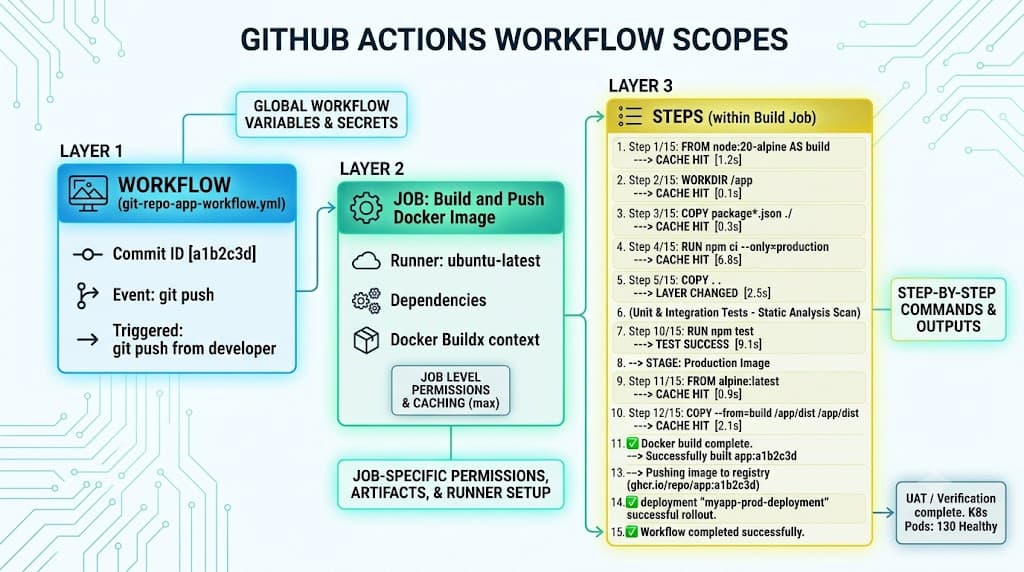
GitHub Actions environment variables provide dynamic configuration values across your CI/CD pipelines, letting you control how jobs and steps execute without hardcoding settings into your YAML files. Alongside environment variables, GitHub Actions provides contexts—such as the github context—which expose rich runtime metadata about the current workflow run, runner environment, and triggering events. Understanding how these configuration mechanisms interact, inherit, and protect sensitive credentials is essential for building robust, secure, and maintainable automation workflows.
Quick Answer
GitHub Actions environment variables provide configuration values at workflow, job, or step scope, while contexts expose workflow metadata. Environment variables are set using the env key in workflow YAML files or dynamically via shell commands using $GITHUB_ENV. Contexts are accessed via expression syntax (e.g., ${{ github.sha }}) and provide deep metadata about the repository, runner, secrets, and workflow state. While environment variables can be overridden at narrower scopes, contexts are read-only and reflect the immutable state of the runtime environment.
Environment Variables
Defining configuration parameters in CI/CD pipelines requires a solid grasp of how env operates within GitHub Actions. At its core, an environment variable is a key-value pair made available to the shell executing your workflow steps. GitHub Actions supplies a robust set of default environment variables out of the box, such as CI, GITHUB_REPOSITORY, GITHUB_WORKFLOW, GITHUB_WORKSPACE, and GITHUB_SHA. These defaults give your scripts immediate awareness of the repository context, runner operating system, and commit metadata without requiring manual wiring.
Custom environment variables can be declared at multiple tiers depending on your pipeline requirements. Setting them globally at the workflow level makes them accessible to every job and step. Setting them at the job level restricts their visibility to a single job's execution graph. Setting them at the individual step level restricts them even further, ensuring that sensitive temporary settings do not leak into subsequent commands.
Beyond static YAML configuration, GitHub Actions supports dynamic environment variable generation at runtime. By writing to the file path located in the $GITHUB_ENV environment variable, any step can export variables that persist for all subsequent steps within the same job. This mechanism bridges the gap between compiled build artifacts, dynamic script outputs, and standard pipeline configuration.
name: Dynamic Env Example
on: [push]
jobs:
  build:
    runs-on: ubuntu-latest
    steps:
      - name: Set dynamic variable
        run: |
          echo "MY_VAR=hello-world" >> $GITHUB_ENV
      - name: Use dynamic variable
        run: |
          echo "The value is $MY_VAR"
Default Variables and Runner Environment
Default variables provided by the runner simplify common tasks. For instance, GITHUB_WORKSPACE points to the default working directory on the runner where your repository code is checked out. Utilizing these built-in variables prevents hardcoding absolute paths that might differ across runner operating systems like Ubuntu, Windows, and macOS. Always inspect runner documentation when moving workflows across different operating systems, as path separators and shell behaviors (Bash vs. PowerShell) affect how environment variables are evaluated.
Scope
Understanding scope inheritance in GitHub Actions prevents configuration leaks and debugging headaches. Variables declared at the workflow level cascade down into every job and step within that file. However, if a job defines a variable with the exact same name, it overrides the workflow-level declaration for that specific job only. Similarly, a step-level variable overrides both job-level and workflow-level declarations for the duration of that single step.
name: Scope Demonstration
on: [push]
env:
  GLOBAL_VAR: "workflow-level"
  OVERLAP_VAR: "workflow-original"

jobs:
  scope-test:
    runs-on: ubuntu-latest
    env:
      JOB_VAR: "job-level"
      OVERLAP_VAR: "job-override"
    steps:
      - name: Check scopes
        env:
          STEP_VAR: "step-level"
          OVERLAP_VAR: "step-override"
        run: |
          echo "Global: $GLOBAL_VAR"
          echo "Job: $JOB_VAR"
          echo "Step: $STEP_VAR"
          echo "Overlap: $OVERLAP_VAR"
Inheritance Hierarchy and Overrides
When structuring complex workflows with dozens of jobs, maintaining a clean scoping hierarchy ensures predictable behavior. Workflow-level variables are ideal for global flags like Node.js versions or environment names (e.g., staging or production). Job-level variables suit service-specific connection strings. Step-level variables are best reserved for one-off flags required by a single tool invocation. Recognizing this hierarchy prevents accidental variable mutation across parallel jobs.
Contexts
Contexts represent a powerful mechanism in GitHub Actions, distinct from standard environment variables. A context is a built-in object managed by GitHub that provides comprehensive information about workflow runs, runner environments, strategy parameters, job statuses, and secrets. Common contexts include github, runner, env, secrets, steps, needs, and matrix.
Unlike traditional environment variables which are passed down to the shell process, expressions referencing contexts are evaluated by GitHub Actions before the step is sent to the runner. This distinction is critical when dealing with security and shell injection prevention. For example, using the github context gives you access to metadata such as github.event_name, github.actor, and github.ref.
name: Context Inspection
on: [push]
jobs:
  inspect:
    runs-on: ubuntu-latest
    steps:
      - name: Print GitHub Context
        run: |
          echo "Triggered by: ${{ github.actor }}"
          echo "Repository: ${{ github.repository }}"
          echo "Branch: ${{ github.ref_name }}"
Difference Between Env, Secrets, and Contexts
Developers frequently confuse environment variables, secrets, and contexts. Environment variables are plaintext configuration values accessible via standard shell syntax ($VAR or %VAR%). Secrets are encrypted configuration values managed securely at the repository, organization, or environment level; they are masked in logs and injected into the runner environment only when explicitly requested. Contexts, on the other hand, are comprehensive data structures containing workflow metadata accessed exclusively via ${{ ... }} expression syntax.
Expressions
Expressions allow you to evaluate data, perform logical comparisons, and manipulate strings within your workflow YAML files. They are enclosed in double curly braces (${{ and }}). Expressions can access contexts, evaluate functions, and combine conditional logic to control whether jobs or steps execute using the if conditional keyword.
Commonly used expression functions include contains(), startsWith(), endsWith(), format(), join(), toJSON(), and fromJSON(). These functions enable dynamic workflow configuration, such as parsing JSON payloads from webhook events or conditionally running deployment steps only when pushing to the main branch.
name: Conditional Expression
on: [push]
jobs:
  deploy:
    runs-on: ubuntu-latest
    if: github.ref == 'refs/heads/main'
    steps:
      - name: Deploy to Production
        run: echo "Deploying main branch..."
Safe Expression Evaluation and Injection Risks
When passing untrusted context data (such as github.event.issue.title or github.head_ref) into shell commands, direct string interpolation can lead to remote code execution vulnerabilities. Instead of referencing untrusted context values directly inside shell scripts (e.g., run: echo "${{ github.event.issue.title }}"), best practice dictates passing the context value into a step-level environment variable first, then referencing that environment variable inside the shell command securely.
name: Secure Variable Passing
on: [issues]
jobs:
  safe-print:
    runs-on: ubuntu-latest
    steps:
      - name: Safe Handling
        env:
          ISSUE_TITLE: ${{ github.event.issue.title }}
        run: |
          echo "Processing issue: $ISSUE_TITLE"
Outputs
Passing data between steps and jobs is a fundamental requirement for multi-stage CI/CD pipelines. Step outputs allow an individual step to calculate a value and make it available to subsequent steps within the same job using the steps.<step-id>.outputs.<output-name> syntax. Job outputs extend this capability across independent jobs by leveraging the needs context.
To define a step output, you write key-value pairs to the $GITHUB_OUTPUT file path rather than standard output streams. Subsequent jobs must declare their dependency on the producing job using the needs keyword before consuming those job outputs.
name: Output Pipeline
on: [push]
jobs:
  producer:
    runs-on: ubuntu-latest
    outputs:
      build_id: ${{ steps.gen-id.outputs.id }}
    steps:
      - id: gen-id
        run: echo "id=artifact-9921" >> $GITHUB_OUTPUT
  consumer:
    needs: producer
    runs-on: ubuntu-latest
    steps:
      - name: Consume Output
        run: echo "Received build ID: ${{ needs.producer.outputs.build_id }}"
Passing Data Across Jobs with Needs
When architecting complex deployment pipelines, relying on job outputs via the needs context ensures proper synchronization. If Job B depends on a test coverage percentage calculated in Job A, declaring needs: test-job ensures Job B does not execute prematurely. Furthermore, job outputs are restricted to string values of limited size, making them ideal for identifiers, version numbers, and flags rather than large data payloads.
Environments
Environments in GitHub Actions provide powerful governance and protection rules for deployment workflows. By associating a job with a named environment (such as production or staging), you can enforce environment protection rules including required reviewers, wait timers, and restricted deployment branches.
Environment-specific secrets and environment variables can also be configured. When a job targets a specific environment, GitHub Actions injects the secrets and variables scoped exclusively to that environment, keeping production credentials isolated from staging or feature branch pipelines.
name: Production Deployment
on:
  push:
    branches: [main]
jobs:
  deploy:
    runs-on: ubuntu-latest
    environment:
      name: production
      url: https://example.com
    steps:
      - name: Deploy
        env:
          PROD_SECRET: ${{ secrets.PROD_API_KEY }}
        run: echo "Deploying to production securely..."
Protection Rules and Secret Isolation
Configuring environment protection rules adds a crucial human-in-the-loop validation gate before production deployments execute. Reviewers must explicitly approve the workflow run in the GitHub UI before the job runner starts. Additionally, restricting deployment branches ensures that developers cannot accidentally push experimental feature code to production environments, maintaining strict audit trails and compliance standards.
Common Mistakes
Even experienced engineers encounter subtle pitfalls when configuring GitHub Actions environment variables and contexts. Recognizing these failure modes ensures reliable automation and protects sensitive repository assets.
One frequent mistake is attempting to use expression syntax ${{ }} inside shell commands directly. Because expressions are evaluated by the runner runner-host before the shell executes, mixing syntax incorrectly can result in syntax errors or evaluation failures. Another common error is modifying $GITHUB_ENV and expecting the variable to be available in the current step; environment variables exported via $GITHUB_ENV only become available in subsequent steps within the same job.
name: Common Mistake Example
on: [push]
jobs:
  mistake-demo:
    runs-on: ubuntu-latest
    steps:
      - name: Incorrect immediate usage
        run: |
          echo "FOO=bar" >> $GITHUB_ENV
          echo "$FOO" # This will be empty because FOO is not set in this step's shell environment
Troubleshooting and Security Trade-offs
When debugging environment variable issues, enable runner diagnostic logging by setting ACTIONS_STEP_DEBUG to true as a repository secret. Be cautious when printing environment variables for debugging purposes, as accidental exposure of secrets in build logs can compromise your entire infrastructure. Always rely on GitHub's automatic secret masking feature and verify that custom environment variables do not inadvertently echo sensitive tokens.
📌 Recommended Next Guides & References
  <li>
    <a href="/article/docker-and-kubernetes-how-they-work-together-2" class="text-primary hover:underline font-semibold flex items-center gap-2">
      <span>→</span> <span>Docker and Kubernetes: How They Work Together</span>
    </a>
  </li>

  <li>
    <a href="/article/kubernetes-ingress-explained" class="text-primary hover:underline font-semibold flex items-center gap-2">
      <span>→</span> <span>Kubernetes Ingress Explained: Routing, Controllers, and TLS</span>
    </a>
  </li>

  <li>
    <a href="/article/kubernetes-ingress-controller-explained" class="text-primary hover:underline font-semibold flex items-center gap-2">
      <span>→</span> <span>Kubernetes Ingress Controller Explained: Architecture, Routing, and Implementation</span>
    </a>
  </li>