Quick Answer
Checking the Linux operating system version is one of the most fundamental tasks for developers, systems administrators, and DevOps engineers. Whether you are troubleshooting a dependency issue on a local workstation, configuring a continuous integration pipeline, or deploying containers to a Kubernetes cluster, knowing the exact distribution, release number, and kernel version is critical. Different Linux distributions handle package management, security patches, and library dependencies in unique ways, making accurate version inspection an essential daily skill.
Quick Answer
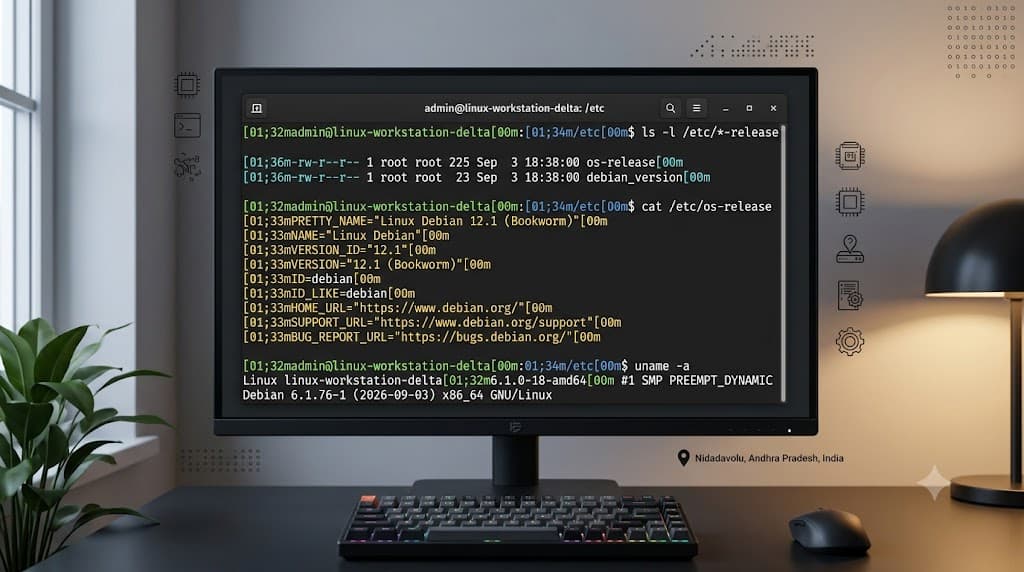
To check your Linux version quickly, open your terminal and run the following command to view detailed distribution and release information:
cat /etc/os-release
For a more structured system-wide summary including the kernel version, machine architecture, and hostname, use:
hostnamectl
If you need to inspect the low-level kernel version specifically, execute:
uname -r
These three commands cover the vast majority of daily inspection needs across modern Linux distributions like Ubuntu, Debian, Red Hat Enterprise Linux, Fedora, and CentOS.
Understanding Check Linux Version
To effectively check the Linux version, you must first understand the fundamental architectural split in every GNU/Linux system: the distinction between the user-space distribution release and the underlying kernel version. When engineers talk about checking their Linux version, they are frequently asking two different questions at the same time: Which specific distribution release are we running, and which Linux kernel version is powering the hardware or container runtime?
The distribution layer—often referred to as the user space—encompasses the package manager, default system utilities, core libraries like glibc, and vendor-specific configuration files. Distributions like Ubuntu 22.04 LTS, Debian 12, or RHEL 9 package software differently, maintain different release lifecycles, and implement distinct security update policies. Knowing your distribution version ensures that you install compatible package versions, configure repositories correctly, and avoid breaking ABI compatibility.
Conversely, the kernel layer is the core operating system component that manages CPU scheduling, memory allocation, hardware drivers, and system calls. A single kernel version, such as Linux 5.15, can be deployed across multiple different distribution families. Developers working with Docker containers, container runtimes, or eBPF-based monitoring tools must often check the kernel version independently of the distribution release because certain networking features, cgroup configurations, or syscalls require specific minimum kernel thresholds regardless of what user-space OS image they build upon.
How It Works: Core Commands and Syntax
Modern Linux systems store system information across various system files, pseudo-filesystems, and binary utilities. Understanding how these underlying mechanisms work empowers you to write robust automation scripts that parse version information reliably across diverse server environments and container images.
Using Release Files and the /etc Directory
Most modern Linux distributions comply with the standard operating system release specification, housing configuration files inside the /etc directory. The primary file to inspect is /etc/os-release, which is a standardized shell-script-style file containing key-value pairs detailing the distribution name, version ID, codename, and support URLs.
cat /etc/os-release
Expected output typically includes variables like NAME, VERSION, ID, VERSION_ID, and VERSION_CODENAME. Because these values are formatted as shell variables, automation scripts can easily source /etc/os-release to conditionally execute logic based on the distribution ID or major version number without relying on screen-scraping command output.
Older distributions or specific enterprise environments may also maintain legacy files such as /etc/redhat-release, /etc/debian_version, or the generic /etc/issue file. While /etc/os-release is universally preferred on modern systemd-based distributions, checking legacy release files remains useful when dealing with legacy virtual machines or stripped-down embedded environments.
Inspecting Systemd Utilities with hostnamectl
On systems utilizing systemd—which includes nearly all modern enterprise Linux distributions—the hostnamectl utility provides a comprehensive overview of the host environment without requiring manual text parsing of release files.
hostnamectl
When executed, hostnamectl returns a clean, human-readable list including the static hostname, icon name, chassis type, machine ID, boot ID, virtualisation technology, operating system release string, and active kernel version. This makes it an exceptionally powerful tool during incident response or remote SSH diagnostics because it aggregates OS and kernel details into a single screen.
Querying the Linux Kernel with uname
When your troubleshooting focuses strictly on low-level operating system mechanics, hardware architecture, or driver compatibility, the uname command is the standard utility for querying kernel information.
uname -a
The -a (all) flag prints every available kernel detail, including the kernel name, network node hostname, kernel release, kernel version timestamp, machine architecture processor type, hardware platform, and operating system name. For more targeted queries, developers frequently rely on specific flags:
# Print the kernel release version
uname -r

# Print the machine architecture (e.g., x86_64, aarch64)
uname -m
Understanding kernel version strings is vital when working with cloud-native infrastructure, where specific kernel patches are required for high-performance networking plugins, storage drivers, or security modules.
Practical Commands and Examples
In real-world development and DevOps workflows, checking the Linux version is rarely an isolated interactive task. It is integrated into automated provisioning scripts, CI/CD pipeline diagnostics, and container image inspection routines. Below are practical examples demonstrating how these commands are applied across different operational contexts.
Automated Version Detection in Bash Scripts
When writing provisioning scripts or setup automation for developer workstations, your script must often adapt based on whether the host is running an Ubuntu, Debian, or Red Hat-based system. By sourcing /etc/os-release, you can implement safe conditional checks:
#!/usr/bin/env bash

if [ -f /etc/os-release ]; then
    . /etc/os-release
    echo "Detected operating system: $NAME $VERSION_ID"

    if [ "$ID" = "ubuntu" ]; then
        echo "Executing Ubuntu-specific configuration..."
    elif [ "$ID" = "rhel" ] || [ "$ID" = "centos" ]; then
        echo "Executing RHEL-family configuration..."
    else
        echo "Unsupported distribution family: $ID"
        exit 1
    fi
else
    echo "Error: /etc/os-release not found. Cannot determine OS version."
    exit 1
fi
This pattern prevents scripts from executing incompatible package manager commands, ensuring robust infrastructure-as-code deployments.
Inspecting Docker Container Base Images
Developers frequently need to verify the exact Linux version of a Docker container image before building microservices or debugging containerized application failures. You can inspect container base images interactively or directly within a Dockerfile build step.
To check the OS version of a running container:
docker run --rm ubuntu:latest cat /etc/os-release
To inspect a custom local image without starting a long-running container session:
docker image inspect my-microservice:v1.2.0
In containerized CI/CD pipelines running on GitHub Actions or GitLab CI, build steps often require verifying the runner's underlying environment to ensure compatibility with native compilation tools or container socket mounts. Running cat /etc/os-release as an initial step in a CI pipeline job log provides immediate context for debugging build failures caused by mismatched glibc versions or missing system packages.
Verifying Kubernetes Node Operating Systems
In Kubernetes environments, cluster nodes may run different operating system distributions or kernel versions depending on the worker node pool configuration (for example, mixing Ubuntu-based nodes with Bottlerocket or Red Hat CoreOS nodes). DevOps engineers can inspect cluster node operating systems using kubectl combined with custom-columns output:
kubectl get nodes -o custom-columns=NAME:.metadata.name,OS-IMAGE:.status.nodeInfo.osImage,KERNEL-VERSION:.status.nodeInfo.kernelVersion,ARCHITECTURE:.status.nodeInfo.architecture
This command queries the Kubernetes API server directly, providing an instant audit trail of every node's operating system release and kernel version without requiring SSH access into individual worker nodes. This is exceptionally useful when planning cluster upgrades, patching kernel vulnerabilities, or scheduling daemonsets that depend on specific host-level modules.
Verification and Safe Troubleshooting
Even with standardized commands, engineers occasionally encounter environments where standard utilities behave unexpectedly or fail due to minimal container configurations, permission restrictions, or stripped-down binaries.
Handling Minimal and Distroless Containers
When working with ultra-minimal container images, such as Alpine Linux, BusyBox, or distroless images, standard system inspection utilities may be absent or behave differently. For instance, Alpine Linux utilizes musl libc instead of glibc and relies on busybox implementations of core utilities.
If hostnamectl or systemctl commands fail with command-not-found errors in minimal containers, fall back to standard file inspection:
# Check Alpine Linux version
cat /etc/alpine-release

# Check generic release file
cat /etc/os-release
In strictly distroless container images—which contain no shell, package manager, or standard utilities—running local inspection commands inside the container is impossible. In these scenarios, verification must occur during the image build pipeline by querying the base image manifest or inspecting image layers via container registry APIs before deployment.
Resolving Permission and Environment Errors
Most version-checking commands (cat /etc/os-release, uname -r, hostnamectl) can be executed safely by standard, unprivileged user accounts. However, certain advanced diagnostic commands or hardware-level queries may require elevated privileges or restricted environment paths.
If you encounter a permission denied or command not found error when running administrative utilities, verify your PATH variable or execute the command with appropriate privileges:
# Verify command location if PATH is restricted
which hostnamectl

# Use sudo if administrative inspection is required
sudo hostnamectl status
Always ensure that automation scripts gracefully catch missing command errors rather than failing silently, allowing monitoring systems to report environment anomalies accurately.
Common Mistakes and Best Practices
Avoiding common pitfalls ensures that your automation scripts, container builds, and troubleshooting sessions remain reliable and secure across diverse Linux environments.
Common Mistakes to Avoid
- Hardcoding Distribution Assumptions: Assuming that all Linux environments use identical file paths or package managers. Always check
/etc/os-releasedynamically rather than assuming/etc/debian_versionor/etc/redhat-releaseexists. - Confusing Kernel Versions with Distribution Releases: Assuming that upgrading a package manager updates the Linux kernel, or vice versa. Remember that user-space package updates operate independently of kernel upgrades unless using specific kernel-live-patching mechanisms.
- Relying on Outdated Legacy Files: Utilizing deprecated inspection methods like parsing
/proc/versiondirectly when standardized files like/etc/os-releaseprovide cleaner, more structured key-value data. - Running Unnecessary Privileged Commands: Executing inspection scripts with
sudowhen standard read-only commands likecat /etc/os-releasedo not require root privileges.
Best Practices for Developers and DevOps Engineers
- Write Defensive Scripts: Always check for the existence of release files or commands before parsing their output in automation scripts.
- Audit Container Base Images: Regularly inspect container base images in your Dockerfiles and CI/CD pipelines to track upstream operating system lifecycle support and security updates.
- Leverage API-Driven Auditing: In Kubernetes and cloud environments, prefer API-level node inspection (
kubectl get nodes) over manual SSH access for compliance and version tracking. - Document Environment Prerequisites: Clearly specify required Linux distribution versions and minimum kernel thresholds in your project's documentation to streamline developer onboarding and deployment troubleshooting.
📌 Recommended Next Guides & References
  <li>
    <a href="/article/docker-and-kubernetes-how-they-work-together-2" class="text-primary hover:underline font-semibold flex items-center gap-2">
      <span>→</span> <span>Docker and Kubernetes: How They Work Together</span>
    </a>
  </li>

  <li>
    <a href="/article/kubernetes-ingress-explained" class="text-primary hover:underline font-semibold flex items-center gap-2">
      <span>→</span> <span>Kubernetes Ingress Explained: Routing, Controllers, and TLS</span>
    </a>
  </li>

  <li>
    <a href="/article/kubernetes-ingress-controller-explained" class="text-primary hover:underline font-semibold flex items-center gap-2">
      <span>→</span> <span>Kubernetes Ingress Controller Explained: Architecture, Routing, and Implementation</span>
    </a>
  </li>