Quick Answer
When managing a GNU/Linux system or troubleshooting a malfunctioning server application, knowing how to properly execute a linux kill process operation is an essential skill for every developer, system administrator, and DevOps engineer. Whether an application has locked up under heavy load, an automated script is looping indefinitely, or a background worker is consuming all available memory, administrators must be able to stop execution quickly and safely.
Quick Answer
To terminate a runaway or unresponsive application, you can execute a linux kill process command using either its unique Process ID (PID) or its process name. The standard approach is to use the kill utility paired with the process identifier. For example, running kill 12345 sends a default SIGTERM signal, requesting the process to shut down cleanly. If the application refuses to respond, you can force immediate termination by supplying the SIGKILL signal via kill -9 12345. Alternatively, if you know the exact name of the executable rather than its numeric ID, you can use pkill process_name to target all matching instances instantly across the shell environment.
Understanding Linux Processes and Signals
To master process management in a Unix-like environment, you must understand that the Linux kernel manages every running program as an individual process assigned a unique integer known as a PID. When you interact with the command line to stop a program, you are not simply pulling the plug; you are communicating with the kernel by sending specific software interrupts called signals. These signals dictate how the receiving process should behave.
The operating system supports dozens of distinct signals, but developers and operations engineers typically interact with a small subset. Understanding the exact behavior of each signal prevents accidental data corruption and unexpected application downtime in production environments.
The Role of SIGTERM (Signal 15)
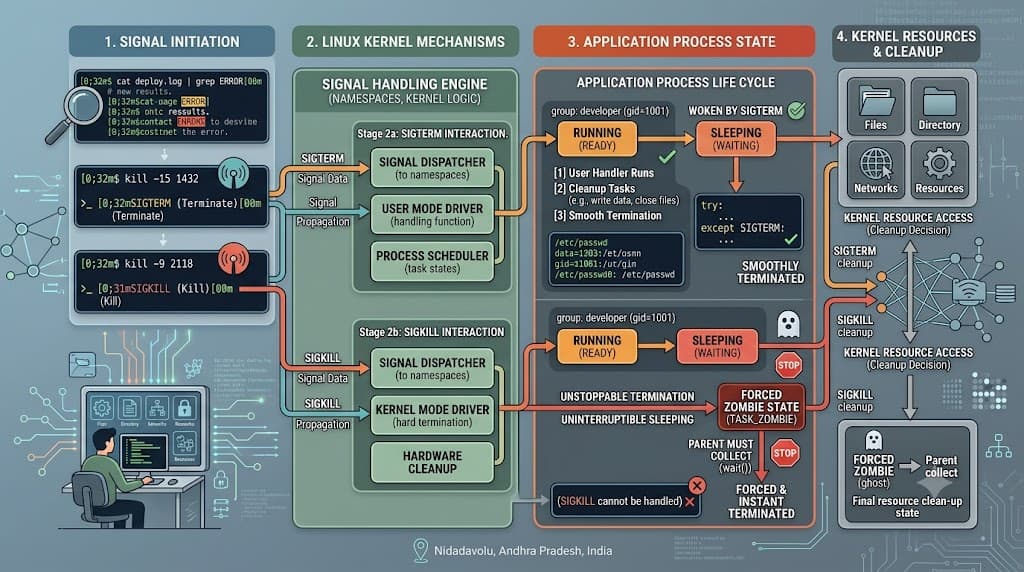
SIGTERM (Signal 15) is the default signal sent by the standard kill utility when no other signal is specified. It stands for signal terminate. When a process receives SIGTERM, it is treated as a polite request from the operating system to shut down gracefully.
Well-written software traps this signal, allowing the application to execute cleanup routines. These routines include closing active database connections, flushing internal logs to disk, writing cached states, and releasing network sockets before exiting. Whenever possible, developers should always attempt a graceful shutdown using SIGTERM before resorting to harsher measures.
The Role of SIGKILL (Signal 9)
SIGKILL (Signal 9) is the nuclear option of process management. Unlike SIGTERM, the SIGKILL signal cannot be caught, blocked, or ignored by the target application because it is handled directly by the Linux kernel.
When you issue a command like kill -9, the kernel immediately stops scheduling CPU time for that process and reclaims its allocated system resources, such as RAM and file descriptors. Because the process never receives the signal internally, it has zero opportunity to execute cleanup handlers. This means temporary files may be left behind on the filesystem, and database transactions could be left in an incomplete state. Therefore, SIGKILL should be reserved strictly for zombie processes or applications that are entirely unresponsive to SIGTERM.
Other Notable Signals
Beyond SIGTERM and SIGKILL, several other signals are exceptionally useful during software development and debugging:
SIGHUP(Signal 1): Historically used to signal a hang-up on a serial line, modern daemons frequently interpretSIGHUPas a command to reload their configuration files without restarting the entire service.SIGINT(Signal 2): Sent automatically by the terminal when you pressCtrl+C. It interrupts the foreground process gracefully.SIGQUIT(Signal 3): Similar toSIGINT, but it prompts the process to generate a core dump for debugging purposes before terminating.SIGSTOP/SIGCONT(Signals 19 and 18): Used to pause execution entirely and resume it later, which is invaluable for backgrounding and job control.
Practical Commands and Examples
Executing a linux kill process operation involves identifying the target and applying the correct command syntax. Below are real terminal examples demonstrating how to locate processes, examine their states, and terminate them safely across various developer scenarios.
Finding the Target Process ID
Before you can terminate an application, you need to discover its PID. The most common tool for listing active processes is ps. Developers typically combine ps with grep to filter the output for a specific application name.
ps aux | grep node
Expected behavior: The terminal outputs a list of all running processes owned by your user account (or all users if run with sudo) that match the search term node. The second column in the output displays the numeric PID required for subsequent commands. Alternatively, you can use the pgrep utility to return only the PIDs directly:
pgrep -u deploy-user node
Terminating Processes by PID Using Kill
Once you have acquired the numeric identifier from your search, you can pass it directly to the kill utility. By default, this issues a graceful termination request.
kill 4815
If the application fails to exit after a reasonable grace period (typically 5 to 10 seconds), you can escalate the command to force closure:
kill -9 4815
Verification: To confirm that the process has successfully vanished from the system process table, run your search command again or inspect the PID directly:
ps -p 4815
If the process is gone, ps will return an error message stating that no such process exists.
Terminating Processes by Name Using Pkill and Killall
When dealing with multiple spawned worker threads or when you want to target every instance of an application without looking up individual PIDs, name-based utilities are much more efficient.
pkill -f python3
The -f flag instructs pkill to match against the full command argument string rather than just the executable name, which is exceptionally useful when running multiple distinct Python scripts on the same server.
Similarly, the killall command targets processes by exact executable name:
killall -u www-data nginx
Failure modes: Be extremely cautious when using name-based termination commands in shared environments. If your search pattern is too broad (for example, matching just java or python), you risk terminating unrelated background services or companion applications running on the same machine.
Common Mistakes and Risks
Working with system-level process management commands carries inherent risks. Novice developers and administrators frequently make critical errors that lead to data loss or system instability.
One of the most common mistakes is the reflexive, indiscriminate use of kill -9 for every scenario. While SIGKILL guarantees the process stops immediately, bypassing graceful shutdown handlers often results in corrupted database write-ahead logs, dangling file locks, and half-written configuration files. Always try SIGTERM first and give the application time to clean up.
Another severe hazard is executing destructive termination commands with elevated root privileges without verifying the target. Running sudo killall or targeting broad process patterns like sudo pkill java on a multi-tenant application server can inadvertently take down mission-critical backend services, monitoring agents, or database engines supporting other teams.
Finally, developers often fail to verify process ownership. Attempting to kill a system daemon owned by root or another user account without adequate permissions will result in frustrating permission denied errors. Always check ownership using ps before executing terminal management commands.
Troubleshooting and Safe Verification
When dealing with a frozen or unresponsive application in a staging or development environment, a systematic troubleshooting approach prevents accidental disruption of healthy services.
Consider a scenario where a background test runner process becomes completely unresponsive, refusing to exit even after multiple terminal interrupts.
Step 1: Inspect the process state and resource consumption using top or htop to confirm it is genuinely locked up rather than just processing a heavy computational workload.
Step 2: Check process existence without sending destructive signals by using the zero signal (-0) test flag:
kill -0 9921
Expected behavior: If the command returns a silent exit status of 0, the process exists and you have permission to signal it. If it returns an error, the process has already terminated or you lack permissions.
Step 3: Issue a graceful shutdown request:
kill 9921
Step 4: Monitor the system logs or application output to ensure cleanup handlers execute properly. If the process remains active after 10 seconds, escalate to the forceful termination flag:
kill -9 9921
Step 5: Verify ultimate success by checking the system process table to ensure the PID has been completely reaped by the kernel.
Developer and DevOps Context: Containers and CI/CD
In modern cloud-native architectures, direct terminal commands on bare-metal servers are increasingly replaced by containerized workflows and automated pipelines. Understanding how process signals interact with Docker, Kubernetes, and continuous integration environments bridges the gap between local debugging and production operations.
When running applications inside Docker containers, the primary application process inside the container is assigned PID 1. This container entrypoint process inherits specific signal-handling responsibilities defined by POSIX standards. If your containerized Node.js or Python application is structured improperly, PID 1 may fail to forward SIGTERM signals down to child worker processes, resulting in hanging container stop sequences.
In Kubernetes, when a Pod is scheduled for termination, the orchestration platform issues a SIGTERM to the container's PID 1, initiating a graceful drain period (defined by terminationGracePeriodSeconds). Well-architected microservices capture this signal to stop accepting new incoming HTTP traffic while finishing in-flight requests before the Kubernetes control plane forcefully issues a SIGKILL and deletes the pod.
Similarly, in CI/CD pipeline runners—such as GitHub Actions self-hosted runners or GitLab CI executors—job cancellation triggers signal propagation to running shell scripts and build steps. Ensuring your custom build scripts and test runners trap signals correctly allows CI/CD pipelines to abort cleanly, releasing cloud resources and locking mechanisms instantly rather than waiting for hard timeouts.
By combining a solid grasp of Linux signals with proper container entrypoint design, developers can ensure their applications shut down gracefully in every environment, from local workstations to large-scale Kubernetes clusters.
📌 Recommended Next Guides & References
  <li>
    <a href="/article/docker-and-kubernetes-how-they-work-together-2" class="text-primary hover:underline font-semibold flex items-center gap-2">
      <span>→</span> <span>Docker and Kubernetes: How They Work Together</span>
    </a>
  </li>

  <li>
    <a href="/article/kubernetes-ingress-explained" class="text-primary hover:underline font-semibold flex items-center gap-2">
      <span>→</span> <span>Kubernetes Ingress Explained: Routing, Controllers, and TLS</span>
    </a>
  </li>

  <li>
    <a href="/article/kubernetes-ingress-controller-explained" class="text-primary hover:underline font-semibold flex items-center gap-2">
      <span>→</span> <span>Kubernetes Ingress Controller Explained: Architecture, Routing, and Implementation</span>
    </a>
  </li>