Quick Answer
Quick Answer
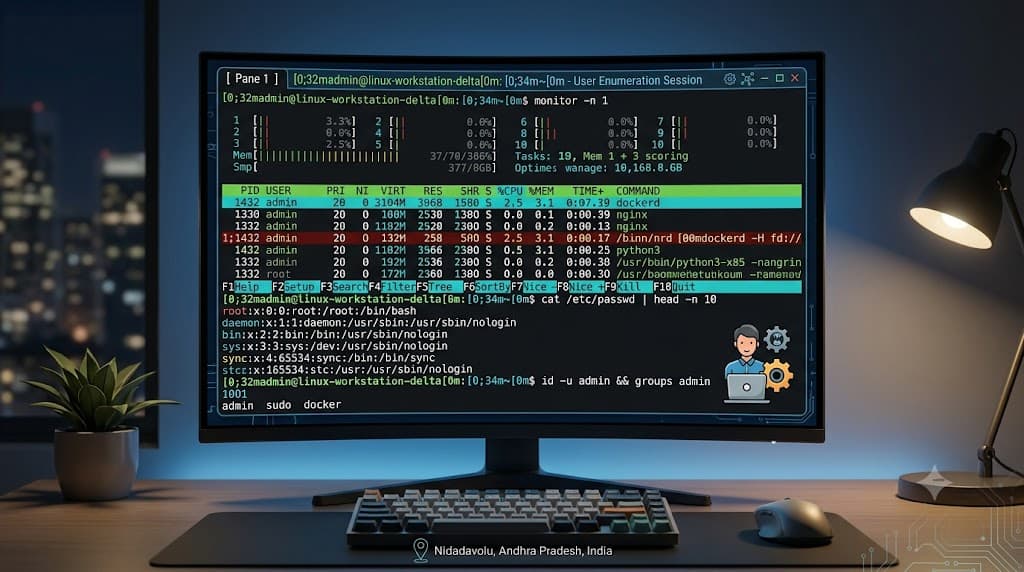
If you need to quickly list all user accounts on a Linux system, the most reliable and universally available method is querying the system databases via the command line. For standard account enumeration, running cat /etc/passwd prints every local user account configured on the machine. If your Linux environment uses pluggable authentication modules (PAM) or network-based directory services like LDAP or SSSD, the preferred command is getent passwd, which queries all configured system databases rather than just reading a static flat file.
To view only the usernames without the extra metadata (such as home directories, user IDs, shells, and group IDs), pipe the output through the cut utility:
cut -d: -f1 /etc/passwd
This command uses the colon (:) character as a field delimiter and outputs only the first field, which corresponds to the username. For automated scripting, container auditing, or quick administrative checks, these commands provide instant visibility into system identity configurations without requiring external dependencies or specialized monitoring agents.
Understanding linux list users
User management is a foundational pillar of Linux system administration, multi-user operating system architecture, and security governance. Every process, file, and network socket on a Linux machine is associated with a specific user and group. Understanding how to list users in Linux allows developers, system administrators, and security engineers to audit access privileges, verify deployment states, troubleshoot permission denied errors, and maintain strict least-privilege security postures across development, staging, and production environments.
At the core of Linux user management are unique numerical identifiers. Every user account is assigned a User Identifier (UID) and a Primary Group Identifier (GID). While humans interact with human-readable usernames like root, nginx, or postgres, the Linux kernel evaluates permissions strictly through numerical UIDs. A user with a UID of 0 is granted absolute administrative privileges, bypassing standard discretionary access controls regardless of their username string. Listing users effectively means inspecting these UID-to-username mappings alongside secondary group associations, default login shells, and home directories.
In modern cloud-native architectures, containerized workloads, and microservice deployments, understanding user identification becomes even more critical. Many security compliance standards (such as CIS benchmarks) require that running containers do not execute as the root user. Being able to audit who exists within a container environment, whether through shell access or image inspection, ensures that applications run under dedicated, unprivileged service accounts, minimizing the blast radius if an application vulnerability is exploited.
How It Works
To master user enumeration, you must understand the underlying system files and databases that store authentication and identity data in GNU/Linux distributions. Linux does not rely on a monolithic registry for user accounts; instead, it uses a modular set of plain-text configuration files located in the /etc directory, mediated by the Name Service Switch (NSS) configuration (/etc/nsswitch.conf).
The primary file responsible for storing user account information is /etc/passwd. Despite its historical name, password hashes are no longer stored here for security reasons. Instead, /etc/passwd contains a colon-separated list of account attributes. Each line represents a single user and follows this exact seven-field structure:
username:password:UID:GID:gecos:home_directory:login_shell
- username: The alphanumeric string used to log in or specify ownership.
- password: Historically a cryptographically hashed password, today typically represented by an "x" placeholder indicating that the actual hash resides in
/etc/shadow. - UID: The unique numerical user ID.
- GID: The numerical primary group ID associated with the user.
- gecos: General Purpose Cornwall Statement field, often containing the user's full name, office number, or phone number.
- home_directory: The absolute path to the user's home directory.
- login_shell: The default command interpreter assigned to the user upon login (e.g.,
/bin/bashor/sbin/nologin).
The second critical file is /etc/shadow, which is readable only by the root user and privileged security processes. It stores the actual secure password hashes, password expiration dates, and account aging policies. Finally, /etc/group defines the local groups on the system, mapping group names and GIDs to lists of member usernames.
The Name Service Switch (/etc/nsswitch.conf) abstracts these files, allowing the operating system to query alternative backends such as LDAP, NIS, or SSSD transparently. When you run a command like getent passwd, the system queries NSS, meaning it retrieves records not only from /etc/passwd but also from any active directory services configured on the host. This abstraction layer is why getent is generally preferred over directly reading /etc/passwd in enterprise or networked environments.
Practical Commands and Examples
System administrators and developers have several tools at their disposal to enumerate users, each suited for different use cases ranging from quick manual inspections to programmatic scripting within CI/CD pipelines.
Using cat and less for Direct Inspection
For a rapid, unfiltered look at all local user accounts defined on a node, inspect the /etc/passwd file directly using cat or less:
less /etc/passwd
Scrolling through this file reveals every standard system service account (such as bin, daemon, sys, nobody) alongside human user accounts. Because system accounts often have login shells set to /usr/sbin/nologin or /bin/false, inspecting the final field helps distinguish interactive users from automated background daemons.
Filtering Usernames with Cut and Awk
When writing shell scripts or parsing output in automated auditing tasks, raw records are often cumbersome. You can extract just the usernames using cut or awk:
awk -F: '{print $1}' /etc/passwd
This awk command sets the field separator (-F) to a colon and prints the first field. To sort the resulting list alphabetically for easier reading, pipe the output into the sort utility:
awk -F: '{print $1}' /etc/passwd | sort
Querying NSS with getent
To ensure your enumeration captures both local accounts and centralized directory service accounts (such as LDAP or Active Directory integration), use getent:
getent passwd
To verify if a specific user exists within the system database without scanning the entire output, pass the username as an argument to getent:
getent passwd deployer
If the user exists, the command returns their specific database record and exits with a status code of 0. If the user does not exist, it exits with a non-zero status code, making it exceptionally useful in automated provisioning scripts.
Using compgen for Bash Builtin Completion
If you are working interactively in a Bash shell and want a quick list of all valid usernames currently recognized by the shell's completion subsystem, use the compgen builtin command:
compgen -u
This command generates all possible username completions known to Bash, providing a clean list without requiring file path references.
DevOps and Container Context: Docker and Kubernetes
In containerized environments, listing users differs from traditional virtual machines. Because containers share the host kernel but maintain isolated root file systems, running cat /etc/passwd inside a container only reveals the users defined within that specific container image.
To check which user an application is running as inside a running Docker container, execute:
docker exec my-app-container whoami
To inspect the complete user database inside a running container or a Kubernetes pod, use kubectl exec combined with getent or cat:
kubectl exec -it deployment/auth-service -- getent passwd
This technique is vital in CI/CD pipelines and Kubernetes security audits to verify that microservices do not inadvertently run with root privileges. If a container security policy mandates non-root execution, verifying the active user via whoami or inspecting /etc/passwd ensures compliance before promotion to production clusters.
Common Mistakes
When managing or listing user accounts, developers and engineers frequently encounter predictable pitfalls that lead to confusion or inaccurate security audits.
One common mistake is assuming that /etc/passwd contains all active users in an enterprise environment. In modern cloud infrastructures integrated with centralized identity providers, local flat files may only contain essential system accounts. Relying exclusively on cat /etc/passwd in an environment backed by SSSD or LDAP will cause you to miss directory-managed users entirely. Always prefer getent passwd for comprehensive enumeration.
Another frequent error involves misinterpreting system accounts as compromised or unauthorized human users. Linux distributions pre-configure dozens of system accounts (such as www-data, systemd-network, chrony) with reserved low UIDs (typically under 1000). Mistaking these standard daemons for rogue users during a security audit can trigger false alarms. Conversely, failing to notice a malicious account created with a high UID or modified group membership represents a severe oversight.
Permissions errors also trip up users attempting to inspect /etc/shadow. While /etc/passwd is world-readable by design, /etc/shadow contains sensitive cryptographic password hashes and is strictly restricted to the root user. Attempting to run tools that parse /etc/shadow without appropriate sudo privileges results in permission denied errors.
Troubleshooting
When user enumeration commands fail or return unexpected results, systematic troubleshooting can quickly isolate the root cause.
Handling Permission Denied and Restricted Environments
If you encounter permission errors when running administrative diagnostic tools inside restricted containers or hardened Kubernetes pods, verify your current user context first:
id
The id command displays your current UID, GID, and secondary group memberships. If you are running as an unprivileged application user inside a container, you may not have permission to execute certain diagnostic binaries or read privileged logs. To resolve this, ensure your debugging pod or container is deployed with appropriate security contexts or temporary administrative sidecars if permitted by your cluster administrator.
Diagnosing Missing Users in Networked Environments
If getent passwd fails to return users expected from an LDAP or Active Directory source, the issue typically stems from misconfigured Name Service Switch or SSSD daemon failures. Verify that the SSSD service is actively running on the host:
systemctl status sssd
If the service is stopped or encountering configuration syntax errors, restart the daemon and check system journal logs for clues:
journalctl -u sssd -n 50 --no-pager
Checking NSS configuration syntax in /etc/nsswitch.conf ensures that authentication databases are queried in the correct order and that required modules are installed and operational.
Best Practices
Adopting professional standards around user auditing and management ensures system integrity and compliance across development and production lifecycles.
First, adhere strictly to the principle of least privilege. In Dockerfiles and Kubernetes manifests, explicitly define non-root users using the USER directive in your container image build process:
RUN useradd -u 10001 appuser
USER 10001
Second, incorporate automated user and permission audits into your CI/CD pipelines. Scanning container images for unexpected root-level accounts or unauthorized UID assignments during image builds prevents vulnerable configurations from reaching production registries.
Finally, maintain regular documentation of service accounts required by your applications. Periodically reviewing local and directory-managed accounts ensures that stale credentials from deprecated microservices are disabled or removed promptly, minimizing the overall attack surface of your infrastructure.
📌 Recommended Next Guides & References
  <li>
    <a href="/article/docker-and-kubernetes-how-they-work-together-2" class="text-primary hover:underline font-semibold flex items-center gap-2">
      <span>→</span> <span>Docker and Kubernetes: How They Work Together</span>
    </a>
  </li>

  <li>
    <a href="/article/kubernetes-ingress-explained" class="text-primary hover:underline font-semibold flex items-center gap-2">
      <span>→</span> <span>Kubernetes Ingress Explained: Routing, Controllers, and TLS</span>
    </a>
  </li>

  <li>
    <a href="/article/kubernetes-ingress-controller-explained" class="text-primary hover:underline font-semibold flex items-center gap-2">
      <span>→</span> <span>Kubernetes Ingress Controller Explained: Architecture, Routing, and Implementation</span>
    </a>
  </li>