Quick Answer
Managing file security and access control in Unix-like operating systems requires a solid grasp of permission architectures. In modern development and systems administration, understanding how to manipulate these controls securely is a fundamental daily requirement.
Quick Answer
Linux chmod is a command-line utility used to change the access permissions of files and directories. By modifying these rights, system administrators and developers control which user classes can read, write, or execute specific resources. The command operates using two primary modes: symbolic notation, which uses letters and operators to add or remove specific rights, and numeric notation, which uses octal digits to set absolute permissions for user, group, and others simultaneously. For instance, granting execution rights to a shell script is typically accomplished by running chmod +x script.sh, ensuring the operating system permits the shell interpreter to execute the file contents as a program.
Understanding Linux chmod and Permissions
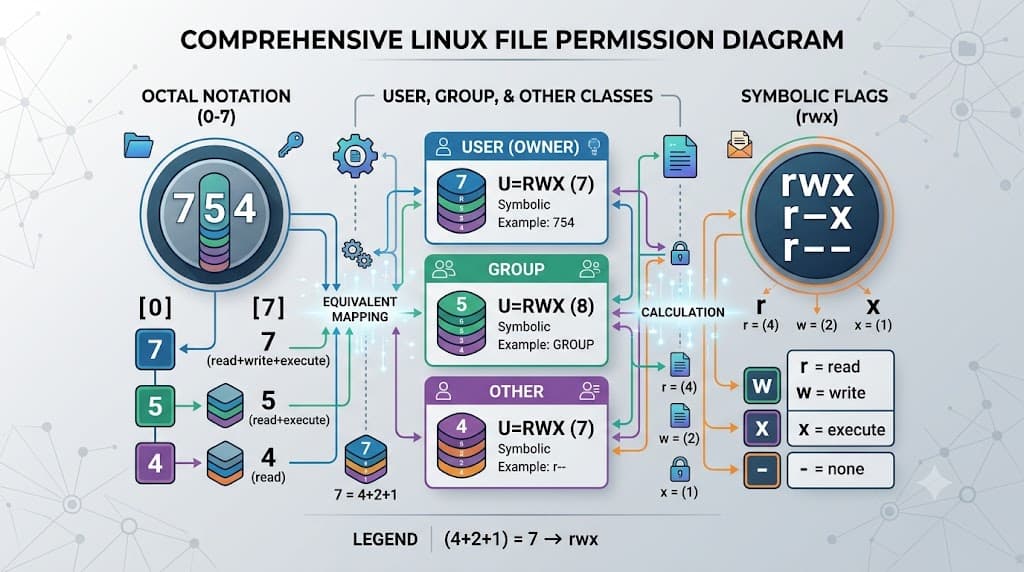
File systems on Unix-like platforms rely on a strict permission model designed to isolate user environments and protect sensitive system resources. Every file and directory is associated with an owner, a primary group, and a broader category of other users. Access rights are partitioned into three distinct operations: reading, which permits viewing file contents or listing directory contents; writing, which allows modifying file contents, appending data, or creating and deleting files within a directory; and executing, which enables running a file as a program or script, or traversing into a directory.
In multi-user development environments, misconfigured permissions frequently lead to security vulnerabilities or runtime failures. For example, if a configuration file containing database credentials is made readable by everyone on the system, any unprivileged user can compromise sensitive information. Conversely, if a web server process lacks read permissions for static assets, users experience HTTP errors. Understanding the boundaries between user, group, and others allows engineers to implement the principle of least privilege effectively, ensuring that applications run with only the exact permissions necessary for their operation.
Beyond basic read, write, and execute flags, Linux file systems also support special permission bits that govern advanced execution behaviors. The Setuid (Set User ID) and Setgid (Set Group ID) bits allow executed programs to run with the privileges of the file owner or group rather than the invoking user. The sticky bit, frequently applied to shared directories like /tmp, ensures that users can only delete or rename files they personally own, preventing malicious deletion in collaborative environments.
How Linux chmod Works
Operating systems evaluate access requests against the permission bits stored in the file's inode metadata. When interacting with this subsystem, administrators choose between symbolic and numeric modes. Symbolic mode alters permissions relative to their current state. It uses target specifiers—u for user/owner, g for group, o for others, and a for all—combined with operators like + to add permissions, - to remove permissions, and = to set exact permissions without retaining previous states.
Numeric mode, alternatively, uses a three-digit or four-digit octal value representing the complete permission set in one concise command. Each octal digit is calculated by summing the binary values assigned to read (4), write (2), and execute (1). For example, a permission set granting read and write access equals 6 (4 + 2), while adding execution brings the total to 7 (4 + 2 + 1). When stacked together, a standard secure setting for private scripts is 700 (owner has full control, group and others have zero access), whereas public web assets often utilize 644 (owner can read and write, others can only read).
Parsing these values mentally becomes straightforward once the underlying math is understood. The first octal digit governs the owner, the second governs the group, and the third governs others. When a four-digit octal string is provided, the leading digit designates the special permission bits: 4 for Setuid, 2 for Setgid, and 1 for the sticky bit. This granular control ensures that automated deployment scripts and local manual interventions can enforce rigorous security policies across complex directory hierarchies.
Practical Commands and Examples
Applying these concepts in real-world scenarios requires familiarity with common command structures and terminal workflows. Below are practical examples demonstrating how to modify file permissions safely across different development contexts.
Making a Shell Script Executable
When writing automation scripts, developers frequently encounter permission denied errors upon initial execution. To make a build script executable, use the symbolic modifier:
chmod +x deploy.sh
Expected behavior: The operating system updates the file metadata, adding execution rights for all user classes based on the system umask. To restrict execution strictly to the file owner, use the explicit user target:
u+x deploy.sh
Setting Strict Permissions on Private Configuration Files
Configuration files containing sensitive API tokens or database secrets must never be world-readable. To restrict read and write access solely to the file owner:
chmod 600 .env
Expected behavior: The permissions change to read and write for the owner (-rw-------), while group and other permissions are completely revoked. Verification can be performed immediately using the long listing format.
Updating Entire Directory Trees Recursively
When deploying web applications or adjusting shared project directories, permissions often need to be updated across multiple nested folders and files. The recursive flag -R handles this requirement:
chmod -R 755 /var/www/html
Expected behavior: Every directory and file within the target path receives read, write, and execute permissions for the owner, and read and execute permissions for groups and others. Note that applying 755 recursively to files automatically grants them execution rights, which is often undesirable for non-executable assets like images or text documents.
Common Mistakes and Warnings
Mismanaging access controls can introduce critical security vulnerabilities or destabilize operating environments. One of the most hazardous mistakes is executing overly broad recursive commands, such as applying 777 permissions across an entire system or application directory.
The Dangers of 777 Permissions
Setting a file or directory to 777 grants read, write, and execute access to every user and process on the system. While this temporarily resolves permission denied errors during troubleshooting, it creates a severe security flaw. Malicious actors or compromised third-party dependencies can overwrite critical binaries, inject malicious code into web roots, or exfiltrate sensitive data. Engineers should always diagnose the root cause of access failures rather than resorting to universal write permissions.
Blind Recursive Execution Risks
Using the recursive flag without considering file types leads to unintended security states. Applying execution permissions to source code files, logs, or static assets violates the principle of least privilege. Furthermore, executing destructive commands on root system directories can render an operating system completely unbootable.
Troubleshooting and Safe Verification
Verifying permission changes before exposing applications to production traffic prevents runtime outages. The standard tool for inspecting permissions is the ls command combined with the long listing flag.
ls -lh app.py
Expected output format:
-rwxr-xr-- 1 developer staff 2.4K Oct 12 14:30 app.py
In this output, the leading hyphen indicates a standard file (d indicates a directory), followed by three triplets representing owner (rwx), group (r-x), and others (r--).
When troubleshooting permission denied errors in local or remote environments, check both file permissions and ownership. Ownership issues occur when files are created by automated container processes running as root, locking out standard developer accounts. Resolving this typically requires adjusting ownership alongside access controls using standard system utilities.
Developer and DevOps Context
Permission management extends beyond traditional bare-metal servers into modern containerized and automated delivery pipelines. In Docker container builds, ignoring file permissions within the build context often leads to runtime failures. For instance, if a custom entrypoint script lacks execution rights inside the container image, the container exits immediately upon startup. Developers must ensure execution flags are set within the repository or explicitly granted via instructions inside the Dockerfile before copying files into the image.
In Kubernetes environments, persistent volumes and init containers frequently require careful permission alignment. When mounting network-attached storage or host paths into pods, security context configurations ensure that application processes running with non-root user IDs retain adequate read and write rights. Neglecting these settings results in CrashLoopBackOff errors as applications fail to write logs or temporary cache files.
Within CI/CD pipelines, automated build agents frequently execute shell scripts, deployment tools, and test suites. Pipeline configurations should explicitly verify and adjust file permissions during checkout phases when building distribution packages or generating binary artifacts, ensuring consistent execution across diverse runner environments without relying on default host configurations.
📌 Recommended Next Guides & References
  <li>
    <a href="/article/docker-and-kubernetes-how-they-work-together-2" class="text-primary hover:underline font-semibold flex items-center gap-2">
      <span>→</span> <span>Docker and Kubernetes: How They Work Together</span>
    </a>
  </li>

  <li>
    <a href="/article/kubernetes-ingress-explained" class="text-primary hover:underline font-semibold flex items-center gap-2">
      <span>→</span> <span>Kubernetes Ingress Explained: Routing, Controllers, and TLS</span>
    </a>
  </li>

  <li>
    <a href="/article/kubernetes-ingress-controller-explained" class="text-primary hover:underline font-semibold flex items-center gap-2">
      <span>→</span> <span>Kubernetes Ingress Controller Explained: Architecture, Routing, and Implementation</span>
    </a>
  </li>