Quick Answer
Managing your filesystem effectively is a daily requirement for developers, system administrators, and DevOps engineers working in Linux environments. Whether you are restructuring a project repository, organizing log files, or preparing assets for a container build, knowing how to efficiently manipulate file paths is an essential skill. In a standard GNU/Linux shell, altering filenames and moving paths are fundamental operations that you will perform across local terminals, remote SSH sessions, and continuous integration pipelines.
Quick Answer
To rename a file or directory in Linux, use the standard mv (move) command. The basic syntax is mv old_name new_name. For example, running mv config.json settings.json renames the file in the current working directory. If you need to perform bulk renaming operations across multiple files simultaneously using regular expressions, the Perl-based rename utility provides powerful pattern-matching capabilities, such as rename 's/\.txt/.md/' *.txt to change file extensions.
Understanding rename file linux
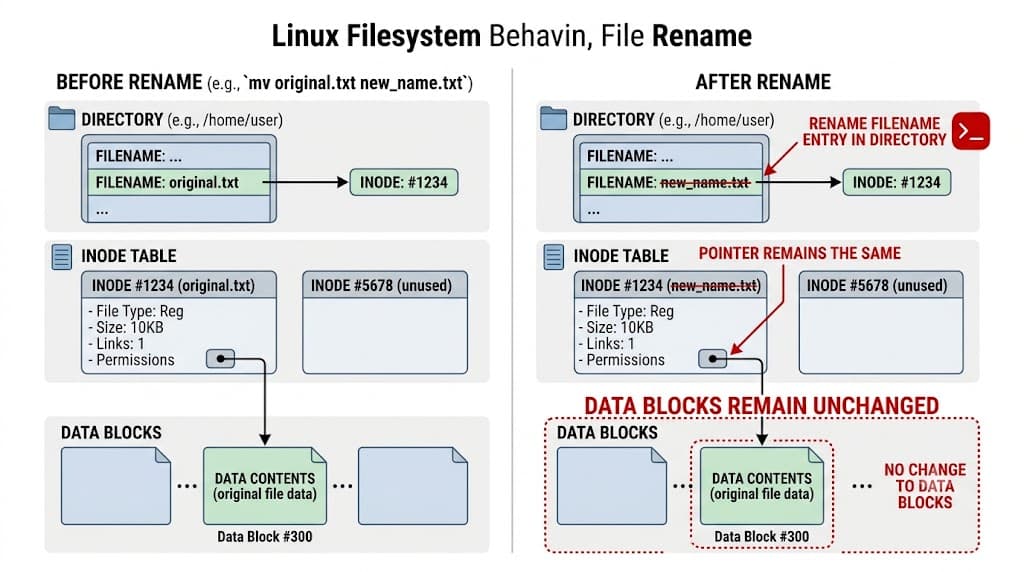
At the heart of every Linux filesystem—whether you are using ext4, XFS, or Btrfs—lies the concept of inodes. An inode is a data structure that stores metadata about a file, including its permissions, ownership, size, and location on the disk media, but notably excluding its actual name. When you execute a file renaming operation in Linux, you are not modifying the underlying file data or moving the data blocks across physical storage sectors. Instead, you are updating the directory entry, which is simply a mapping between a human-readable string and a specific inode number.
Because a directory file is essentially a lookup table containing filename-to-inode mappings, performing a rename operation within the same filesystem is an extremely fast, metadata-only operation. The system removes the old filename entry from the parent directory and adds the new filename entry, pointing it to the exact same inode. This design has profound implications for developers. For instance, atomic rename operations guarantee that another process reading a configuration file will never see a half-written state; it will either see the old file or the new file instantaneously.
Understanding this mechanism helps explain why renaming files across different mount points or separate physical partitions behaves differently. When you attempt to rename a file across distinct filesystems, the kernel cannot simply update an inode mapping because the target partition has an entirely separate inode table. In those cases, the utility must copy the entire data stream to the new location and then delete the original source data. While higher-level commands abstract this complexity away, keeping the underlying filesystem architecture in mind prevents surprises when working with network shares or Docker volumes.
How It Works: Core Commands and Syntax
To master file and directory manipulation, you must understand the specific tools available in the GNU coreutils and broader ecosystem. While several utilities exist, two primary tools dominate developer workflows: the ubiquitous mv command and the flexible Perl-based rename utility. Each serves a distinct purpose, ranging from simple point-to-point renaming to complex batch regex transformations.
The mv Command Mechanics
The mv command is part of the GNU coreutils package, meaning it is installed by default on virtually every Linux distribution, from Alpine and Ubuntu to Red Hat Enterprise Linux and Fedora. By design, mv handles both moving items between directories and renaming items within the same directory. When the source and target paths reside on the same filesystem, mv performs a direct system call via rename(), updating the directory structures efficiently.
When invoking mv, several flags help control safety and verbosity. The -i (interactive) flag prompts you before overwriting an existing file, protecting you from accidental data loss. The -n (no-clobber) flag silently prevents overwriting any existing file at the destination. The -v (verbose) flag outputs every action taken, which is invaluable when executing file management commands inside shell scripts or CI/CD build steps.
The Perl-based rename Utility
While mv excels at single-file and single-directory operations, it lacks built-in pattern matching for bulk transformations. This is where the rename command (often referred to as file-rename or perl-rename) becomes indispensable. Unlike simpler implementations found on some Unix variants, the Linux utility evaluated here accepts Perl regular expressions, giving you immense power to restructure hundreds of filenames in a single command.
The syntax follows the pattern rename [options] 'expression' files. The expression typically takes the form of a substitution operator, such as s/search/replace/. Flags like -n (dry-run) allow you to test your regular expression safely before applying changes to the actual filesystem, while -v (verbose) provides a clear audit trail of what was modified.
Handling Directories and Paths
Managing directory names follows the exact same syntax rules as files when using mv. Running mv old_dir_name new_dir_name renames the directory provided that the new name does not already exist as a conflicting directory. However, you must exercise caution with trailing slashes. Including a trailing slash on the source directory can sometimes alter how certain wrapper scripts interpret the path, though standard mv treats dir and dir/ identically.
When dealing with deeply nested directory structures, you can relocate and rename simultaneously by providing an absolute or relative path as the destination. For instance, moving src/old_name.py to backup/new_name.py renames the file while shifting it to a different directory tree entirely. If the intermediate target directories do not exist, mv will throw an error unless you create them beforehand using directory creation utilities.
Practical Commands and Examples
Theory must translate into actionable terminal commands. Below are practical scenarios demonstrating how to execute file and directory renaming operations in real-world development environments.
Renaming a Single File
To rename a single file in the current working directory, supply the existing filename followed by the desired new filename:
mv server.js app.js
Expected behavior: The file server.js is immediately renamed to app.js. If app.js already existed, it would be overwritten unless safety flags like -i were supplied. You can verify this change immediately using the listing command:
ls -l app.js
Renaming a Directory
Renaming a directory follows the identical syntax pattern. To rename a legacy source directory to a standardized structure:
mv src_legacy src
Expected behavior: All files and subdirectories contained within src_legacy remain completely untouched; only the top-level directory pointer is updated. Verify the directory rename by checking the path existence:
ls -ld src
Batch Renaming with Perl Expressions
When you need to normalize file extensions across an entire directory—such as changing all uppercase .JPG extensions to lowercase .jpg for web compatibility—use the Perl rename utility:
rename 's/\.JPG$/\.jpg/' *.JPG
Expected behavior: Every file ending in .JPG in the current directory is updated to end with .jpg. Before running batch commands in production, always perform a dry-run to inspect the planned changes:
rename -n 's/\.JPG$/\.jpg/' *.JPG
Common Mistakes and Warnings
Working with filesystem manipulation commands requires vigilance. A single misplaced wildcard or missing flag can result in unintended data destruction.
Accidental Overwriting Without Confirmation
By default, standard Linux utilities like mv will overwrite destination files without warning if you have write permissions in that directory. If you run mv fileA fileB and fileB already exists, its contents are permanently replaced by fileA. Always alias mv to mv -i in your interactive shell configuration or explicitly pass the interactive flag when working on critical codebases.
Destructive Regular Expression Failures
When using the Perl rename utility, poorly constructed regular expressions can lead to catastrophic filename corruption. For example, running a global substitution without anchoring can alter unintended parts of the path string. Always utilize the -n dry-run flag to preview regex results before executing destructive file modifications.
Permission Denied Errors
Attempting to rename files owned by another user or residing in system-protected directories will trigger permission denied errors. Do not reflexively prepend sudo to every failing command; instead, verify file ownership and permissions using ls -l and ensure your user account has the necessary write privileges on the parent directory.
Troubleshooting and Verification
When a rename operation fails or behaves unexpectedly, systematic troubleshooting ensures you can resolve the issue without compromising your data.
Safe Verification Commands
After performing any rename operation, verify the filesystem state using explicit status checks rather than assuming success. Combine ls with grep or status flags to confirm the target exists and the source is gone:
ls -la | grep expected_filename
Resolving Target Inuse or Locked Files
If you encounter an error stating that a file or directory is busy or in use, a running process holds an open file descriptor to it. In a DevOps context, this often happens when log rotators or active Docker containers lock log files or binary execution paths. You can identify the blocking process using the lsof utility:
lsof +D /path/to/directory
Once the blocking process is safely stopped or restarted, you can proceed with the file management operation.
Best Practices in DevOps Workflows
File renaming operations are rarely isolated to a single local machine; they form critical steps in automated pipelines, container builds, and repository management.
Integration with Docker Containers
When building container images, renaming configuration templates during the Dockerfile build stage ensures sensitive defaults are properly applied before runtime. For example, copying a sample configuration and renaming it in a single RUN instruction keeps image layers clean:
COPY config.env.sample /app/config.env
Managing Files in CI/CD Pipelines
In continuous integration pipelines (such as GitHub Actions or GitLab CI), build artifacts often require renaming to include version numbers or commit hashes before publishing to artifact registries. Using verbose flags (mv -v) within your workflow shell steps ensures that pipeline logs provide a clear, auditable record of every artifact transformation.
Version Control Considerations
In Git-tracked repositories, renaming files directly in your working directory requires careful handling. While git mv is the preferred command for tracking renames within version control, standard system mv commands will show the original file as deleted and the new file as untracked. Keeping your working directory clean and utilizing proper version control commands prevents broken import paths in collaborative software projects.
📌 Recommended Next Guides & References
  <li>
    <a href="/article/docker-and-kubernetes-how-they-work-together-2" class="text-primary hover:underline font-semibold flex items-center gap-2">
      <span>→</span> <span>Docker and Kubernetes: How They Work Together</span>
    </a>
  </li>

  <li>
    <a href="/article/kubernetes-ingress-explained" class="text-primary hover:underline font-semibold flex items-center gap-2">
      <span>→</span> <span>Kubernetes Ingress Explained: Routing, Controllers, and TLS</span>
    </a>
  </li>

  <li>
    <a href="/article/kubernetes-ingress-controller-explained" class="text-primary hover:underline font-semibold flex items-center gap-2">
      <span>→</span> <span>Kubernetes Ingress Controller Explained: Architecture, Routing, and Implementation</span>
    </a>
  </li>


