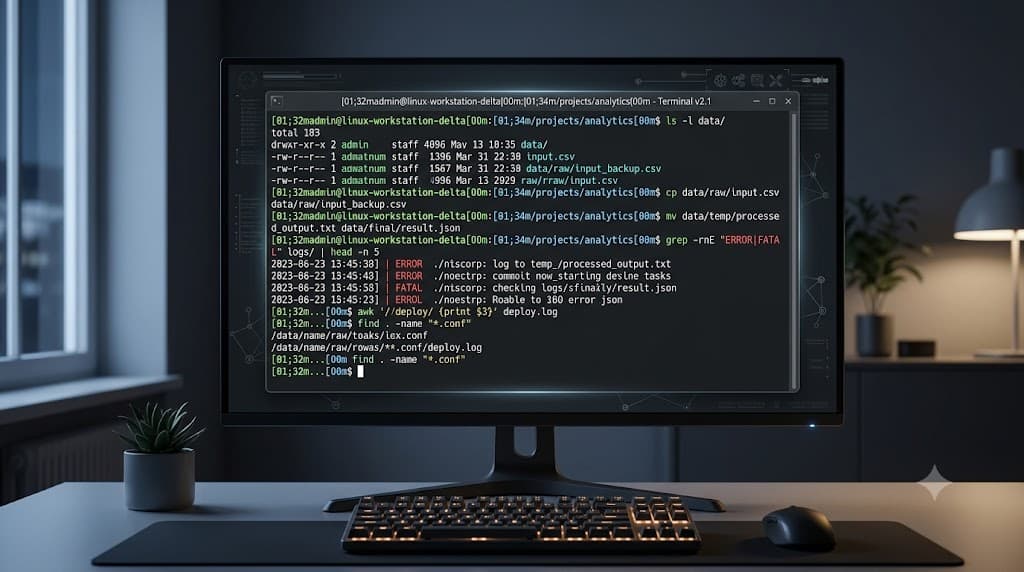
Quick Answer
Quick Answer
To perform a linux copy file operation on the Linux command line, you use the 'cp' utility. The basic syntax is 'cp source destination', which duplicates a file from one path to another. For recursive directory copies, you include the '-r' or '-R' flag. In developer and DevOps workflows, mastering 'cp', along with 'mv' for moving or renaming and 'rm' for deletion, ensures precise filesystem management across local environments, Docker containers, and CI/CD automation pipelines.
Understanding Linux File Operations
The foundation of any Linux operating system is its hierarchical filesystem, where every file, directory, and hardware device is represented as a node in a single unified tree starting at the root directory ('/'). Interacting with this filesystem requires a shell interface—such as Bash or Zsh—running inside a terminal emulator. Developers and system administrators rely on command-line utilities rather than graphical file managers because text-based environments offer speed, scriptability, and remote accessibility over secure shell (SSH) connections.
In Unix-like environments, everything is treated as a file, and standard file operations interact directly with kernel-level file descriptors and permission tables. When you execute a command in the terminal, the shell parses the input line, resolves environment variables, expands wildcards (globs), and passes the resulting arguments to the executable binary. Understanding how these utilities interact with user permissions, ownership, and file attributes is critical for maintaining security and preventing unintended data loss in production environments.
How Linux File and Directory Commands Work
Under the hood, command-line utilities like 'cp', 'mv', and 'rm' make system calls to the Linux kernel to manipulate inode tables and directory entries on disk. When you initiate a copy action, the utility opens the source file for reading, allocates a new inode or writes to a destination path, and copies the byte stream from source to target. This process involves explicit permission checks: the executing user must have read access to the source and write access to the destination directory.
The mechanics of moving a file or directory ('mv') differ significantly based on whether the source and destination reside on the same filesystem partition. If they are on the same partition, 'mv' simply updates the directory entry to point to the existing inode, making the operation instantaneous regardless of file size. If the source and destination span different filesystems or physical disks, the system must physically copy the entire byte stream to the new location and then unlink (delete) the original source file.
Deletion ('rm') operates by removing the directory entry linking the filename to its underlying inode. If multiple hard links point to the same inode, deleting one entry merely decrements the link count; the data blocks remain allocated until the final link is removed. Understanding these low-level filesystem mechanics helps engineers troubleshoot storage issues, handle disk quotas, and write robust automation scripts that avoid corruption.
Practical Commands and Examples
Practical command-line proficiency requires knowing the exact flags and expected behaviors for everyday tasks. Below are detailed examples of copying files, moving or renaming directories, and safely handling file removal.
Copying Files and Directories
The primary tool for copying is 'cp'. To copy a single file from your current working directory to a backup location, specify the source and destination explicitly.
cp application.conf application.conf.bak
To verify that the copy succeeded and check file metadata such as size and modification timestamp, use the 'ls' command with long listing format.
ls -lh application.conf application.conf.bak
When copying entire directory trees, standard 'cp' will fail unless instructed to recurse. Use the recursive flag '-r' or '-R', combined with '-v' for verbose output so you can monitor progress.
cp -rv /var/log/myapp/ /backup/logs/
Moving and Renaming Directories
The 'mv' utility handles both moving files across directories and renaming files in place. To rename a configuration file, pass the current name and the new name.
mv nginx.conf nginx.conf.production
To move a directory into another path—such as relocating a build artifact into a deployment staging folder—provide the source directory and the target parent directory.
mv ./dist /var/www/html/app/
You can verify the move operation by checking the destination path contents and ensuring the source directory no longer exists at the old location.
ls -la /var/www/html/app/dist
Deleting Files and Directories Safely
Removing files is permanent in standard Linux environments; there is no graphical recycle bin by default. To delete a single file, use the 'rm' command.
rm temp_cache.tmp
For interactive protection against accidental deletions, use the interactive flag '-i', which prompts the user for confirmation before removing each file.
rm -i old_data.csv
To delete a directory and all its contents recursively, combine the recursive flag with the force flag carefully.
rm -rf obsolete_builds/
Common Mistakes and Safe Verification
Even experienced engineers occasionally encounter pitfalls when executing file management commands. One of the most frequent errors is omitting the recursive flag when attempting to copy or delete a directory, resulting in error messages like "omitting directory" or "is a directory."
Another common mistake is destructive overwriting. By default, 'cp' and 'mv' may overwrite existing files at the destination without warning depending on shell aliases (such as 'alias cp="cp -i"'). To avoid catastrophic data loss, always use the interactive flag '-i' or the backup flag '--backup=numbered' when scripting or running manual commands.
Verification is your best defense against mistakes. Before and after running batch file operations, verify file counts, checksums, and permissions. For example, you can generate an MD5 or SHA256 checksum to ensure a critical binary was copied accurately without corruption.
sha256sum binary_release.tar.gz
Comparing the output hash against the source hash guarantees integrity before deployment.
Troubleshooting and Best Practices in DevOps
In modern DevOps environments, file management commands extend beyond local developer workstations into containerized runtimes and automated pipelines. When managing permissions, engineers frequently encounter 'Permission denied' errors. This typically occurs when a user attempts to modify system-level paths without administrative privileges. Using 'sudo' resolves this temporarily, but best practices dictate running container processes and CI/CD agents under dedicated non-root service accounts.
In Docker workflows, copying files into container images is handled during the build phase using the 'COPY' instruction in a Dockerfile, which mirrors 'cp' semantics. Inside running containers, temporary diagnostic file copies can be performed via the container runtime CLI.
docker cp app-container:/app/config.json ./local-debug.json
In Kubernetes environments, you rarely log into nodes to copy files manually. Instead, administrators use kubectl to transfer debugging assets into or out of specific pod containers.
kubectl cp default/my-pod:/var/log/app.log ./debug.log -c app-container
In CI/CD pipelines running on platforms like GitHub Actions, file operations are executed within ephemeral runner environments. Best practices require explicitly scoping workspace permissions, cleaning up temporary test artifacts in post-build steps using safe deletion practices, and avoiding hardcoded absolute paths that could break across different runner operating systems.
Summary and Operational Recap
Effective Linux filesystem navigation and management form the bedrock of reliable software development and DevOps engineering. By understanding the core mechanics of 'cp', 'mv', and 'rm', engineers can manipulate files securely and efficiently. Always verify operations with checksums and status checks, exercise extreme caution with recursive deletion flags, and apply robust permission models across local terminals, Docker containers, and CI/CD pipelines.
📌 Recommended Next Guides & References
  <li>
    <a href="/article/docker-and-kubernetes-how-they-work-together-2" class="text-primary hover:underline font-semibold flex items-center gap-2">
      <span>→</span> <span>Docker and Kubernetes: How They Work Together</span>
    </a>
  </li>

  <li>
    <a href="/article/kubernetes-ingress-explained" class="text-primary hover:underline font-semibold flex items-center gap-2">
      <span>→</span> <span>Kubernetes Ingress Explained: Routing, Controllers, and TLS</span>
    </a>
  </li>

  <li>
    <a href="/article/kubernetes-ingress-controller-explained" class="text-primary hover:underline font-semibold flex items-center gap-2">
      <span>→</span> <span>Kubernetes Ingress Controller Explained: Architecture, Routing, and Implementation</span>
    </a>
  </li>