Quick Answer
A Linux server is a computer running a Linux distribution specifically configured to provide services, host applications, and manage network resources for other systems or users. Unlike desktop distributions that prioritize graphical user interfaces and local user applications, a Linux server typically operates headlessly via a command-line interface, optimizing hardware resources for reliability, security, and performance. In modern software engineering and cloud infrastructure, Linux servers form the backbone of virtually every deployment strategy, serving as the target environment for web servers, databases, container runtimes, and CI/CD pipelines.
For developers and DevOps engineers, mastering the Linux server is not merely an optional sysadmin task; it is a fundamental requirement. Whether you are debugging a containerized microservice, configuring a reverse proxy, troubleshooting network latency, or setting up an automated deployment script, understanding how the underlying operating system functions allows you to diagnose issues rapidly and write more robust software. This guide explores the core fundamentals, essential terminal commands, common operational pitfalls, and safe troubleshooting workflows required to manage production Linux environments with confidence.
Understanding Linux Server Fundamentals
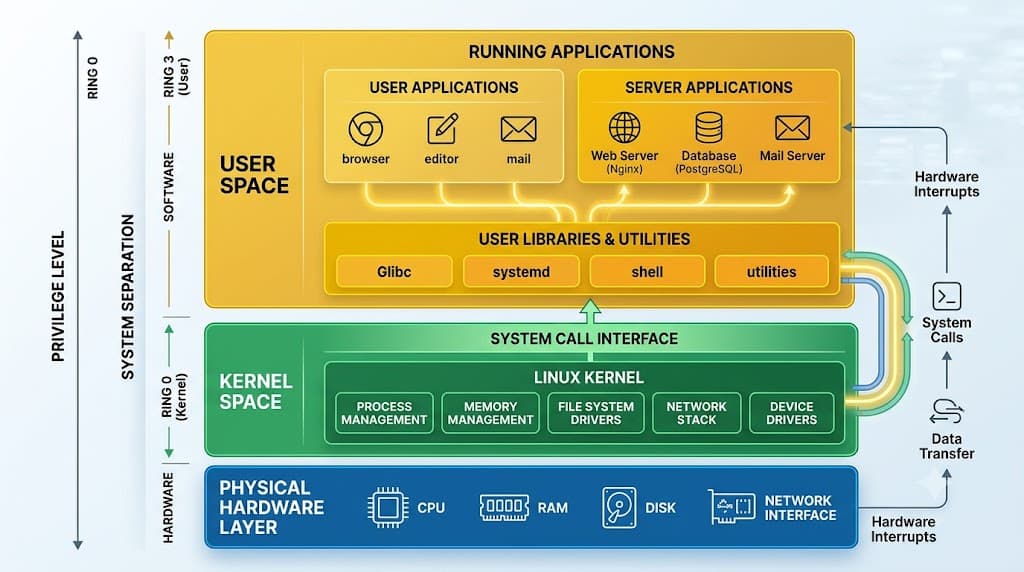
To work effectively with a Linux server, you must understand the foundational architecture that separates it from standard desktop operating systems. At its core, the Linux operating system is divided into two primary layers: the kernel and the user space. The kernel is the core component that interfaces directly with the physical hardware, managing CPU scheduling, memory allocation, device drivers, and low-level system calls. The user space encompasses everything running on top of the kernel, including system utilities, shells, background services, and user-facing applications.
Interaction with a Linux server almost always occurs through a shell environment, most commonly Bash or Zsh, accessed via a terminal or secure remote connection. The shell interprets user commands and executes system programs. Unlike graphical environments where actions are abstracted behind menus and dialog boxes, the Linux command line gives you direct, unmediated access to the operating system. Every action—from inspecting system logs to modifying firewall rules—is executed through explicit commands that manipulate files, processes, and network sockets.
Another critical concept in Linux server administration is the multi-user architecture. Linux was designed from the ground up as a multi-user, multi-tasking operating system. Every process, file, and directory is owned by a specific user and group, governed by strict permission models that determine who can read, write, or execute resources. Understanding this separation of privileges is vital for maintaining security, ensuring that web servers run under restricted service accounts rather than root, and preventing unauthorized access to sensitive application data.
How a Linux Server Works
Behind every Linux server is a carefully structured filesystem and process management architecture that dictates how data is stored, retrieved, and executed. The Linux filesystem does not use drive letters like Windows; instead, it organizes all storage devices, network mounts, and virtual files into a single, unified hierarchical tree starting at the root directory, denoted by a single forward slash (/). Important directories include /etc for system configuration files, /var for variable data such as logs and databases, /home for user directories, and /usr for user binaries and libraries.
Process management is another cornerstone of server operation. Every running program on a Linux server is represented as a process, assigned a unique Process ID (PID). The Linux kernel schedules these processes across available CPU cores, managing their lifecycle from creation to termination. Background services, known as daemons, run continuously without user intervention, managed by system and service managers like systemd. Understanding how to monitor these processes, check their resource consumption, and gracefully restart services is an everyday task for anyone deploying applications to the cloud.
Remote access to a Linux server is almost universally handled via Secure Shell (SSH). SSH encrypts all communication between your local development machine and the remote server, protecting credentials and data in transit. By utilizing SSH key pairs rather than password authentication, developers can establish secure, automated access channels necessary for continuous integration pipelines and remote cluster management.
Practical Commands and Examples
Navigating and managing a Linux server requires fluency in essential command-line utilities. Below are practical examples of commands frequently used in development and DevOps workflows, along with their expected behaviors and verification steps.
Navigating and Inspecting the Filesystem
To explore directories and examine file structures, use the ls and cd commands. For instance, to list all files including hidden configuration files in long format:
ls -la /var/log
Expected behavior: The terminal outputs a detailed list of files in /var/log, displaying permissions, number of links, owner, group, size, timestamp, and filename. You can verify the current working directory at any time by executing pwd.
Managing Processes and System Resources
When an application behaves unexpectedly or consumes excessive CPU, you need to inspect active processes. The top or htop utility provides a real-time view of system performance.
ps aux | grep nginx
Expected behavior: This pipeline lists all running processes matching the keyword nginx, showing their PIDs, CPU usage, memory consumption, and start time. To verify that a specific service is running under systemd, use:
systemctl status nginx
This command outputs the active state, recent log entries, and main process ID of the Nginx service.
Connecting to Modern Workflows: Docker, Kubernetes, and CI/CD
Linux server commands form the underlying foundation of containerization and orchestration tools. When working with Docker on a Linux server, you inspect container resource usage using standard Linux cgroups tools or Docker-specific wrappers:
docker ps --format "table {{.ID}} {{.Names}} {{.Status}}"
Expected behavior: Outputs a clean tabular list of active Docker containers running on the host server. In Kubernetes environments, node management relies entirely on underlying Linux kernel features like namespaces and network filtering (iptables or eBPF). In CI/CD pipelines—such as GitHub Actions self-hosted runners executing on a Linux server—build scripts execute these exact shell commands to compile code, build container images, and push artifacts to registries.
Common Mistakes and Failure Modes
Even experienced developers frequently encounter operational pitfalls when interacting with a Linux server. Recognizing these common mistakes prevents downtime and security vulnerabilities.
One of the most frequent errors is running applications or installation scripts with root privileges unnecessarily. While executing commands as root grants unrestricted access, it also means any compromised dependency or malicious script can alter core system files or destroy the entire operating system. Best practice dictates running applications under dedicated service accounts and using sudo only when administrative privileges are explicitly required.
Another common mistake is improper file permission configuration. Setting overly permissive rights—such as chmod 777 on application directories or private SSH keys—exposes sensitive files to unauthorized local and remote users. Developers should always apply the principle of least privilege, ensuring files are only readable or writable by the specific user or group that requires access.
Neglecting disk space monitoring in /var or /tmp frequently leads to unexpected application crashes. Log files, temporary build artifacts, and database write-ahead logs can rapidly consume available storage if log rotation is not properly configured. Always verify disk utilization using df -h before initiating large deployments or database migrations.
Safe Troubleshooting and Verification
When a production service fails, troubleshooting must be systematic, methodical, and safe. Never execute destructive commands without first verifying the current system state.
Suppose a web application hosted on your Linux server returns a 502 Bad Gateway error. A safe troubleshooting workflow begins by inspecting the service status and recent error logs rather than immediately restarting services.
Step 1: Check the system journal for recent errors related to the application service:
journalctl -u my-app.service -n 50 --no-pager
Expected behavior: The terminal displays the last 50 log entries specifically generated by my-app.service, allowing you to identify database connection timeouts, syntax errors, or missing environment variables.
Step 2: Verify network connectivity and port listening status:
ss -tulpn | grep LISTEN
Expected behavior: Outputs a list of active listening sockets, confirming whether your application is successfully bound to the expected port (e.g., port 8080 or 3000).
Step 3: Test local HTTP response using curl to isolate network proxy issues:
curl -I http://localhost:8080
Expected behavior: Returns HTTP response headers (such as HTTP/1.1 200 OK), verifying that the application itself is responding correctly locally, indicating that the failure lies in the upstream reverse proxy rather than the application core.
Best Practices for Developers and DevOps Engineers
Maintaining a reliable, secure, and performant Linux server requires adhering to established industry best practices throughout the infrastructure lifecycle.
First, automate server provisioning and configuration management using tools like Ansible, Terraform, or cloud-init. Manual configuration drift—where servers diverge in their installed packages and configuration files over time—makes debugging production incidents exceptionally difficult. Infrastructure as Code ensures that every server instance is identical and reproducible.
Second, implement rigorous security hardening. Disable password-based SSH authentication in favor of SSH keys, configure a host-based firewall (such as ufw or firewalld) to restrict inbound traffic to necessary ports only, and establish automated security updates for critical system packages.
Finally, establish comprehensive centralized logging and monitoring. Do not rely solely on manual log inspection during an incident. Integrate your Linux server logs with monitoring stacks (such as Prometheus, Grafana, and ELK) to track CPU utilization, memory thresholds, disk latency, and error rates proactively before they impact end users.
📌 Recommended Next Guides & References
  <li>
    <a href="/article/docker-and-kubernetes-how-they-work-together-2" class="text-primary hover:underline font-semibold flex items-center gap-2">
      <span>→</span> <span>Docker and Kubernetes: How They Work Together</span>
    </a>
  </li>

  <li>
    <a href="/article/kubernetes-ingress-explained" class="text-primary hover:underline font-semibold flex items-center gap-2">
      <span>→</span> <span>Kubernetes Ingress Explained: Routing, Controllers, and TLS</span>
    </a>
  </li>

  <li>
    <a href="/article/kubernetes-ingress-controller-explained" class="text-primary hover:underline font-semibold flex items-center gap-2">
      <span>→</span> <span>Kubernetes Ingress Controller Explained: Architecture, Routing, and Implementation</span>
    </a>
  </li>


