Quick Answer
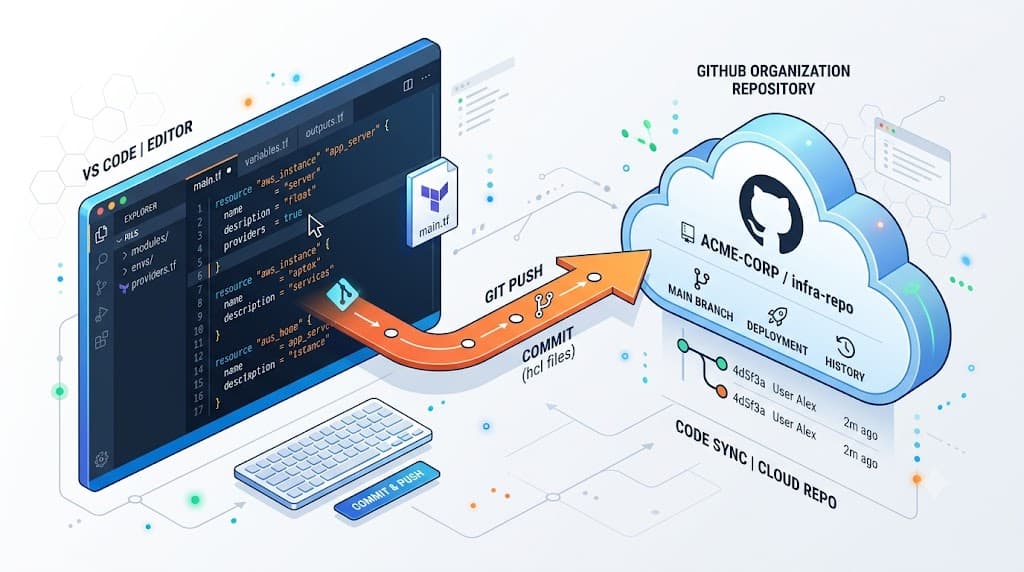
When managing version-controlled projects, there often comes a time when you need to update where your local repository points. Whether you are migrating your code hosting provider from GitHub to GitLab, transferring repository ownership to a new organization, or switching your authentication method from HTTPS to SSH, knowing how to execute a git change remote URL procedure is an essential developer skill. Instead of deleting your local project folder and cloning the repository all over again from scratch, Git provides built-in commands that let you update your remote connection parameters in a matter of seconds. This seamless transition preserves your local history, uncommitted work, and active branches while instantly pointing your upstream tracking to the correct destination server.
At its core, a Git remote URL is simply a string of text that points to a remote repository stored on a server, such as GitHub, GitLab, Bitbucket, or a self-hosted instance. In every local Git repository, Git automatically creates a default remote reference named 'origin' when you first clone a project. This 'origin' reference acts as a shorthand alias for the full remote URL, saving you from having to type out long server paths every time you want to fetch, pull, or push your code. When you run standard commands like git push origin main, Git looks up this alias, resolves it to the configured URL, and communicates with the specified remote server accordingly. Understanding that 'origin' is just a pointer helps demystify how local repositories maintain connections to centralized team workflows.
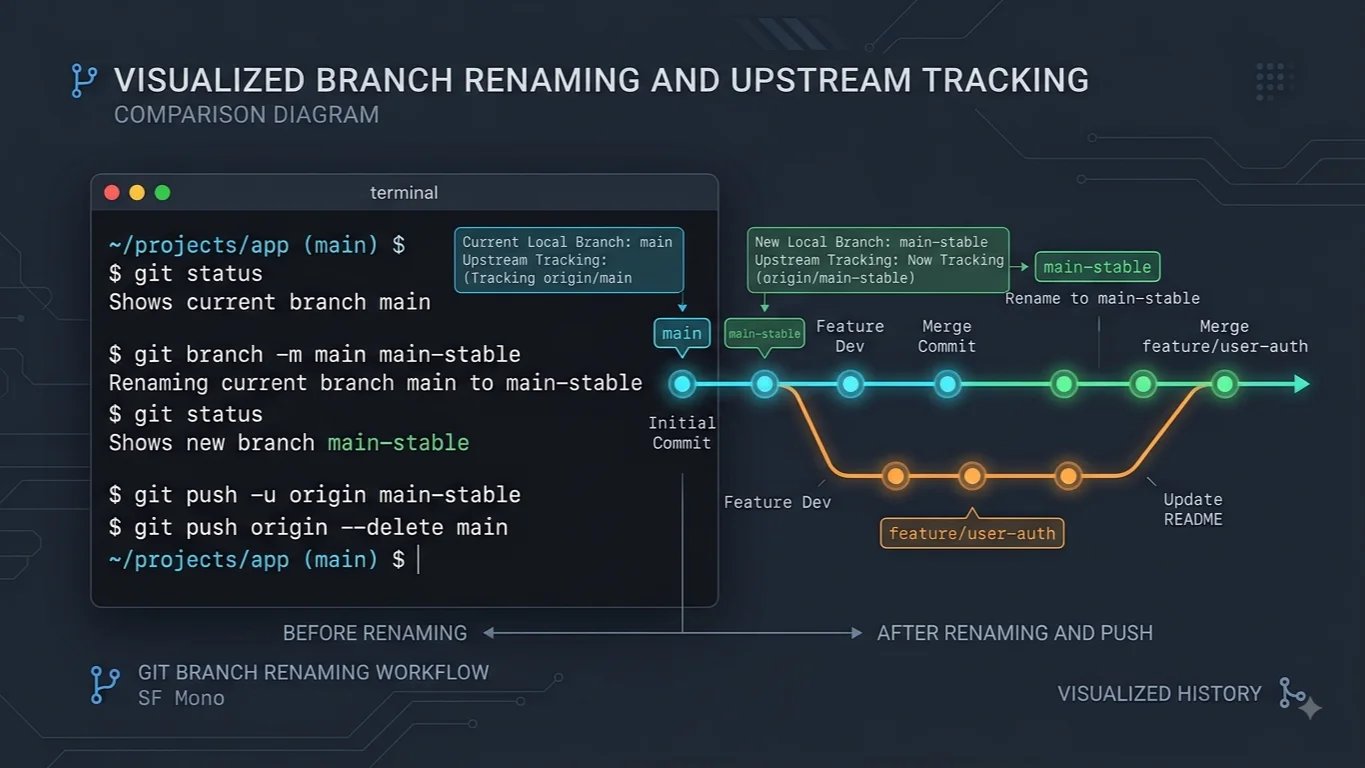
Behind the scenes, Git maps all local repository actions to remote servers by reading and writing configuration files stored within your project. Specifically, every time you interact with a remote repository, Git consults the .git/config file located inside your working directory. This hidden file contains key-value pairs that define your repository's remote names, fetch behaviors, and corresponding URLs. When you execute a command to update your remote, Git modifies this configuration file directly. If you switch from an old URL to a new one, Git updates the underlying path so that subsequent network requests target the updated host. This architecture ensures that all historical commit hashes, local branches, and staging areas remain completely untouched while your pipeline's destination address is safely redirected.
To effectively manage your remote settings, it helps to break down the anatomy of a Git remote URL, as the structure differs significantly depending on whether you use HTTPS or SSH. An HTTPS remote URL typically looks like https://github.com/username/repository.git, relying on standard web protocols and requiring your username and a personal access token for authentication. In contrast, an SSH remote URL looks like git@github.com:username/repository.git, utilizing secure shell keys for cryptographic authentication without prompting for credentials on every push. Recognizing these distinct address structures is crucial because transitioning between protocols requires substituting the entire URL string rather than just editing a domain name. Both formats serve the exact same underlying repository data, but they use completely different network transport layers.
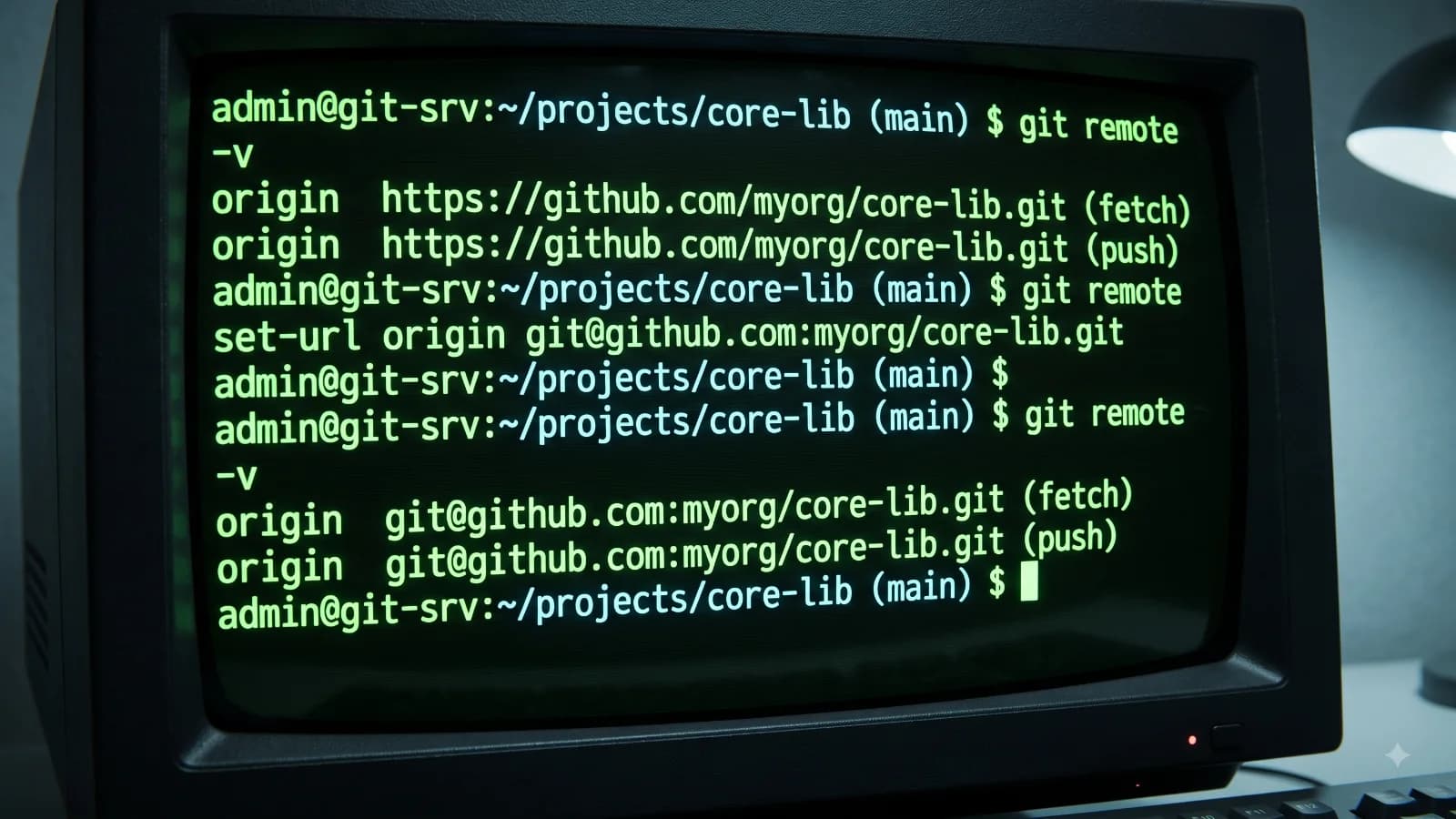
Providing concrete examples of the git remote set-url command demonstrates how straightforward this update process is in practice. Suppose you need to switch your repository from an old HTTPS URL to a new organization's HTTPS URL; you would run the command git remote set-url origin https://github.com/new-organization/repository.git. If you prefer to switch your workflow entirely to secure SSH keys to avoid typing passwords, you would instead execute git remote set-url origin git@github.com:new-organization/repository.git. In scenarios where you need to maintain both URLs or troubleshoot connectivity issues, you can also add a secondary remote using git remote add upstream <url> or inspect existing configurations with git remote -v. These commands give you total control over your repository linkages without disrupting your daily coding cadence.
Mastering the art of updating remote configurations offers massive productivity advantages for modern software engineering teams. Knowing how to update remotes seamlessly means you never have to waste time re-cloning large repositories, re-downloading heavy binary assets, or manually copying untracked configuration files from an old directory to a new one. If a server migration happens overnight, your team members can simply execute a single configuration command the next morning and resume working immediately. Furthermore, this approach prevents accidental data loss, as keeping your existing local repository ensures that uncommitted experimental changes, stash entries, and local branch histories remain safe and sound right where you left them.
Despite its simplicity, updating remote URLs does come with certain limitations and potential pitfalls that developers must navigate carefully. The most common issue arises from authentication mismatches when switching protocols. For instance, if you switch your remote URL from HTTPS to SSH without having your SSH public key properly registered with your hosting provider, your next push or pull command will immediately fail with a permission denied error. Similarly, if you switch from SSH to HTTPS, you must ensure you have generated a valid personal access token with appropriate repository scopes. Being aware of these authentication prerequisites prevents confusion and ensures a smooth transition between network protocols.
Common questions often arise regarding how to inspect and manage these remote configurations effectively across complex development workflows. Developers frequently ask how to check their current Git remote URL, which is easily accomplished by running git remote -v to list all configured read and write URLs associated with your project. Another common question is whether a single Git repository can have multiple remote URLs; the answer is yes, as Git allows you to configure multiple named remotes such as 'origin' for your fork and 'upstream' for the original open-source repository. Finally, understanding the fundamental differences between HTTPS and SSH remote URLs helps teams choose the most secure and frictionless authentication method for their specific enterprise compliance and security requirements.
In summary, knowing how to execute a git change remote URL operation is a fundamental competency for any developer working with distributed version control systems. By leveraging commands like git remote set-url, you can effortlessly redirect your local repository to new hosting providers, organizational accounts, or security protocols without sacrificing your local commit history or wasting time re-cloning projects. Embracing these streamlined configuration practices ensures your development workflow remains agile, secure, and resilient in the face of changing infrastructure requirements and team migrations.
📌 Recommended Next Guides & References
  <li>
    <a href="/article/docker-and-kubernetes-how-they-work-together-2" class="text-primary hover:underline font-semibold flex items-center gap-2">
      <span>→</span> <span>Docker and Kubernetes: How They Work Together</span>
    </a>
  </li>

  <li>
    <a href="/article/kubernetes-ingress-explained" class="text-primary hover:underline font-semibold flex items-center gap-2">
      <span>→</span> <span>Kubernetes Ingress Explained: Routing, Controllers, and TLS</span>
    </a>
  </li>

  <li>
    <a href="/article/kubernetes-ingress-controller-explained" class="text-primary hover:underline font-semibold flex items-center gap-2">
      <span>→</span> <span>Kubernetes Ingress Controller Explained: Architecture, Routing, and Implementation</span>
    </a>
  </li>