Quick Answer
When you need to delete file linux operations correctly, you must rely on standard terminal commands like rm, unlink, and rmdir. Unlike graphical user interfaces that send deleted items to a temporary trash bin, the command line in Linux immediately unlinks files from the filesystem. This makes precision and caution essential. Whether you are clearing out build artifacts in a local development environment, cleaning up image layers in Docker containers, or pruning stale cache logs in a Kubernetes persistent volume, understanding how these utilities handle storage blocks prevents accidental data loss and system corruption.
Quick Answer
To quickly delete file linux systems rely on the rm command. For a single file, run rm filename.txt. To remove an empty directory, use rmdirdirname or rm -d dirname. To recursively delete a directory and all of its contents, use rm -rf directoryname. Always exercise extreme caution with the recursive force flag (-rf), especially when executed with root privileges or inside automated CI/CD pipelines, as there is no built-in undo mechanism for command-line deletions.
Understanding delete file linux
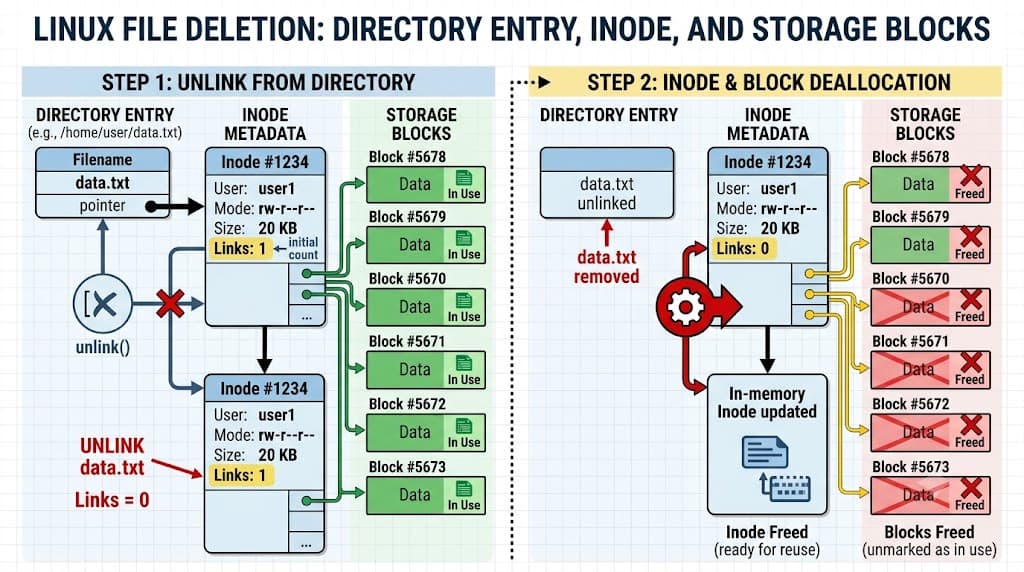
Operating systems manage storage through inodes and directory entries. An inode stores metadata about a file—such as ownership, permissions, timestamps, and physical disk block locations—while the file name itself resides in a directory entry that maps human-readable text to an inode number. When you delete file linux utilities do not immediately overwrite the underlying data blocks on the storage media. Instead, they remove the directory entry and decrement the inode's reference count. Once that reference count hits zero and no active processes hold an open file descriptor to it, the storage space is marked as available for reuse by the kernel.
The Linux command line grants immense power to users, but it also enforces strict permission models. Every file and directory has an owner, a group, and a set of permission bits governing read (r), write (w), and execution (x) rights. To modify or delete a file, your user account must have write permissions on the parent directory, not necessarily on the file itself. This is a common point of confusion for developers who find themselves unable to delete a file despite having full ownership of it.
How It Works
To truly master file and directory removal, you must examine how the underlying filesystem interacts with system calls. Under the hood, command-line utilities invoke specific system calls to interact with the Linux kernel. The unlink() system call removes a name from the filesystem. If that name was the last link to a file and no processes have the file open, the file is deleted. However, if a running background process, such as a logging daemon or a long-running web server worker, still has the file open, the kernel keeps the inode alive even though the filename has disappeared from the directory listing.
This behavior frequently catches developers off guard in production environments and containerized workloads. A process might continue writing to a deleted file, silently consuming disk space on the partition even though ls commands show the file is gone. You can inspect these unlinked yet open files using tools like lsof or by checking /proc/self/fd inside active container runtimes. Understanding this mechanics ensures you never panic when disk space fails to free up immediately after a deletion command finishes executing.
Practical Commands and Examples
Working efficiently in a terminal requires knowing the right command for each specific cleanup task. Let's examine real terminal commands, expected behaviors, and verification steps for various deletion scenarios.
Removing Single and Multiple Files
The primary utility for file removal is rm. To remove a standard file, specify its path:
rm config.json
If the file is write-protected or you want to confirm each deletion interactively in sensitive directories, use the interactive flag:
rm -i production.env
The terminal will prompt you with remove file 'production.env'? , requiring a y or n confirmation. To delete multiple files matching a pattern, you can use wildcards carefully:
rm *.log
Always run an ls command with the exact same wildcard pattern first to verify which files will be targeted before executing rm.
Deleting Directories
When dealing with directories, your approach depends on whether the directory is empty or populated. To delete directory linux installations provide rmdir, which only succeeds if the target directory contains no files or subdirectories:
rmdir old_cache
If you need to remove directory linux trees containing nested files and subfolders, you must use rm with the recursive flag (-r or -R):
rm -r dist/
Combining this with the force flag (-f) suppresses prompts for non-existent files and write-protected permissions, creating the familiar rm -rf command:
rm -rf node_modules/
Advanced Deletion with Find
For complex cleanup routines—such as deleting log files older than 30 days—combining rm with find is the industry standard:
find /var/log/app/ -name "*.log" -type f -mtime +30 -exec rm -f {} +
This command searches the specified path for regular files (-type f) matching the name pattern, modified more than 30 days ago (-mtime +30), and passes them safely to the removal command.
Common Mistakes
Even experienced engineers occasionally fall victim to syntax errors and destructive habits when managing files. Recognizing these common mistakes helps prevent catastrophic data loss.
The most infamous hazard is running recursive deletions with root privileges and a misconfigured path. For instance, executing rm -rf /path/to/dir where a leading slash or an accidental space precedes a variable can cause unintended system-wide deletion. For example, writing rm -rf $TARGET_DIR/ when TARGET_DIR evaluates to an empty string expands the command to rm -rf /, wiping out the root filesystem if run as root.
Another frequent error is wildcard misuse. Typing rm -rf *.bak when you intended to write rm -rf* .bak introduces a space between the wildcard and the extension, telling the shell to delete everything in the current directory first, followed by looking for a file named .bak. Always double-check your arguments and prefer interactive or dry-run validation when working with dynamic variables in shell scripts.
Troubleshooting
When deletion commands fail, diagnosing the root cause requires a systematic approach. Below is a safe troubleshooting walkthrough for common permission and locking issues encountered in local development, Docker containers, and CI/CD pipelines.
Handling Permission Denied Errors
If your terminal returns a Permission denied error, check the ownership and permissions of the parent directory using ls -ld:
ls -ld /var/www/html/uploads
If you lack write permissions, you cannot delete items inside that directory. You will either need to elevate your privileges using sudo (if authorized) or request the file owner to adjust permissions.
Resolving Locked Files and Ghost Disk Usage
If disk space remains exhausted after deleting large log files, active processes are likely holding file descriptors open. Identify these processes using lsof:
lsof +L1
This command lists open files that have been unlinked (link count of 1 or less). Once identified, you can gracefully restart the offending service or container to release the file handles and reclaim your disk space.
Managing Cleanups in Docker and CI/CD
In Docker environments, mounting host volumes incorrectly can lead to root-owned files appearing in your workspace, preventing normal deletion. Running docker system prune or leveraging container-native cleanup steps in your GitHub Actions workflow ensures ephemeral runners start with a pristine state without requiring manual root interventions.
Best Practices
Adopting rigorous operational habits safeguards your environments and minimizes human error. Follow these professional guidelines when executing file and directory removal tasks:
- Always Verify Paths: Run
lsorechowith your target path before substituting it into anrmcommand, especially when using variables in scripts. - Avoid Unnecessary Force Flags: Reserve
-ffor scripts where prompts would hang execution. In interactive shells, let safety prompts protect you. - Leverage Trash Utilities: For desktop Linux environments or shared development servers, consider installing command-line trash wrappers (such as
trash-cli) that move items to a recoverable trash folder rather than unlinking them instantly. - Implement Safe Automation: In CI/CD pipelines and deployment scripts, validate directory variables before running recursive deletions:
BASH
if [ -d "$BUILD_DIR" ] && [ "$BUILD_DIR" != "/" ]; then
    rm -rf "$BUILD_DIR"/*
fi
This simple guard clause ensures your scripts never accidentally target the root directory even if configuration variables fail to load.
📌 Recommended Next Guides & References
  <li>
    <a href="/article/docker-and-kubernetes-how-they-work-together-2" class="text-primary hover:underline font-semibold flex items-center gap-2">
      <span>→</span> <span>Docker and Kubernetes: How They Work Together</span>
    </a>
  </li>

  <li>
    <a href="/article/kubernetes-ingress-explained" class="text-primary hover:underline font-semibold flex items-center gap-2">
      <span>→</span> <span>Kubernetes Ingress Explained: Routing, Controllers, and TLS</span>
    </a>
  </li>

  <li>
    <a href="/article/kubernetes-ingress-controller-explained" class="text-primary hover:underline font-semibold flex items-center gap-2">
      <span>→</span> <span>Kubernetes Ingress Controller Explained: Architecture, Routing, and Implementation</span>
    </a>
  </li>