Quick Answer
Understanding the intersection of Linux for Docker is crucial for any developer, system administrator, or DevOps engineer looking to build, secure, and troubleshoot modern applications. Containers have transformed how we package software, moving away from monolithic deployments to immutable, isolated units. Yet, despite their modern wrapper and developer-friendly CLI tooling, containers are not lightweight virtual machines. They are simply specialized Linux processes running directly on the host kernel.
Quick Answer
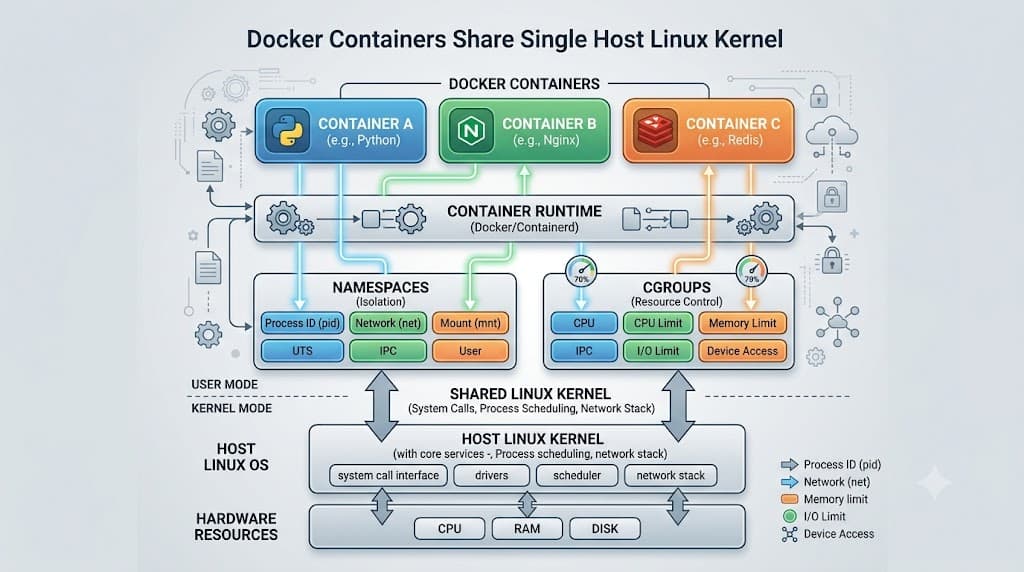
When developers talk about Linux for Docker, they are referring to the underlying operating system primitives that make containerization possible. Unlike traditional hypervisor-based virtualization, which runs an entire guest operating system and virtual hardware stack, Docker containers share the host's Linux kernel directly. They achieve isolation and resource management through core kernel features: namespaces (to isolate visibility of system resources such as process trees, network interfaces, and mount points), control groups or cgroups (to limit and account for CPU, memory, and I/O usage), and union file systems (to stack container layers efficiently). Because there is no guest kernel translation layer, Docker provides near-native execution performance while relying completely on the security boundaries and capabilities provided by the host Linux kernel.
Understanding Linux for Docker
To truly master Docker, one must first understand that a container image is not a bootable OS image in the traditional sense. A Linux distribution typically consists of two main parts: the Linux kernel and the userland utilities (such as shell binaries, coreutils, package managers, and configuration files). When you run a Docker container based on Alpine, Ubuntu, or Debian, you are only bringing along that distribution's userland. The container utilizes the Linux kernel of whatever host machine it is currently executing upon.
This architecture explains why a Linux-based Docker container cannot run natively on a Windows or macOS host without a translation or virtualization layer. On Windows and macOS, Docker Desktop actually runs a lightweight Linux distribution inside a managed virtual machine in the background. The Docker CLI on your host communicates with the Docker daemon running inside that Linux VM. Consequently, every time you execute a command, inspect a process, or configure a network bridge in Docker, you are interacting directly with Linux kernel subsystems. Knowing how these subsystems operate is the primary differentiator between developers who merely use Docker and engineers who can troubleshoot complex production bottlenecks.
How Containerization Works Under the Hood
Containerization relies on several cooperating Linux kernel primitives that evolved over many years in the upstream kernel community. Understanding these primitives demystifies what happens when you type 'docker run'.
Namespaces for Isolation
Linux namespaces wrap global system resources into an abstraction layer so that processes inside a namespace see only their own isolated set of resources. Docker utilizes multiple types of namespaces:
- PID Namespace: Isolates the process ID space. Container processes start at PID 1, making them completely unaware of host processes outside their boundary.
- NET Namespace: Manages network interfaces, routing tables, and firewall rules, giving each container its own isolated network stack.
- MNT Namespace: Controls filesystem mount points, ensuring container mounts do not bleed into the host or other containers.
- IPC Namespace: Isolates Inter-Process Communication resources, such as POSIX message queues and shared memory.
- UTS Namespace: Allows a container to have its own hostname and domain name without affecting the host.
- USER Namespace: Maps container user and group IDs to different UIDs and GIDs on the host, enhancing security by mapping root inside the container to an unprivileged user on the host.
Control Groups (cgroups) for Resource Governance
While namespaces dictate what a process can see, cgroups dictate how much of a resource that process can consume. The Linux kernel uses cgroups (versions v1 and v2) to limit, account for, and isolate hardware resource utilization—including CPU time, system memory, network bandwidth, and block device I/O. When you pass flags like --memory="512m" or --cpus="1.5" to the Docker daemon, Docker translates these directives into configurations within the host's /sys/fs/cgroup virtual filesystem, ensuring that a runaway container cannot starve the host system or neighboring containers of vital compute resources.
Union File Systems and Layered Images
Docker images are built using a series of read-only layers stacked on top of one another, finished off with a thin, writable container layer at runtime. This is powered by union mount filesystems such as OverlayFS. When a container writes a file, OverlayFS uses a mechanism called copy-on-write (CoW). If a file exists in a lower read-only layer and needs modification, the filesystem copies it up to the upper writable layer before making the change. This design drastically reduces disk space requirements and accelerates image distribution across artifact registries, as unchanged layers can be shared across multiple distinct images.
Practical Commands and Examples
Working effectively with Docker requires knowing how to inspect these underlying Linux constructs from both inside and outside containers. Below are practical terminal commands and verification steps.
Inspecting Container Process Trees
You can examine how container processes map to the host using standard Linux process utilities. Run a long-running container in the background:
docker run -d --name test-nginx nginx:alpine
To verify that the container process runs as a normal process on the host Linux kernel, execute the following command on the host terminal:
ps aux | grep nginx
You will see the master and worker nginx processes running directly on the host operating system, complete with their host-assigned process IDs. You can inspect the specific namespace allocations for a given process by checking its pseudo-files in the /proc directory:
ls -l /proc/$(pgrep -n nginx)/ns/
This command displays symlinks to the individual namespaces (net, mnt, pid, etc.) associated with the process, proving that its execution context is wrapped by the kernel.
Verifying Resource Limits via cgroups
To verify that cgroups are actively throttling resource consumption, run a container with specific memory limits:
docker run -d --name memory-test --memory="256m" alpine sleep 3600
You can verify the enforced memory limit directly by inspecting the cgroup configuration files on the host system. Find the container's long ID and check its memory limit file:
CONTAINER_ID=$(docker inspect --format='{{.Id}}' memory-test)
cat /sys/fs/cgroup/docker/$CONTAINER_ID/memory.max
Expected output will show the byte count corresponding to 256 megabytes (268435456), confirming that the Linux kernel is actively enforcing the constraint requested via the Docker daemon.
Interactive Shell Inspection
To troubleshoot environment variables, file permissions, and mount points interactively, spawn a shell inside a running container using standard execution flags:
docker exec -it test-nginx sh
Once inside the container shell, run standard Linux diagnostic commands to verify the filesystem and network configuration:
cat /etc/os-release
ip addr show
df -h
These verification commands demonstrate that while you are executing inside an isolated container userland, you are leveraging standard, familiar Linux command-line utilities.
Common Mistakes and Troubleshooting
Developers transitioning from traditional virtual machines to containerized environments frequently encounter pitfalls rooted in how Linux handles permissions, storage, and networking.
Running Containers as Root by Default
A common operational mistake is allowing applications inside containers to run as the root user (UID 0). Because containers share the host kernel, a security vulnerability that allows a process to escape namespace isolation could grant root-level access to the underlying host system.
Troubleshooting and Verification: Always check the running user inside your container image by inspecting the Dockerfile or running:
docker exec -it test-nginx whoami
If the output returns root, modify your Dockerfile to include a dedicated non-privileged user and group, switching context before the final entrypoint:
RUN addgroup -S appgroup && adduser -S appuser -G appgroup
USER appuser
Ignoring Volume Permission Conflicts
When mounting host directories into containers using bind mounts (-v /host/path:/container/path), file permission mismatches often occur because the UID of the process inside the container does not match the UID owning the files on the host filesystem.
Destructive Operations Warning: Be extremely cautious when running recursive ownership changes on host directories. Running commands like chmod -R 777 or chown -R on critical host system paths can severely compromise host security and break system daemons. Always restrict ownership changes strictly to designated application data directories.
To troubleshoot permission errors safely, inspect the numeric user ID inside the container:
docker exec -it test-nginx id
Match this UID to the owner of the mounted volume on your host system using ls -ld /host/path and adjust your build arguments or user mapping accordingly.
Handling Out-of-Memory (OOM) Killer Events
If a container abruptly terminates without throwing a standard application stack trace, it is often due to the Linux kernel OOM killer terminating the process because it exceeded its allocated cgroup memory limit.
Verification: You can verify if the kernel terminated the container process due to memory exhaustion by checking the host kernel message buffer:
dmesg -T | grep -i oom
If you see entries indicating that the kernel invoked the OOM killer on a container process identifier, increase the container's memory allocation limit or optimize the application's memory footprint.
Best Practices for Developers and DevOps Engineers
Operating reliable containerized workloads in production environments requires aligning Docker practices with robust Linux system administration standards.
Optimizing CI/CD and Container Build Pipelines
In modern CI/CD pipelines—whether running on GitHub Actions, GitLab CI, or Jenkins runners—Docker builds execute within Linux environments. To maximize build efficiency and security:
- Utilize multi-stage builds to separate heavy compilation toolchains from lightweight production runtime images.
- Pin base image tags to specific digest hashes or stable minor versions rather than relying blindly on the
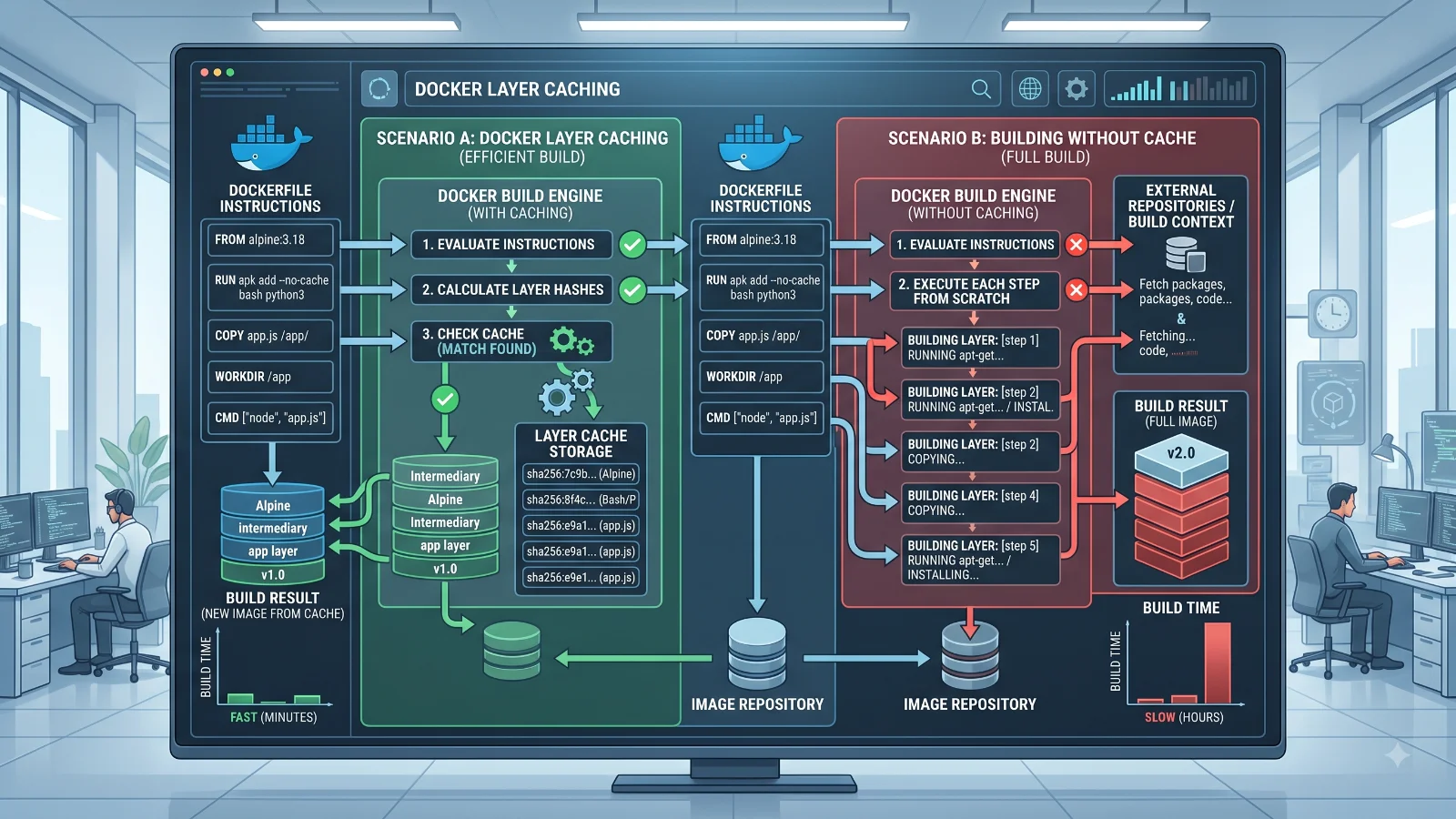
latesttag, ensuring reproducible builds. - Leverage BuildKit caching features to optimize layer caching across ephemeral CI runners.
Integrating with Kubernetes and Orchestration Platforms
Docker is often the stepping stone to Kubernetes. Kubernetes abstracts container runtime engines (such as containerd or CRI-O) while relying on the exact same underlying Linux kernel primitives—namespaces, cgroups, and network bridges. When configuring resource requests and limits in Kubernetes pod manifests (resources.limits.cpu and resources.limits.memory), you are directly configuring the cgroup parameters that the underlying container runtime passes to the Linux kernel. Understanding these low-level foundations ensures that your Kubernetes deployments scale predictably and handle resource contention gracefully without unexpected throttling or evictions.
📌 Recommended Next Guides & References
  <li>
    <a href="/article/docker-and-kubernetes-how-they-work-together-2" class="text-primary hover:underline font-semibold flex items-center gap-2">
      <span>→</span> <span>Docker and Kubernetes: How They Work Together</span>
    </a>
  </li>

  <li>
    <a href="/article/kubernetes-ingress-explained" class="text-primary hover:underline font-semibold flex items-center gap-2">
      <span>→</span> <span>Kubernetes Ingress Explained: Routing, Controllers, and TLS</span>
    </a>
  </li>

  <li>
    <a href="/article/kubernetes-ingress-controller-explained" class="text-primary hover:underline font-semibold flex items-center gap-2">
      <span>→</span> <span>Kubernetes Ingress Controller Explained: Architecture, Routing, and Implementation</span>
    </a>
  </li>