Introduction to Docker Volumes
Quick Answer
Docker containers have revolutionized how developers build, test, and ship applications. By encapsulating code, runtimes, system tools, and libraries into lightweight, portable units, containers ensure that applications run reliably across different computing environments. However, this revolutionary containerization model comes with a fundamental architectural quirk: ephemerality. By default, every file created inside a running container is stored within a writable container layer. This storage layer is tightly bound to the lifecycle of the container itself. When a container stops, restarts, or gets deleted, all data written to that internal writable layer vanishes completely. For stateless microservices, this behavior is ideal, as every run starts from a pristine, predictable state. But for real-world applications that handle user profiles, transactional databases, uploaded media, or application logs, losing data upon a container restart is catastrophic. This creates the central challenge of container data management: how do we maintain persistent data while retaining the agility of immutable containers? The answer lies in Docker persistent storage mechanisms, primarily Docker volumes. Volumes decouple data persistence from the container lifecycle, ensuring that your valuable application data survives container crashes, upgrades, and deletions without missing a beat.
What are Docker Volumes?
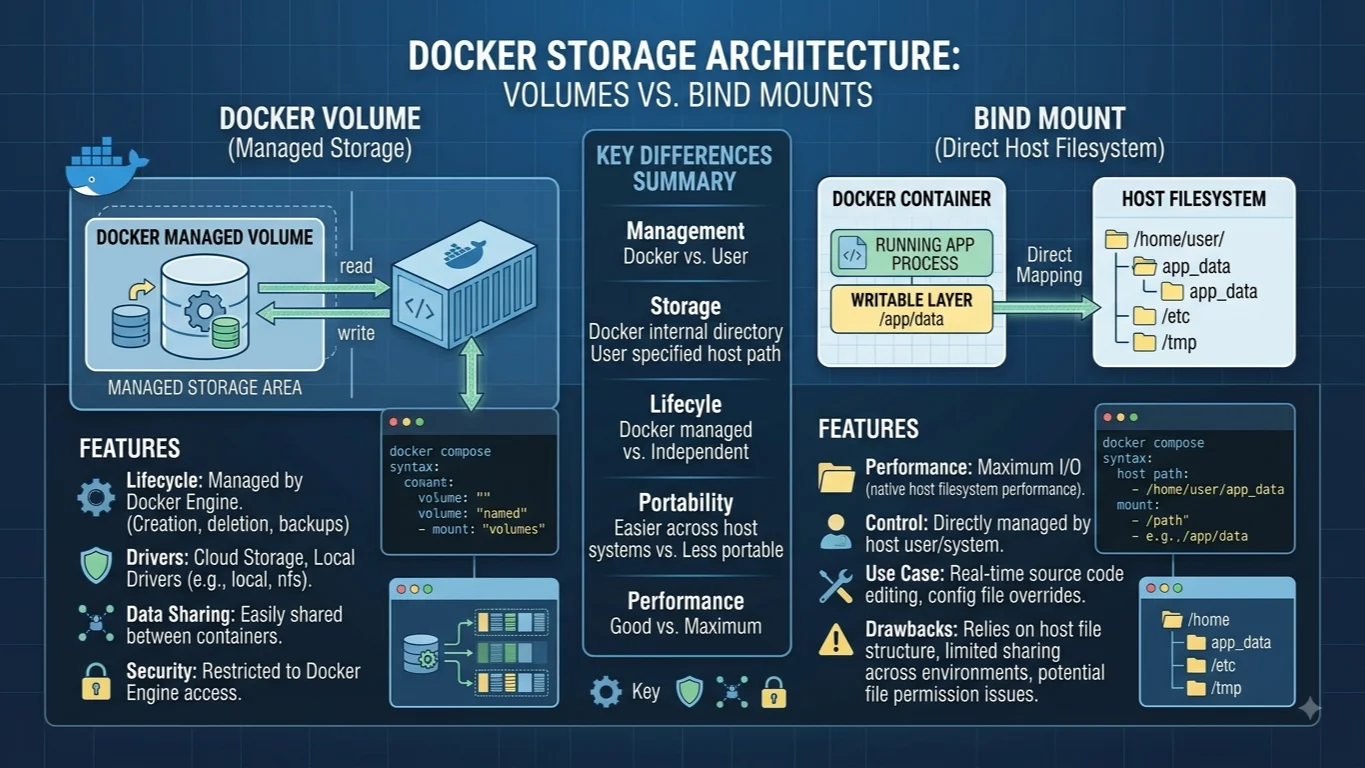
Docker volumes are purpose-built directories designed to persist data independently of the container lifecycle. Unlike the ephemeral storage layer native to a container, a Docker volume exists as a first-class citizen within the Docker ecosystem. It is completely managed by the Docker daemon, meaning that Docker handles all the low-level interactions with the host operating system's filesystem. When you create a volume, it is stored in a dedicated directory on the host machine that is strictly managed by Docker and isolated from normal host processes. This isolation is a major security and stability feature, preventing running containers from tampering with critical host system files while still giving them high-performance access to dedicated storage space. Furthermore, volumes are platform-agnostic, working identically across Linux, Windows, and macOS host environments. Because volumes are managed independently, multiple containers can attach to the exact same volume simultaneously, enabling seamless data sharing and collaborative workloads across complex multi-container microservice architectures. Whether you are running a single-node development setup or orchestrating production clusters, volumes provide a robust, predictable, and standardized way to handle stateful data in a stateless ecosystem.
How Docker Volumes Under the Hood
Understanding the inner mechanics of Docker volumes helps demystify how container storage actually performs at the operating system level. When a Docker volume is created, the Docker daemon allocates a specific directory path within the host machine's local storage—typically located under /var/lib/docker/volumes/ on Linux-based hosts. This directory acts as the physical repository for all data written into that volume. When you start a container and mount that volume to a specific mount point inside the container's internal filesystem (for example, /var/lib/mysql), Docker utilizes the host operating system's kernel features—such as namespaces and cgroups, alongside union mount filesystems and storage drivers—to bridge the container mount point directly to the dedicated directory on the host. Storage drivers like overlay2, aufs, or btrfs play a crucial role in managing how data flows between the container and the host filesystem. When your application writes a file to the mounted directory inside the container, the storage driver intercepts this write request and directs it straight to the underlying host directory. Because this operation bypasses the container's ephemeral writable layer entirely, the data incurs no union-file-system overhead for read and write operations, resulting in native, uninhibited disk performance. When the container is stopped or even permanently removed, the volume remains completely untouched on the host filesystem, waiting patiently until another container mounts it or an administrator explicitly prunes it.
Key Components and Storage Types
For more detail, see bind mounts.
Docker offers three distinct mechanisms for persisting data and sharing files between the host machine and containers, each serving different use cases, flexibility levels, and performance profiles. The first and most recommended mechanism is Docker volumes. Fully managed by Docker, volumes require minimal configuration, are easy to back up or migrate, and can be safely shared among multiple containers. The second mechanism is bind mounts. With bind mounts, you mount a specific file or directory from your host machine's arbitrary path directly into a container. While bind mounts are incredibly popular during local software development—allowing developers to live-reload code changes instantly by mounting source code directories into running containers—they rely heavily on the host machine's exact directory structure and operating system permissions, making them less portable across different developer machines or production environments. The third mechanism is tmpfs mounts. Unlike volumes and bind mounts, tmpfs mounts never write data to the host's physical disk. Instead, a tmpfs mount stores data exclusively in the host system's volatile memory (RAM). This makes tmpfs mounts exceptionally fast, perfect for storing sensitive credentials, temporary cache data, or high-speed scratchpads that must disappear the exact moment a container stops running. Choosing the correct storage type depends entirely on your specific workload requirements, performance needs, and security constraints.
Practical Docker CLI Examples for Volume Management
Mastering the Docker command-line interface is essential for effective container data management. Let us explore the fundamental commands used to create, inspect, mount, and clean up Docker volumes. To create a new dedicated volume, you use the docker volume create command. For instance, to create a volume named app_data, you run:
docker volume create app_data
Once created, you can verify its existence and view its metadata by running the docker volume inspect command:
docker volume inspect app_data
This command outputs a detailed JSON object showing creation timestamps, driver details, and the absolute physical path on the host machine. To mount this volume into a running container, you use the --mount flag (or the legacy -v flag) when executing docker run. For example, to start an Nginx container and mount our app_data volume to /usr/share/nginx/html, execute:
docker run -d --name web_server -v app_data:/usr/share/nginx/html nginx
If you need to list all existing volumes on your system to audit storage usage, simply run:
docker volume ls
When a volume is no longer needed and you want to reclaim disk space, you can remove it using docker volume rm:
docker volume rm app_data
Note that Docker prevents the deletion of any volume currently attached to an active container. If you want to clean up all unused, dangling volumes that are not currently associated with any running container in a single command, Docker provides a powerful garbage-collection utility:
docker volume prune
Benefits of Using Docker Volumes
Utilizing Docker volumes offers profound architectural and operational benefits for modern software development and deployment lifecycles. First and foremost, volumes eliminate data loss. By separating application data from container execution layers, development teams can safely update container images, patch operating system vulnerabilities, and scale container replicas up or down without risking valuable database records or user uploads. Second, volumes facilitate effortless data sharing. In complex microservice architectures, multiple distinct containers can mount the exact same volume concurrently—for instance, one container processing incoming file uploads and another container background-processing those files. Third, volumes simplify backup and disaster recovery procedures. Because all data resides in a known directory managed by Docker on the host, system administrators can easily write automated backup scripts that compress and archive volume directories to cloud object storage. Fourth, volumes enhance cross-platform portability. Whether you build container images on a macOS development laptop, run tests on a Windows workstation, and deploy to Linux-based production cloud servers, Docker volumes abstract away host filesystem differences, ensuring consistent, predictable data handling everywhere your containers run.
Limitations and Best Practices
While Docker volumes are powerful, engineering teams must adhere to established best practices and be mindful of inherent limitations to ensure system stability and performance. One common pitfall is permission management. Because volumes are created and managed by the Docker daemon running with root privileges on Linux hosts, files created inside volumes by non-root container users can sometimes result in permission denial errors on the host filesystem. To mitigate this, ensure your container images appropriately configure user permissions or initialize volume directories with correct ownership. Another consideration is performance. While volumes perform significantly better than writing to the container's default union filesystem, heavy disk I/O workloads—such as high-frequency transactional databases—can still experience bottlenecks if hosted on slow network-attached storage or unoptimized virtual machine disks. For production databases, always provision high-performance SSDs and consider dedicated storage drivers. Additionally, never hardcode sensitive production credentials directly into volume mount definitions; instead, rely on Docker Secrets or secure environment variables where appropriate. Finally, implement routine monitoring and automated pruning schedules to prevent unused, orphaned volumes from quietly consuming disk space over time.
Frequently Asked Questions
What is the difference between a Docker volume and a bind mount? Docker volumes are fully managed and stored by Docker in a dedicated host directory, offering high portability and safety. Bind mounts link an arbitrary file or directory path from the host machine directly into the container, tying the container to the host's specific directory structure and file permissions.
Where are Docker volumes stored on the host machine? On Linux hosts, Docker volumes are typically stored under /var/lib/docker/volumes/. You can find the exact path of any specific volume on your machine by running the docker volume inspect command.
How can I backup and restore a Docker volume? You can back up a volume by spinning up a temporary container that mounts the volume and archives its contents into a tarball on the host, and restore it by reversing the process into a newly created volume.
Can multiple containers share the same Docker volume simultaneously? Yes. Multiple containers can mount the same volume at the same time, allowing them to read from and write to the exact same shared dataset concurrently.
Conclusion
Persistent data management is a cornerstone of reliable containerized application architecture. Throughout this guide, we explored why ephemeral container storage necessitates dedicated solutions, how Docker volumes operate under the hood, and the practical CLI commands required to create, inspect, and manage them effectively. By leveraging Docker volumes, development and operations teams can bridge the gap between immutable container execution and stateful data persistence. Whether you are managing relational databases, user-generated content, or multi-container application caches, mastering volumes ensures your infrastructure remains resilient, portable, and secure. Adopt these best practices in your daily workflows, and build containerized applications with absolute confidence in your data longevity.
📌 Recommended Next Guides & References
  <li>
    <a href="/article/docker-and-kubernetes-how-they-work-together-2" class="text-primary hover:underline font-semibold flex items-center gap-2">
      <span>→</span> <span>Docker and Kubernetes: How They Work Together</span>
    </a>
  </li>

  <li>
    <a href="/article/kubernetes-ingress-explained" class="text-primary hover:underline font-semibold flex items-center gap-2">
      <span>→</span> <span>Kubernetes Ingress Explained: Routing, Controllers, and TLS</span>
    </a>
  </li>

  <li>
    <a href="/article/kubernetes-ingress-controller-explained" class="text-primary hover:underline font-semibold flex items-center gap-2">
      <span>→</span> <span>Kubernetes Ingress Controller Explained: Architecture, Routing, and Implementation</span>
    </a>
  </li>