Quick Answer
Managing a healthy repository requires regular maintenance, and knowing how to execute a git delete local branch command is a fundamental skill for any developer. Over the lifecycle of a project, developers create dozens of temporary branches for feature development, bug fixes, and experiments. Once these branches are merged into the main line of development or abandoned, they linger in your local environment. Without proper cleanup, your local branch list becomes cluttered, making it difficult to find active work, track progress, or collaborate efficiently. Repository hygiene is not merely about aesthetics; it is a practical discipline that prevents confusion, reduces cognitive load, and minimizes the risk of pushing stale code to shared remote repositories.
A local Git branch is simply a lightweight, movable pointer to a specific commit within your project history. Unlike remote branches that reflect the state of shared servers, local branches exist exclusively on your workstation. When you create a branch, Git sets a pointer for your current line of development, allowing you to isolate changes without affecting the main codebase. However, as projects scale, developers accumulate numerous stale branches that no longer serve a purpose. Removing these obsolete pointers is crucial for project organization because it keeps your command line interface clean, speeds up branch switching operations, and ensures that your local environment accurately mirrors the active development priorities of your team.
The mechanics behind branch deletion in Git rely heavily on the internal pointer system and merge status checks. When you issue a command to remove a local branch, Git performs a safety check by default. It inspects whether the commits unique to that branch have already been integrated into your current HEAD branch or another specified base branch. If Git finds that the work is safely merged, it simply removes the reference file pointing to that commit history, freeing up internal references while leaving the actual commit objects accessible via garbage collection until pruned. If the branch contains unmerged changes, Git halts the deletion process and issues a warning. This protective behavior prevents accidental data loss, ensuring you never throw away code without explicit confirmation.
To manage this process effectively, you must understand the core commands used for deletion, specifically contrasting safe deletion with forced deletion. The standard command for safe removal is 'git branch -d branch_name', which instructs Git to delete the specified branch only if its changes have been merged upstream. Alternatively, you can use the uppercase flag 'git branch -D branch_name', which is a shorthand for '--delete --force'. This forced deletion command tells Git to discard the branch immediately, regardless of whether it contains unmerged commits or untracked changes. Knowing when to use delete git branch locally with the safe lowercase flag versus the force delete git branch variant is essential for preventing accidental data loss while still maintaining the flexibility to discard experimental code.
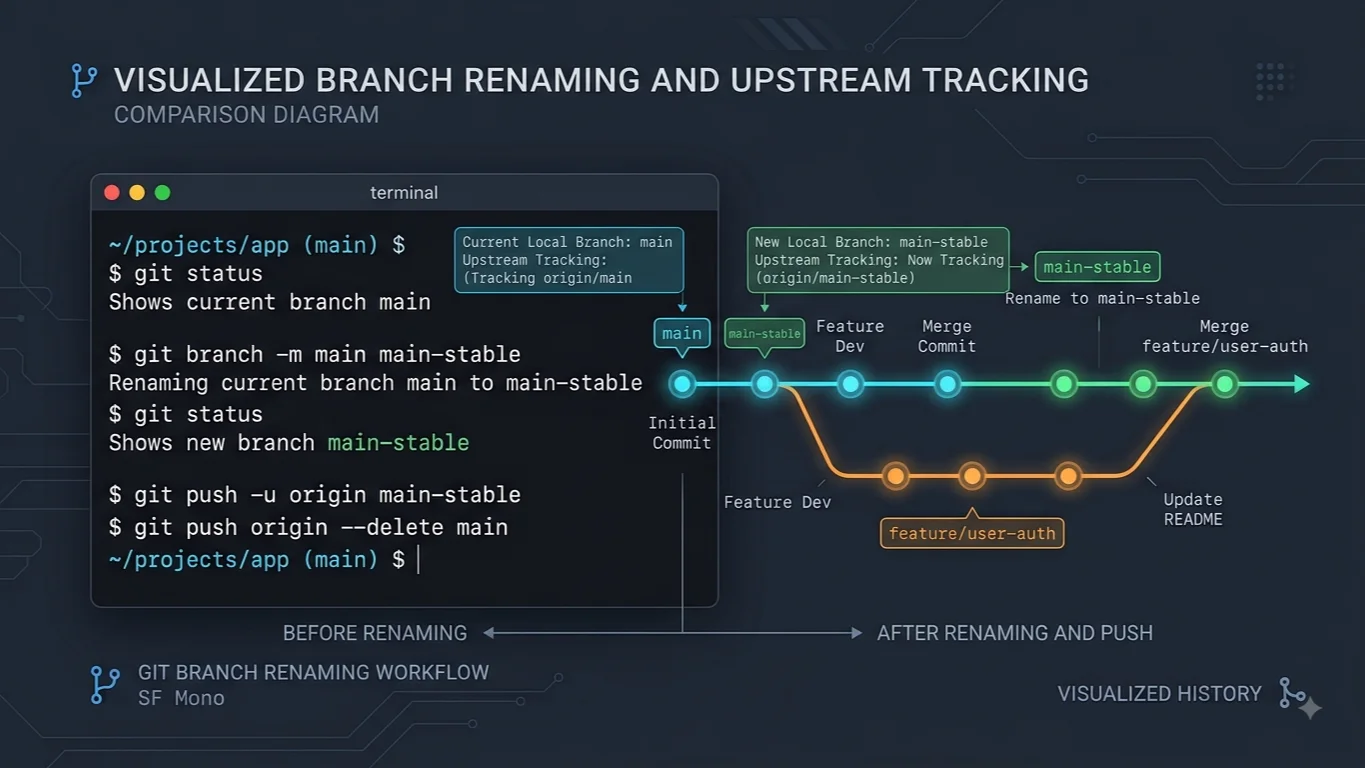
Let us walk through real-world terminal examples of listing, checking out, and deleting local branches to see these commands in action. First, you should list your existing branches to identify targets for removal by running 'git branch --list' or simply 'git branch'. Suppose you have finished working on a feature branch named 'feature/login-page' and have successfully merged it into 'main'. To perform a safe removal, you must ensure you are not currently checked out on the branch you want to delete. Switch to your main branch using 'git checkout main' or 'git switch main'. Once on the main branch, execute the safe deletion command: 'git branch -d feature/login-page'. Git will confirm the deletion in your terminal output. If you try to delete a branch with unmerged work using this lowercase flag, Git will reject the command and suggest using the uppercase flag. If you are certain you no longer need those unmerged experimental changes, you can execute the forced removal command: 'git branch -D experimental/ui-test'. This will instantly remove local git branch references from your environment.
Keeping a clean local branch list offers substantial benefits for daily development workflows. A clutter-free repository improves focus and drastically reduces context switching when navigating your project history. When you run branch listing commands and see only active feature lines and stable releases, you can quickly comprehend the current state of your local workspace. Furthermore, reducing the number of stale tracking references minimizes the chances of accidentally committing code to the wrong branch or pushing outdated experimental features to remote platforms like GitHub or GitLab. Maintaining this disciplined habit ultimately leads to smoother code reviews, faster onboarding for new team members, and an overall more organized software engineering process.
Despite the advantages, there are important limitations and risks to keep in mind, such as accidentally deleting unmerged work and understanding how Git prevents data loss by default. The primary risk associated with the delete git branch locally workflow is the use of the force flag ('-D'). If you forcefully remove a branch containing unique commits that have not been merged elsewhere, those commits become dangling objects in Git's database. While Git does retain unreachable objects temporarily before running its garbage collection routine, recovering them can be complex and stressful. Always verify your commit history using 'git log' or review pull request statuses before resorting to forced deletion, ensuring that you never discard valuable code inadvertently.
To address common hurdles, developers often encounter troubleshooting questions regarding deleted branch recovery and remote tracking branches. If you accidentally delete a local branch before its changes are merged, can you recover it? Yes, you can inspect your reflog using 'git reflog' to find the commit hash where the branch pointed before deletion, and then recreate the branch using 'git checkout -b branch_name commit_hash'. Another frequent question concerns the difference between safe and forced deletion: the lowercase '-d' safeguards against losing unmerged work, whereas uppercase '-D' bypasses all safety checks. Finally, users often ask whether they can delete the branch they are currently checked out on. Git explicitly prevents this because deleting an active HEAD pointer would corrupt your working tree state; you must always switch to a different branch, such as 'main' or 'master', before removing your target branch.
In summary, mastering how to execute a git delete local branch command is a vital part of maintaining a clean, efficient development environment. By understanding the underlying pointer mechanisms, distinguishing between safe and forced deletion flags, and respecting the safeguards designed to protect unmerged work, you can manage your local repository with confidence. Cultivate the habit of regularly reviewing and removing stale branches after your pull requests are merged. Consistent repository hygiene keeps your workspace organized, minimizes developer friction, and ensures that your focus remains squarely on writing great code rather than managing clutter.
📌 Recommended Next Guides & References
  <li>
    <a href="/article/docker-and-kubernetes-how-they-work-together-2" class="text-primary hover:underline font-semibold flex items-center gap-2">
      <span>→</span> <span>Docker and Kubernetes: How They Work Together</span>
    </a>
  </li>

  <li>
    <a href="/article/kubernetes-ingress-explained" class="text-primary hover:underline font-semibold flex items-center gap-2">
      <span>→</span> <span>Kubernetes Ingress Explained: Routing, Controllers, and TLS</span>
    </a>
  </li>

  <li>
    <a href="/article/kubernetes-ingress-controller-explained" class="text-primary hover:underline font-semibold flex items-center gap-2">
      <span>→</span> <span>Kubernetes Ingress Controller Explained: Architecture, Routing, and Implementation</span>
    </a>
  </li>