Quick Answer
Every developer eventually faces the sinking feeling of pressing enter on a Git commit command, only to realize something is terribly wrong. Whether you left out a crucial file, introduced a syntax error, or included sensitive credentials by accident, knowing how to safely perform a git undo last commit operation is an essential core skill. In modern software engineering, version control is our safety net, but interacting directly with commit history can feel intimidating. Without the right knowledge, attempting to fix a simple mistake can inadvertently cause merge conflicts, lose uncommitted work, or disrupt an entire development team. This comprehensive guide will walk you through the mechanisms, commands, and safety protocols required to correct your repository state with absolute confidence, ensuring you never panic when a mistake lands in your local or remote history.
Introduction to Git Commit Reversal
When writing code collaboratively or managing personal projects, mistakes are an inevitable part of the workflow. You might commit your changes too early, write an unclear commit message, or realize your last set of modifications broke the test suite. In these moments, knowing how to execute a git undo last commit action can save you hours of manual cleanup and debugging. However, the exact approach you should take depends heavily on whether those changes have already been shared with others. If your mistake is still confined to your local machine, you have a high degree of flexibility to alter history. Conversely, if the commit has already been pushed to a shared remote repository like GitHub or GitLab, rewriting history requires extreme caution. Understanding these nuances protects your team from broken builds and sync errors. By mastering the fundamentals of commit reversal, you transition from blindly typing terminal commands to deliberately managing your project's timeline.
Definition of Git Commit History Modification
To understand how to reverse a commit, it helps to look under the hood at how Git structures your work. Git is fundamentally a Directed Acyclic Graph (DAG) of commits, where each commit represents a snapshot of your project at a specific moment in time. Every commit object contains a pointer to its parent commit, forming a chronological chain that moves forward. When people talk about modifying commit history, they are describing the process of redirecting pointers, moving the current HEAD reference, or creating inverse snapshots that counteract previous changes. Undoing a commit is not like hitting undo in a text editor; rather, it is a deliberate operation that alters the relationship between your working directory, your staging area, and your commit history. Whether you choose to completely erase the memory of a commit or simply record a counter-commit that neutralizes it, you are actively participating in shaping how your repository's timeline is perceived by both your local machine and your remote collaborators.
How Git Undo Mechanisms Work
See also: git reset --hard
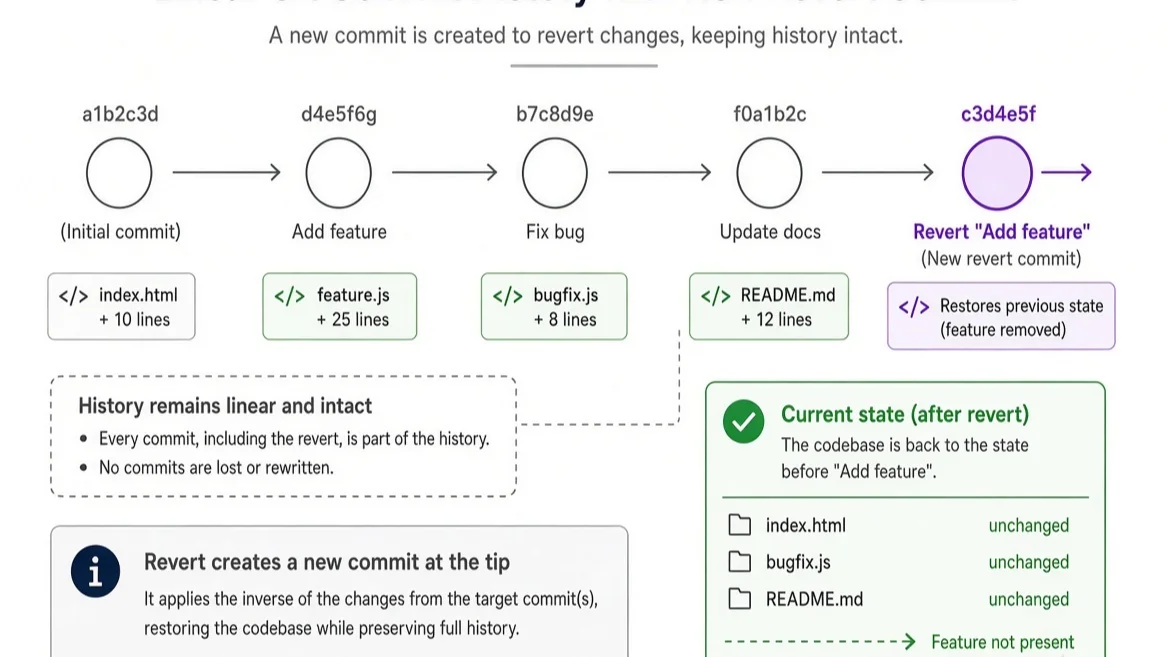
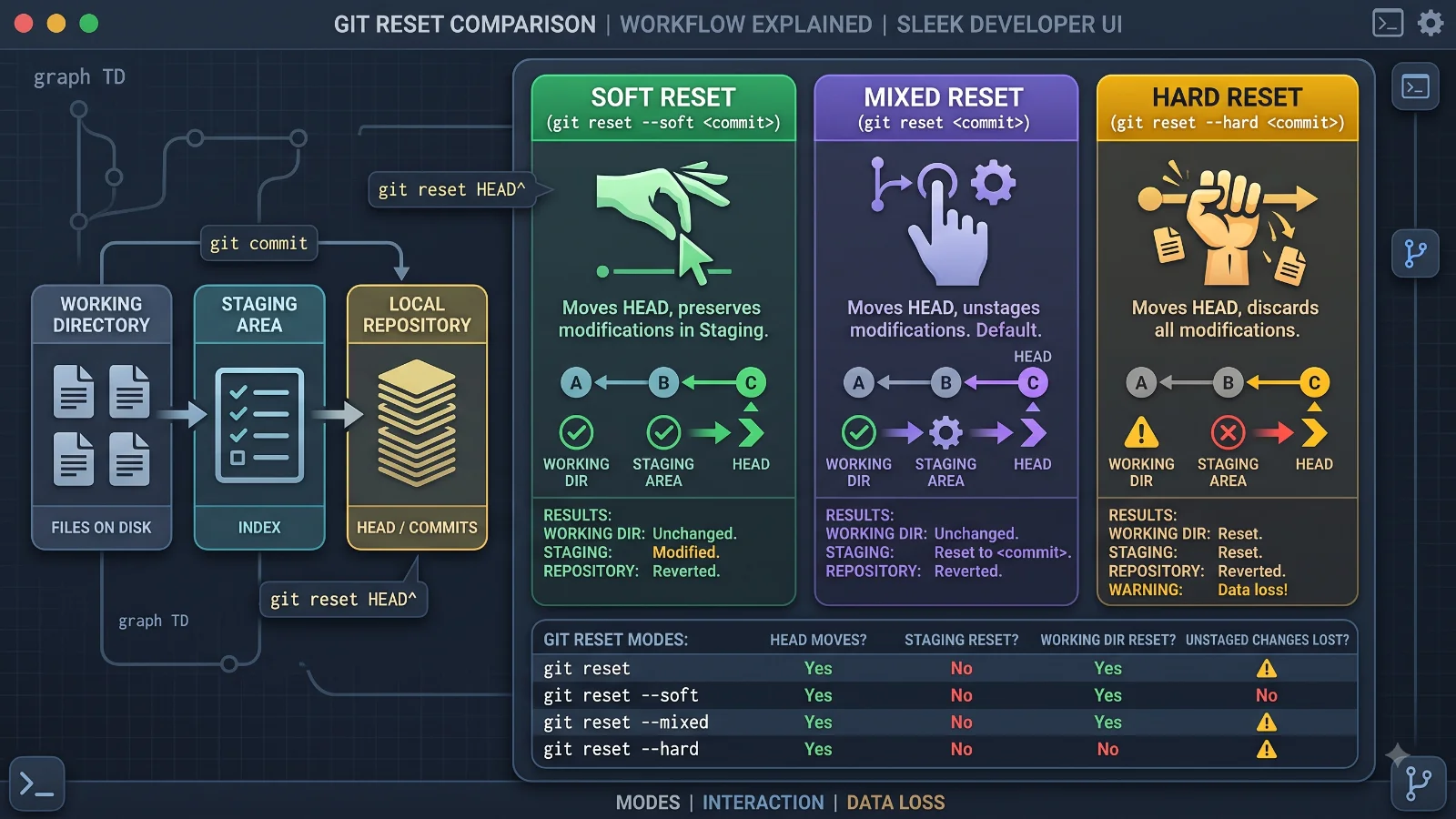
At the center of every Git operation are three primary areas: the working directory, the staging area (index), and the repository history (HEAD). When you want to execute a git undo last commit workflow, your command will interact with one or more of these areas depending on the flags you supply. The HEAD pointer keeps track of your current branch and points to the latest commit you have made. When you run a reset operation, you move the HEAD pointer backward to an earlier commit. Depending on whether you use soft, mixed, or hard flags, Git will either leave your modified files in your working directory, unstage them, or wipe them out entirely. Meanwhile, operations like revert do not move the HEAD pointer backward in the same destructive way; instead, they compute the mathematical opposite of the target commit's diff and apply it as an entirely new commit at the tip of the branch. Understanding this internal choreography ensures you never accidentally delete work you intended to keep.
Core Components: Reset vs. Revert
For more detail, see Git reset vs git revert.
See also: git revert
When developers talk about undoing a commit, they are usually choosing between two powerful commands: git reset and git revert. Each command serves a completely different philosophical and technical purpose. The git reset command is a history-rewriting tool. It allows you to roll back the current branch to a previous state, effectively erasing any commits that came after that point from the local branch history. This is ideal for local commits that have never been pushed anywhere. On the other hand, git revert is a history-preserving tool. Instead of deleting past commits, it creates a brand new commit that applies the exact inverse of the changes introduced by the commit you want to undo. This means your historical timeline remains completely intact, making git revert the safest and preferred choice for commits that have already been pushed to a shared remote repository. Choosing incorrectly between these two commands can lead to severe synchronization issues on collaborative projects.
Practical Examples for Local and Pushed Commits
Applying these concepts requires looking at concrete, real-world terminal commands. If you have made a commit locally and realize you need to change it, your best friend is git reset. If you want to keep your changes in your working directory so you can modify them and commit again, you would run git reset --soft HEAD~1. This moves the HEAD back one commit while leaving all your staged files intact. If you want to unstage the files as well, you would omit the soft flag or use --mixed, which is the default behavior. However, if your commit has already been pushed to a remote server, running git reset will cause conflicts the next time you try to push because your local history diverges from the remote history. In this case, you must use git revert HEAD, which generates a new commit neutralizing the last one without altering any historical records, allowing you to push safely.
Benefits of Choosing the Right Undo Strategy
Selecting the appropriate method for undoing a commit yields significant benefits for both individual productivity and team dynamics. When you use history-preserving commands like git revert for shared branches, you maintain harmony across your engineering team. Nobody else's local repository gets out of sync, and continuous integration pipelines continue to run smoothly without requiring forced pushes. Conversely, using history-rewriting commands like git reset locally allows you to keep your commit history exceptionally clean. You can squash messy experimental commits, fix typos in your code, and present a polished, logical progression of changes when you finally decide to share your work with the world. Adopting a disciplined, safety-first mindset ensures that your version control history remains a reliable, readable narrative of how your software evolved over time.
Limitations and Risks of Rewriting History
While the ability to rewrite history is one of Git's most powerful features, it comes with notable risks and limitations. The most dangerous pitfall is force-pushing (git push --force-with-lease) modified history to a shared remote branch where other developers are actively working. If teammate A has pulled down the history you just rewrote, and you force-push an altered timeline, teammate A's local repository will become desynchronized, leading to frustrating merge conflicts and potential loss of their independent work. Furthermore, once a commit is completely removed from your active branch history via a hard reset and garbage collection runs, recovering that code becomes exceedingly difficult. Therefore, rewriting history should always be treated as a localized action reserved strictly for unshared commits. For anything that has touched a public remote, history preservation through reverting is almost always the correct path.
Frequently Asked Questions
What is the difference between git reset --soft and git reset --hard?
The --soft flag moves the HEAD pointer back while leaving your working directory and staging area completely untouched, meaning your changes stay ready to commit. The --hard flag moves the HEAD pointer back and aggressively resets your working directory and staging area to match that commit, permanently discarding any uncommitted changes you were working on.
Can I undo a commit after I have already pushed it to GitHub?
Yes, but you should use git revert instead of git reset. Reverting creates a new commit that cancels out the old one, avoiding history-rewriting conflicts on shared repositories.
How do I recover a commit if I accidentally deleted it with git reset?
You can use git reflog to view a chronological log of every movement of your HEAD pointer. Once you locate the hash of the commit before you reset, you can check it out or reset back to it to recover your lost work.
Does git revert create a new commit?
Yes. Unlike reset, which moves pointers backward, revert generates a brand new commit containing the inverse diff of the target commit and adds it to the tip of your branch.
Conclusion
Mastering how to execute a git undo last commit operation is a rite of passage for every proficient software developer. By understanding the fundamental difference between local and pushed commits, you can choose the correct tool for the job. Use git reset to polish and clean up your unshared local history with surgical precision, and rely on git revert when dealing with shared remote repositories to maintain team collaboration harmony. Always prioritize safety, leverage tools like the reflog as a fallback net, and treat history-rewriting commands with the respect they demand. With these practices ingrained in your daily workflow, you can approach version control mistakes not as crises, but as minor speed bumps easily managed with Git.
📌 Recommended Next Guides & References
  <li>
    <a href="/article/docker-and-kubernetes-how-they-work-together-2" class="text-primary hover:underline font-semibold flex items-center gap-2">
      <span>→</span> <span>Docker and Kubernetes: How They Work Together</span>
    </a>
  </li>

  <li>
    <a href="/article/kubernetes-ingress-explained" class="text-primary hover:underline font-semibold flex items-center gap-2">
      <span>→</span> <span>Kubernetes Ingress Explained: Routing, Controllers, and TLS</span>
    </a>
  </li>

  <li>
    <a href="/article/kubernetes-ingress-controller-explained" class="text-primary hover:underline font-semibold flex items-center gap-2">
      <span>→</span> <span>Kubernetes Ingress Controller Explained: Architecture, Routing, and Implementation</span>
    </a>
  </li>