Introduction to Git Remote Operations
Quick Answer
When working in a collaborative software development environment, your local repository is merely one of many working copies distributed across different machines. The central hub—often hosted on platforms like GitHub, GitLab, or Bitbucket—acts as the single source of truth where all team members contribute their code. To keep your local environment synchronized with this central hub, Git provides several network-facing commands. Understanding how these commands operate is crucial for maintaining a clean project history, avoiding accidental code overwrites, and minimizing disruptive merge conflicts.
At the heart of distributed version control are two primary operations: downloading remote changes and integrating them into your working files. Many beginners and even intermediate developers use commands like git fetch command and git pull command interchangeably, assuming they perform the exact same task. However, under the hood, these two commands behave very differently. One offers a cautious, inspection-first approach, while the other automates both the download and the integration steps into a single, rapid action. Mastering the distinction between them transforms you from a developer who merely reacts to merge conflicts into one who proactively manages code integration with precision and confidence.
Defining Git Fetch and Git Pull
For more detail, see git merge or git rebase.
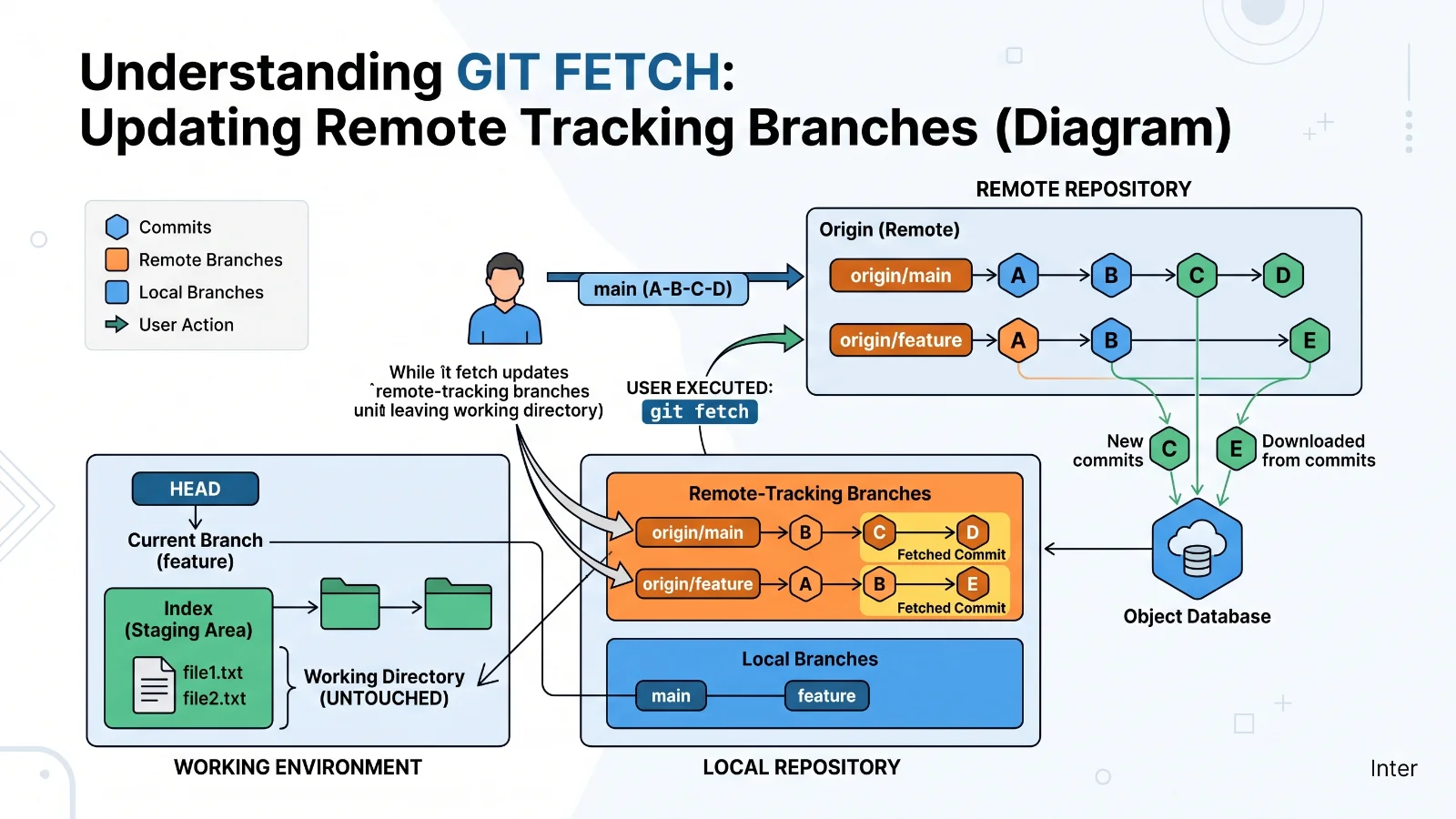
To understand the fundamental debate of git fetch vs git pull, we must first establish clear definitions for both commands. At its core, git fetch is the safer, non-destructive command. When you run a fetch, Git reaches out to the remote repository and downloads any new commits, branches, and tags that have been added since your last sync. Crucially, git fetch stores these newly downloaded changes in your local repository's remote-tracking branches (such as origin/main). It does not touch your current working directory, nor does it modify your active local branches. You receive all the latest data, but your current workspace remains completely untouched and isolated from incoming changes.
On the other hand, git pull command is a composite operation. It is not a distinct, standalone mechanism; rather, git pull is shorthand for executing a git fetch followed immediately by a second command: either git merge or git rebase. When you execute a pull, Git downloads the remote changes just like a fetch does, but it does not stop there. It automatically attempts to integrate those downloaded changes into your currently checked-out local branch. If your local branch has diverged from the remote branch, Git will instantly trigger a merge process, potentially opening a text editor for a merge message or requiring you to resolve merge conflicts right then and there. This convenience makes git pull fast, but it also removes the safety buffer of inspecting updates before they alter your active code.
How Git Fetch Works Under the Hood
To appreciate why many senior developers prefer git fetch as their default synchronization habit, we need to examine its inner workings. When you initialize a Git repository and link it to a remote URL, Git maintains a separation between your local branches (like main or feature-branch) and the remote-tracking branches that reflect the state of the server (like origin/main). When you execute a git fetch, Git contacts the designated remote server, compares the commits on the server with your local database of that remote, and copies over any missing object files and commit histories.
These newly retrieved commits are placed securely into your local repository's hidden .git directory, specifically updating your remote-tracking references. Because your active working directory and your local feature branches are completely insulated from these remote-tracking references, you can fetch updates at any time without fear of disrupting your current coding flow. You could be in the middle of writing a complex function, with uncommitted changes in your staging area, and safely run a git fetch without risking your work. Once the fetch completes, you can inspect the incoming changes using commands like git log origin/main or git diff origin/main to see exactly what your teammates have pushed to the repository before deciding how or when to integrate those updates.
Core Components and Mechanics of Git Pull
For more detail, see resolve merge conflicts.
See also: resolve merge conflicts
While git fetch provides a cautious preview, git pull is engineered for speed and immediate integration. Breaking down the mechanics of git pull reveals a strict two-phase process. Phase one is identical to git fetch: Git securely contacts the remote repository, downloads all missing commits, and updates the local remote-tracking branches. Phase two is where the divergence occurs. In this phase, Git takes the newly fetched commits from the remote-tracking branch and merges them into your currently active local branch.
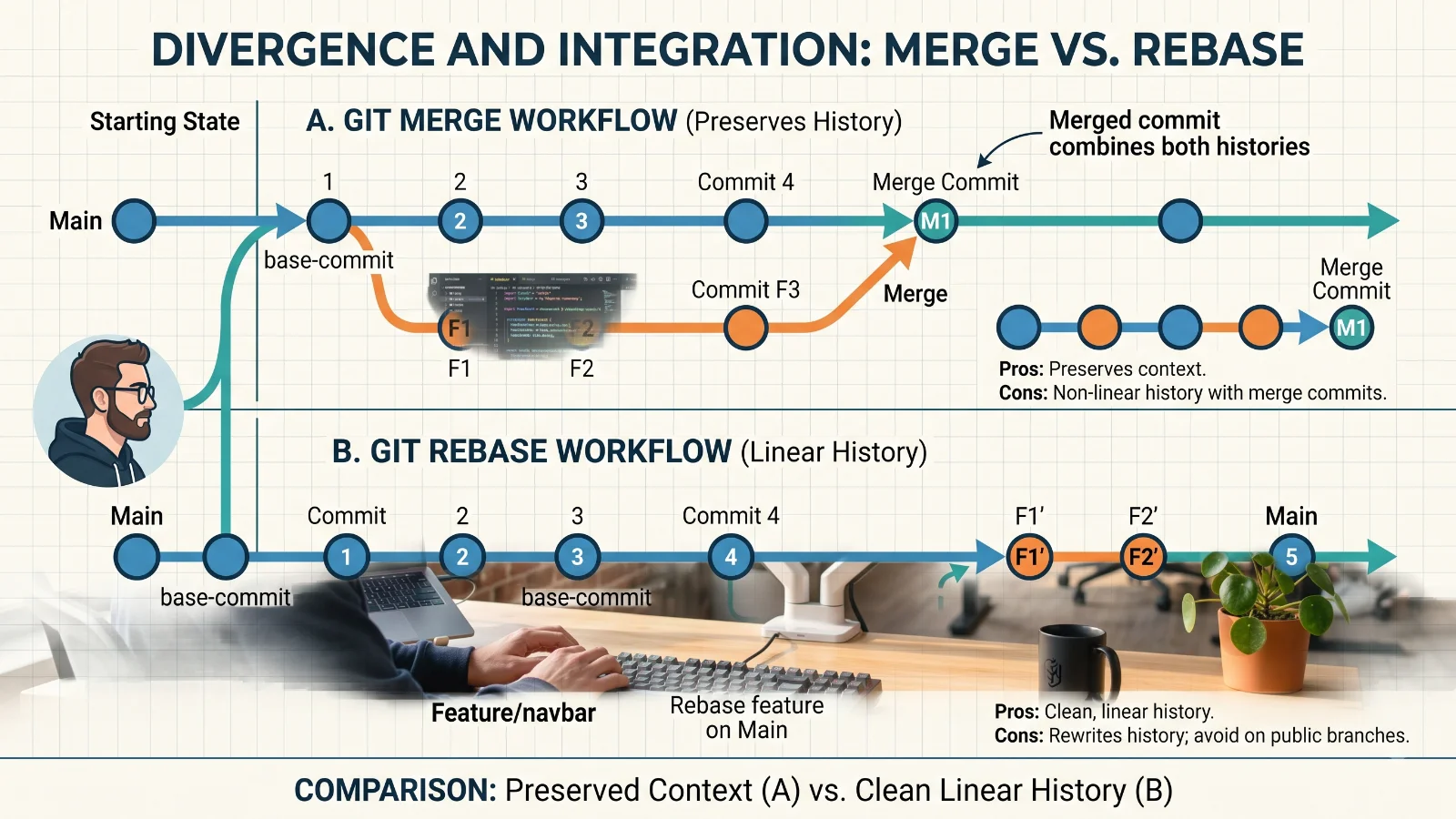
By default, this integration phase uses git merge. If your local branch has not moved forward since your last sync, Git performs a fast-forward merge, simply sliding your local branch pointer up to match the remote branch pointer. However, if both you and a teammate have committed new changes to the same branch, a fast-forward is impossible. In this scenario, Git automatically creates a new merge commit on your local branch to reconcile the two diverging histories. Alternatively, if configured to use rebase, phase two will temporarily stash your local uncommitted commits, replay the remote commits onto your branch, and then reapply your local commits on top. Understanding this two-step reality clarifies why git pull is more than just a simple download—it is an active integration command that directly alters your working branch.
Practical Examples of Fetch and Pull in Action
To see these commands in action, let us walk through real-world terminal scenarios. Imagine you are working on a project and want to check for updates from your teammates without modifying your current code. You open your terminal and type:
git fetch origin
Upon executing this command, Git outputs connection details and confirms that new objects have been downloaded. Your prompt returns immediately. You are curious about what changed, so you run:
git log --oneline main..origin/main
This command reveals three new commits added by a colleague. Because you used git fetch, your working directory remains pristine, allowing you to finish your current thought before integration. Once you are ready, you can manually merge the changes by running git merge origin/main.
Conversely, imagine a different scenario where you want to update your repository quickly and are confident no conflicting work exists. You run:
git pull origin main
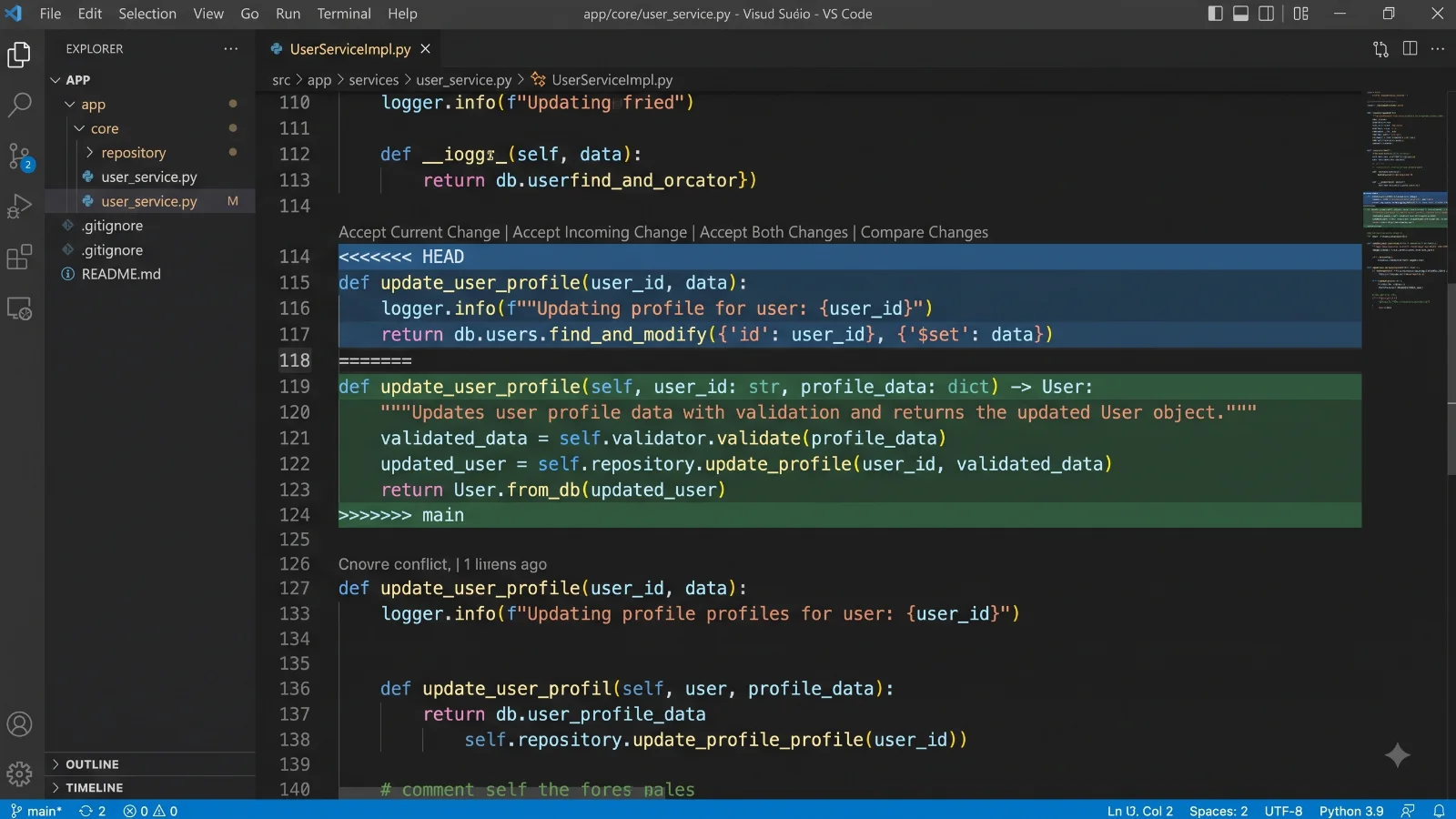
The terminal output displays the fetching phase followed immediately by a merging summary, indicating that files were updated and a fast-forward merge was successfully completed. If conflicts had occurred, the terminal would have paused execution, marked the conflicting files, and instructed you to resolve them before completing the pull process.
Benefits of Using Git Fetch
Adopting git fetch as a primary workflow habit offers several profound advantages for developers of all skill levels. First and foremost is safety. Because git fetch never alters your working directory or your local branches, it eliminates the risk of surprise merge conflicts interrupting your concentration. You remain in complete control of when and how code enters your workspace.
Another major benefit is visibility. By decoupling downloading from merging, git fetch encourages a reflective development style. You can inspect incoming changes, review commit messages, examine code diffs, and evaluate whether a remote update will break your ongoing local experiments. This proactive inspection is especially valuable in large teams or open-source projects where dozens of commits may land on a shared branch daily. Furthermore, fetch allows you to keep your remote-tracking branches fresh in the background, ensuring you always have an accurate, up-to-date picture of the project landscape before executing any integration steps.
Limitations and Risks of Git Pull
Despite its convenience, git pull carries inherent risks that every developer should respect. The most prominent danger is the blind integration of code. When you run git pull without first inspecting what has changed on the remote, you invite unexpected merge conflicts directly into your active workspace. If those conflicts are complex, resolving them under pressure can disrupt your development flow and occasionally lead to accidental code loss if mistakes are made during conflict resolution.
Additionally, habitual use of git pull with default merge settings can clutter your repository history with unnecessary merge commits. Every time your local branch diverges from the remote branch, a pull command generates a new merge commit, resulting in a non-linear, tangled git graph that is difficult to read. While this can be mitigated by configuring git pull to use rebase, the fundamental risk remains: pulling without inspecting bypasses the critical review step that keeps collaborative codebases clean and stable.
Frequently Asked Questions
Is git fetch safer than git pull? Yes. Git fetch is safer because it only downloads remote updates into remote-tracking branches without altering your working directory or local code, whereas git pull automatically attempts to merge those updates into your active branch.
Does git fetch update my working directory? No. Git fetch does not touch your working directory or your checked-out local files. It strictly updates your local repository's knowledge of the remote state.
Can git pull cause merge conflicts? Yes. If your local branch and the remote branch have both received new commits since your last sync, git pull will attempt to merge them and may trigger merge conflicts that you must resolve manually.
How do I set git pull to use rebase by default? You can configure your repository or global Git settings to use rebase by running the command git config --global pull.rebase true.
Conclusion
Navigating remote repositories successfully requires moving beyond rote memorization of commands and truly grasping their underlying mechanics. While git pull offers a swift shortcut for updating your code, git fetch provides the safety, visibility, and control necessary for robust, professional software development. By incorporating git fetch into your daily routine—inspecting remote-tracking branches before integration—you protect your codebase from unexpected surprises and maintain a pristine project history. Balance convenience with caution, choose your integration strategy wisely, and let your Git workflow support rather than hinder your engineering goals.
📌 Recommended Next Guides & References
  <li>
    <a href="/article/docker-and-kubernetes-how-they-work-together-2" class="text-primary hover:underline font-semibold flex items-center gap-2">
      <span>→</span> <span>Docker and Kubernetes: How They Work Together</span>
    </a>
  </li>

  <li>
    <a href="/article/kubernetes-ingress-explained" class="text-primary hover:underline font-semibold flex items-center gap-2">
      <span>→</span> <span>Kubernetes Ingress Explained: Routing, Controllers, and TLS</span>
    </a>
  </li>

  <li>
    <a href="/article/kubernetes-ingress-controller-explained" class="text-primary hover:underline font-semibold flex items-center gap-2">
      <span>→</span> <span>Kubernetes Ingress Controller Explained: Architecture, Routing, and Implementation</span>
    </a>
  </li>