Introduction to Git Reset Hard
Quick Answer
Version control systems are designed to give developers absolute confidence when writing and experimenting with code. Among the most powerful and feared commands in Git is the reset command, specifically when combined with the --hard flag. When working on a complex codebase, developers often find themselves in situations where their local working directory becomes cluttered with unwanted modifications, experimental debugging lines, or broken files. In these moments, reaching for a drastic cleanup tool becomes tempting. The git reset --hard command serves as a digital sledgehammer, instantly wiping the slate clean and forcing the repository back to a pristine, known state. However, with great power comes significant risk. Because this command bypasses standard safeguards and discards active work without a direct recycle bin, it has earned a notorious reputation among developers. Understanding how to wield this command safely requires diving deep into its internal mechanics, recognizing the exact boundaries of its destructive capabilities, and mastering the recovery techniques that stand between a minor mistake and a catastrophic data loss event. Whether you are a junior engineer learning the ropes of version control or a seasoned developer looking to refine your emergency troubleshooting toolkit, grasping the full scope of git reset --hard is essential for maintaining control over your codebase.
Definition and Core Mechanics
For more detail, see git reset.
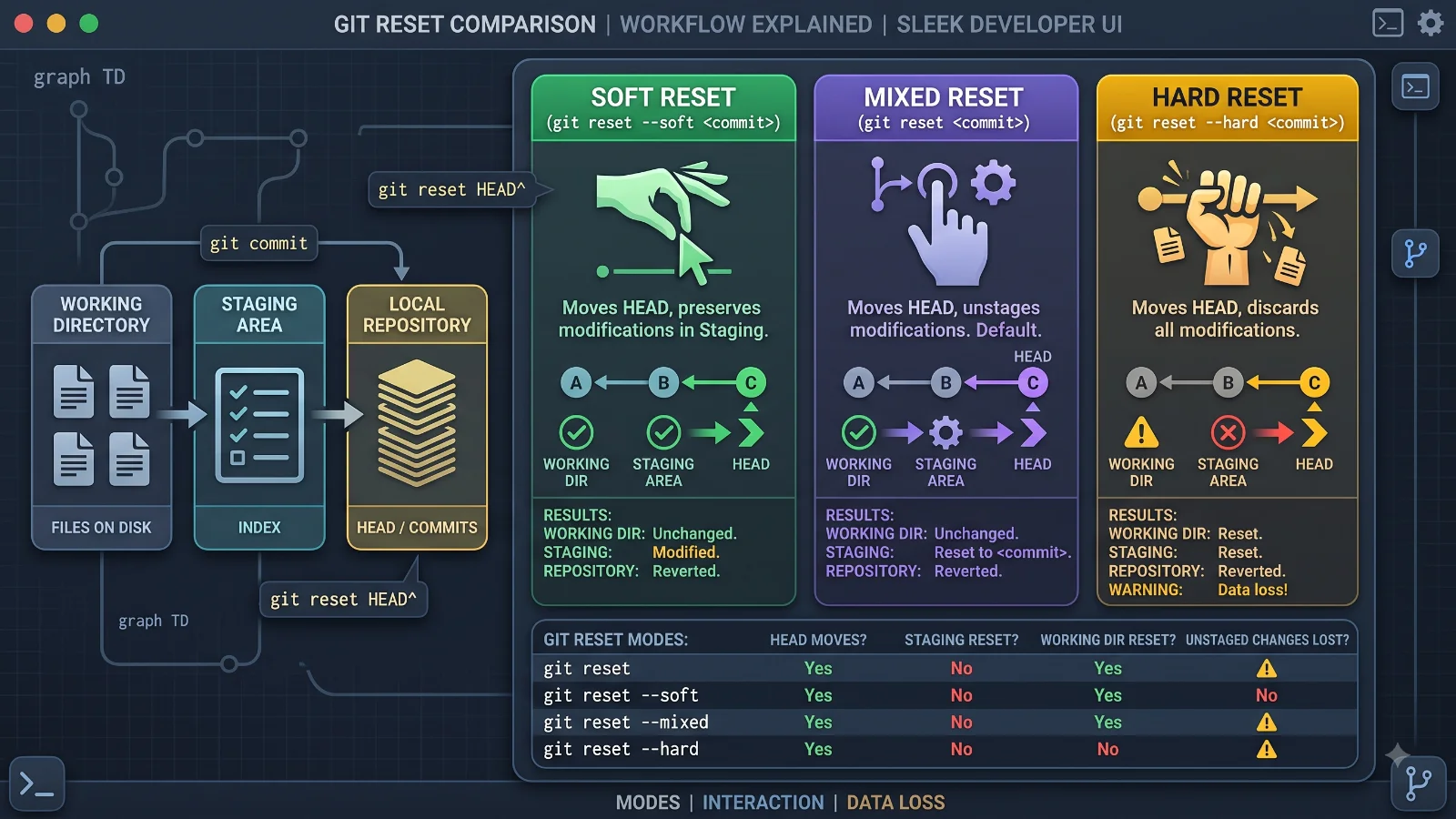
To understand git reset --hard, one must first define what the base git reset command accomplishes. At its core, git reset is a Swiss Army knife designed to update your current HEAD to a specified state. By default, running git reset alters only the commit history pointers while leaving your staged changes and working directory files untouched. This default behavior provides a safe way to unstage files or move your branch pointer backward while keeping your current code intact. However, appending the --hard flag fundamentally alters this behavior. When you execute git reset --hard, Git forces three distinct operations to happen simultaneously. First, it moves the branch pointer (HEAD) to the target commit you have specified. Second, it resets the staging area, also known as the index, to match that exact same target commit. Third, and most importantly, it overwrites your working directory, completely changing every tracked file to match the version stored in that target commit. This simultaneous tripartite update means that any work currently sitting in your working directory or staging area that has not been securely committed is immediately overwritten and discarded. It is an all-or-nothing command that synchronizes your entire working tree with a specific point in your project history.
How It Works Under the Hood
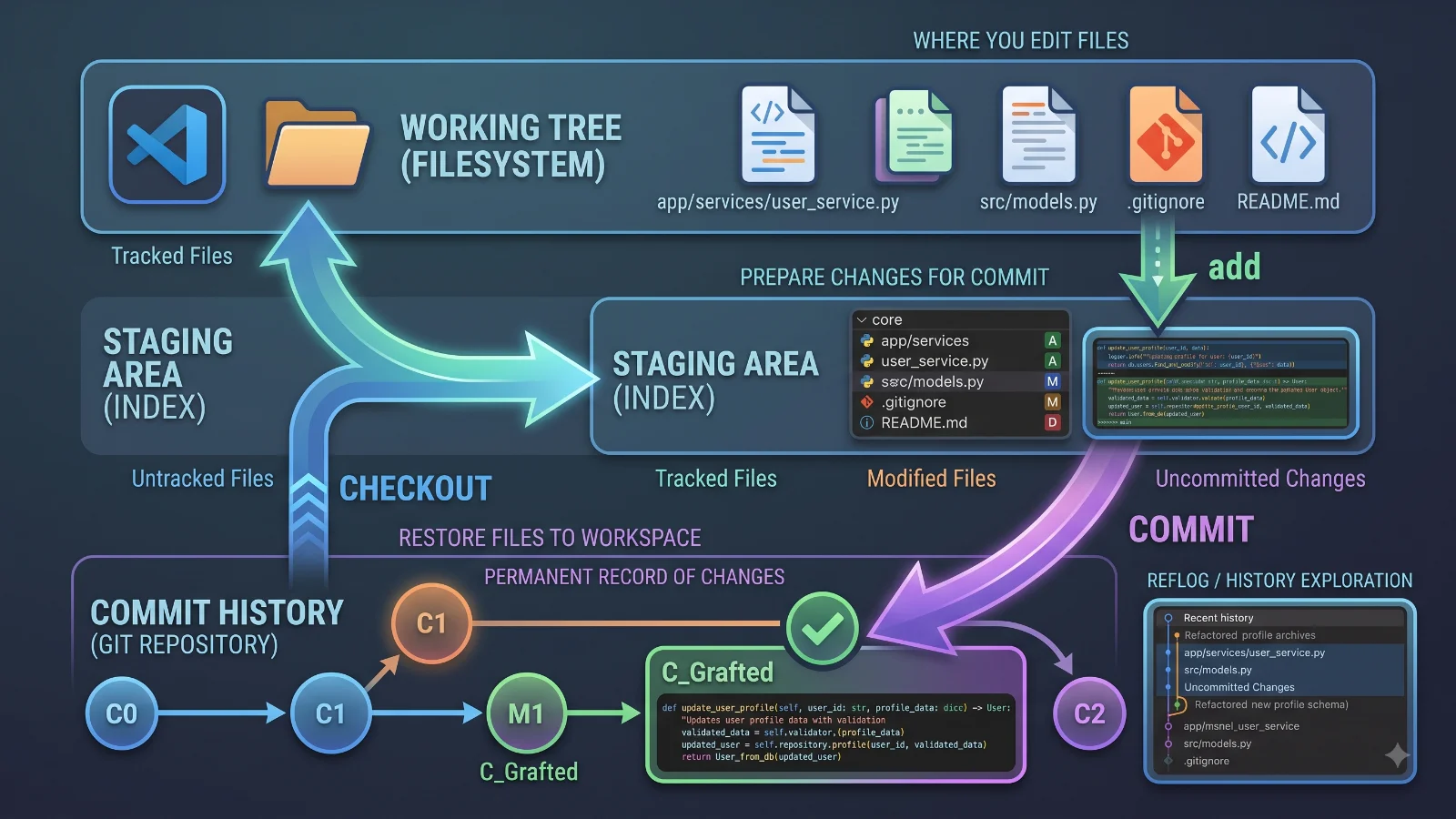
To truly master Git, you must understand how Git manages data internally using its three primary trees. These three trees are the HEAD, the Index (staging area), and the Working Directory. The HEAD tree represents the snapshot of the last commit on your current branch. The Index tree represents the snapshot of what will go into your next commit, acting as an intermediary staging buffer. The Working Directory is your physical filesystem where you actively edit, create, and delete files. When you execute a standard commit, changes move linearly from the Working Directory into the Index, and finally into HEAD. The git reset --hard command reverses this flow violently. When invoked, Git updates HEAD to point to the designated commit hash or reference tag. Immediately following that pointer update, Git takes the contents of that target commit and forcefully copies them over the Index. Finally, Git takes those exact same file contents and overwrites every single tracked file inside your Working Directory. Because all three trees are forcibly aligned with the target commit in a single atomic action, any divergent state that previously existed in your local environment is purged. This structural breakdown explains why the command is so fast and why its destructive side effects occur without asking for intermediate user confirmation.
Key Components Affected
For more detail, see git restore.
When evaluating the safety of git reset --hard, developers must know precisely which components are destroyed and which remain untouched. The command aggressively targets all tracked files within the repository. If you have modified existing source code files, configuration sheets, or documentation assets, and those files are tracked by Git, their uncommitted modifications are permanently wiped away. Similarly, any files you have deliberately staged using git add are reset to their state in the target commit, erasing your staging progress. However, there is a crucial nuance regarding untracked files: files that were newly created in your working directory and have never been added to Git via git add are generally ignored by git reset --hard and will remain in your folder structure, unless they conflict with files present in the target commit. This distinction often surprises developers who expect a hard reset to completely sterilize their workspace. Furthermore, any commits that were already safely stored in your local repository history before the reset are preserved in the object database, even if they are no longer reachable from your current branch pointer, which forms the foundation of all Git recovery mechanisms.
Practical Example of Git Reset Hard
To see git reset --hard in action, consider a common development scenario. Imagine you are working on a feature branch called feature-login and you begin experimenting with a complex authentication refactor. You spend two hours modifying multiple core files, adding debug statements, and testing various broken approaches. Halfway through, you realize your entire experimental approach is flawed, your codebase is in a completely non-functional state, and you simply want to abandon all changes made since your last stable commit. Instead of manually reverting line by line or deleting files awkwardly, you can execute a hard reset pointing directly to your current HEAD. By running git reset --hard HEAD, you instruct Git to discard every single uncommitted change in your working directory and staging area, bringing your files back to the exact state of your most recent commit. Alternatively, if you want to discard your last two experimental commits entirely and jump back to an older, clean commit hash, you would run git reset --hard <commit-hash>. Once the command completes, running git status will confirm that your working tree is clean and your branch is synchronized precisely with your chosen historical reference point.
Benefits and Appropriate Use Cases
For more detail, see Git stash.
See also: merge conflict
Despite its destructive potential, git reset --hard is an invaluable tool when used correctly and in appropriate scenarios. One primary use case is the rapid abandonment of failed experimental code paths. When a developer dives down a programming rabbit hole and realizes their current code changes are unsalvageable, a hard reset provides an instant escape hatch, saving precious time compared to manual cleanup. Another valid use case occurs in automated testing pipelines, continuous integration runners, or local build environments where developers need to guarantee a pristine, untainted working directory before executing test suites or deployment scripts. Additionally, when dealing with detached HEAD states or cleaning up local merge conflicts that have gone completely off the rails, executing a hard reset to the pre-merge state is often the cleanest way to abort a broken merge operation. The key to benefiting from git reset --hard lies in discipline: it should only be deployed when you are entirely certain that the uncommitted changes in your workspace hold zero long-term value and that you will not regret losing them.
Limitations and Data Loss Risks
While the utility of a hard reset is clear, the risks associated with permanent data loss cannot be overstated. If you execute git reset --hard on uncommitted work, those changes are immediately scrubbed from your working tree and index. Unlike deleting a file in a desktop operating system, Git does not place these changes into a temporary recycle bin or trash folder. This absolute nature of the command has led to countless developer horror stories. Fortunately, Git features a powerful, underlying safety net known as the git reflog. The reference log records every single time the HEAD pointer moves—whether through commits, checkouts, rebases, or hard resets. Even when you execute a destructive hard reset, the previous commit hash your HEAD was pointing to remains safely cataloged in the reflog for a default retention period of 30 days. If you realize you made a terrible mistake and accidentally wiped out valuable work, you can inspect your history using git log -g or git reflog, identify the commit hash representing your state prior to the reset, and execute another git reset --hard <previous-hash> to instantly resurrect your lost work. Understanding the reflog transforms git reset --hard from a terrifying hazard into a manageable, reversible tool.
Frequently Asked Questions
- Can you recover code after git reset --hard?
Yes, provided the code was previously committed at least once. You can use
git reflogto locate the commit hash before the reset and restore it. - What is the difference between git reset --soft and --hard?
--softmoves the HEAD pointer back while leaving your staging area and working directory completely untouched.--hardalters HEAD, the staging area, and the working directory simultaneously, destroying uncommitted changes. - Does git reset --hard delete untracked files? Generally, untracked files that were never added to Git are left untouched by a hard reset, unless a tracked file in the target commit shares the exact same filename and causes a collision.
- How do I use reflog to undo a hard reset?
Run
git reflogto view your history, find the state entry right before your reset action, and rungit reset --hard HEAD@{n}where n corresponds to the reflog index.
Conclusion
Mastering git reset --hard is a rite of passage for every modern software engineer. It is a potent, high-velocity command capable of cleaning a cluttered workspace in a fraction of a second, yet it carries inherent risks that demand respect and caution. By understanding the tripartite mechanics of Git trees—HEAD, the Index, and the Working Directory—developers can predict exactly how a hard reset will impact their codebase. Remembering that uncommitted changes are permanently vulnerable to deletion ensures you will pause to evaluate your working state before executing the command. Furthermore, knowing that the git reflog exists as an ultimate safety net provides peace of mind, proving that even drastic mistakes can often be undone. Always verify your branch name, review your git status, and stash valuable work before reaching for the hard reset, ensuring you remain in complete control of your version-controlled projects.
📌 Recommended Next Guides & References
  <li>
    <a href="/article/docker-and-kubernetes-how-they-work-together-2" class="text-primary hover:underline font-semibold flex items-center gap-2">
      <span>→</span> <span>Docker and Kubernetes: How They Work Together</span>
    </a>
  </li>

  <li>
    <a href="/article/kubernetes-ingress-explained" class="text-primary hover:underline font-semibold flex items-center gap-2">
      <span>→</span> <span>Kubernetes Ingress Explained: Routing, Controllers, and TLS</span>
    </a>
  </li>

  <li>
    <a href="/article/kubernetes-ingress-controller-explained" class="text-primary hover:underline font-semibold flex items-center gap-2">
      <span>→</span> <span>Kubernetes Ingress Controller Explained: Architecture, Routing, and Implementation</span>
    </a>
  </li>