Quick Answer
When managing version control in collaborative software development projects, developers frequently face situations where a recently introduced code change introduces a bug, causes a regression, or simply needs to be undone. Knowing how to safely back out changes without disrupting your entire team is a critical skill for any programmer. While there are several ways to manipulate history in Git, understanding the proper techniques ensures you avoid catastrophic data loss or broken remote branches. The command line offers specialized tools for these exact scenarios, and mastering them protects both your local workspace and shared team environments.
Definition: What is Git Revert?
For more detail, see Git Reset vs Git Revert.
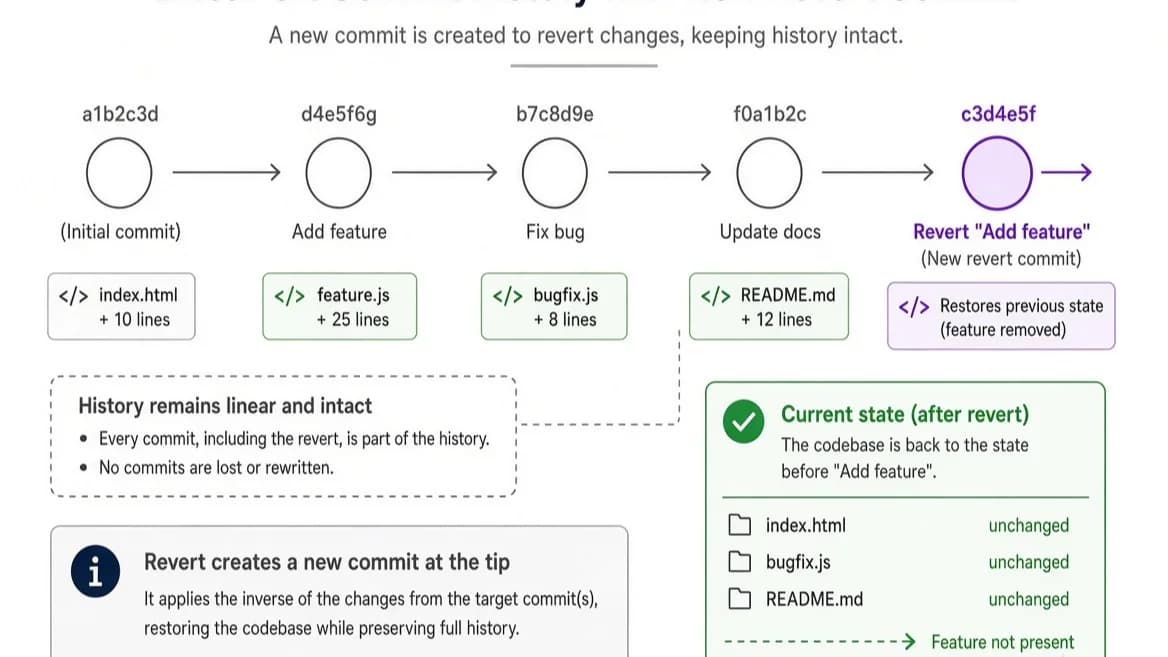
To understand a git revert commit operation, it helps to contrast it against destructive history-rewriting commands like git reset. When you run git revert, Git does not erase or delete previous commits from your project history. Instead, it calculates the inverse of a specified commit and applies those inverse changes on top of your current working branch as an entirely new commit. This means that your project's historical timeline keeps moving forward, preserving all previous records while effectively neutralizing the unwanted code changes. For shared repositories where multiple developers pull and push daily, this non-destructive approach prevents synchronization errors and keeps everyone working from a reliable, shared history.
How Git Revert Works Under the Hood
Under the hood, Git treats every commit as a snapshot of differences, or a patch. When you target a specific commit hash for a reversal, Git examines the exact diff introduced by that commit. It then attempts to apply the mathematical opposite of that diff to your current HEAD. For example, if a target commit added three lines of code and deleted two, the revert operation will generate a patch that deletes those three lines and restores the two. Git stages these inverse changes automatically and generates a brand-new commit object complete with its own unique commit message and cryptographic hash. Because this process happens entirely within your working tree and staging area, it does not alter past commit hashes, ensuring complete cryptographic integrity for your repository's audit trail.
Components of the Git Revert Command
The git revert command is versatile and includes several flags and options to tailor the operation to your exact workflow needs. By default, typing git revert <commit-hash> will immediately compute the inverse patch, open your default text editor to let you modify the automatically generated commit message, and then save the new commit. However, you can modify this behavior using parameters like --no-commit (or -n), which tells Git to apply the inverse changes to your staging area and working directory without automatically creating the commit. This is particularly useful if you want to bundle multiple reverts into a single logical commit. Another helpful flag is --edit (or -e), which explicitly forces the text editor to open so you can document why the reversal was necessary, providing crucial context for future code reviewers and teammates.
Step-by-Step Example: Reverting a Local and Pushed Commit
For more detail, see git undo last commit.
Executing a git revert commit workflow in a real-world project involves a clear sequence of terminal commands. First, you need to identify the exact commit hash of the change you want to undo. You can do this by running git log --oneline, which outputs a concise list of recent commits alongside their short cryptographic hashes.
$ git log --oneline
a1b2c3d Fix authentication bug on login screen
x9y8z7w Add experimental dashboard widget
e4f3g2h Update user profile styling
Suppose the commit that introduced an issue is x9y8z7w. To safely revert this change, you copy its hash and run the revert command in your terminal:
git revert x9y8z7w
Git will calculate the inverse changes, apply them to your workspace, and prompt you to save the default commit message ("Revert "Add experimental dashboard widget""). Once you save and close the editor, Git records the new commit locally. Because this commit is completely additive, you can safely push these changes to your remote repository without needing any destructive force pushes:
git push origin main
Your teammates will pull the changes cleanly without any history divergence issues.
Benefits of Using Git Revert
Choosing git revert over alternative history-rewriting tools yields significant operational benefits for development teams. Most importantly, it preserves project history. In professional software engineering, maintaining an accurate audit trail of what changed, when it changed, and who authorized the change is crucial for debugging and compliance. Furthermore, using git revert maintains team collaboration harmony. When working on shared feature branches or main production branches, rewriting history via git reset --hard forces everyone else on the team to manually reset their local repositories and rescue lost work. Reverting avoids broken remote branches entirely by treating the undo action as a standard, forward-moving contribution that integrates seamlessly into continuous integration and continuous deployment (CI/CD) pipelines.
Limitations and Conflict Handling
See also: resolve merge conflicts
Despite its safety advantages, a git revert commit operation can occasionally encounter roadblocks, most notably in the form of merge conflicts. If subsequent commits have modified the exact same lines of code that your target commit touched, Git cannot automatically determine how to apply the inverse patch without overriding newer, valid work. When this happens, Git pauses the revert process and flags the affected files as conflicted.
To resolve this safely:
- Open the conflicted files in your code editor and look for standard conflict markers (
<<<<<<<,=======,>>>>>>>). - Manually edit the code to retain the correct state, ensuring you reconcile the reverted changes with newer code.
- Stage the resolved files using
git add <filename>. - Complete the paused revert operation by running
git revert --continue.
If at any point during a complex conflict resolution you feel overwhelmed or make a mistake, you can abort the entire process and return your working directory to its pre-revert state by executing git revert --abort.
Frequently Asked Questions
What is the difference between git revert and git reset?
git revert is a non-destructive operation that creates a new commit containing the inverse of a previous change, keeping your timeline intact. git reset is a destructive operation that moves the branch pointer backward, effectively erasing commits from history, which can disrupt shared team workflows.
Can you revert multiple commits at once in Git?
Yes, you can revert a range of commits by specifying them in sequence using range syntax like git revert <oldest-commit-hash>..<newest-commit-hash>, or by listing multiple hashes consecutively. Keep in mind that doing this may increase the likelihood of encountering merge conflicts.
What should I do if a git revert results in a merge conflict?
You should manually inspect the conflicted files, edit the code to resolve the differences, stage the resolved files with git add, and then run git revert --continue to finalize the process.
Does git revert delete history from the remote repository?
No. git revert adds a brand-new commit that undoes previous changes, leaving all historical commits fully intact in both your local and remote repositories.
Conclusion
Mastering the git revert commit command is an essential milestone for any developer striving for robust version control hygiene. By understanding how Git computes inverse patches, leveraging non-destructive commands, and carefully navigating potential merge conflicts, you can rectify mistakes quickly without endangering your team's shared progress. Always prioritize safe history preservation, communicate changes effectively with your peers, and let Git's forward-moving architecture protect your codebase against accidental data loss.
📌 Recommended Next Guides & References
  <li>
    <a href="/article/docker-and-kubernetes-how-they-work-together-2" class="text-primary hover:underline font-semibold flex items-center gap-2">
      <span>→</span> <span>Docker and Kubernetes: How They Work Together</span>
    </a>
  </li>

  <li>
    <a href="/article/kubernetes-ingress-explained" class="text-primary hover:underline font-semibold flex items-center gap-2">
      <span>→</span> <span>Kubernetes Ingress Explained: Routing, Controllers, and TLS</span>
    </a>
  </li>

  <li>
    <a href="/article/kubernetes-ingress-controller-explained" class="text-primary hover:underline font-semibold flex items-center gap-2">
      <span>→</span> <span>Kubernetes Ingress Controller Explained: Architecture, Routing, and Implementation</span>
    </a>
  </li>