Quick Answer
Introduction Docker has fundamentally transformed how developers build, ship, and run modern software applications. By packaging code and all its dependencies into isolated units, it eliminates the classic headache of "it works on my machine." However, newcomers to containerization frequently stumble over two foundational terms that are often used interchangeably: images and containers. Understanding the exact boundary between them is vital for anyone working with modern cloud infrastructure.
At a high level, the simplest way to frame the difference is that a Docker image represents a static, unchanging blueprint, whereas a Docker container represents an active, running environment executing that blueprint. While they are two sides of the same coin, treating them as identical concepts will quickly lead to confusion when managing application lifecycles, storage layers, and scaling strategies.
What is a Docker Image?
See also: Dockerfile
A Docker image is a read-only, immutable template that contains everything needed to run an application. This includes the application source code, runtime environment, system libraries, environment variables, and configuration files. You can think of an image as a packaged snapshot of a filesystem at a specific point in time. When developers want to distribute software, they build an image and push it to a centralized registry like Docker Hub, allowing anyone else to download and run it identically.
Images are typically built using a text file called a Dockerfile. A Dockerfile contains a sequential list of instructions, such as choosing a base operating system image, copying application source files into the filesystem, installing required packages, and defining the default command to execute. Each instruction in a Dockerfile adds a new layer to the image. These layers are stacked on top of one another and remain entirely read-only. Because an image cannot be modified after it is built, it guarantees absolute reproducibility. If you build an image on your local laptop, that exact same image will behave identically when deployed to a staging server or a production Kubernetes cluster.
What is a Docker Container?
See also: virtual machines
A Docker container is a runnable, isolated instance of a Docker image. If the image is the blueprint, the container is the actual house built from that blueprint. When you instruct the Docker daemon to run an image, it takes that read-only template, provisions an isolated network and namespace environment, and adds a thin, writable layer on top of the image stack. This writable layer is where all runtime changes occur—such as writing log files, modifying configuration settings, or downloading temporary assets.
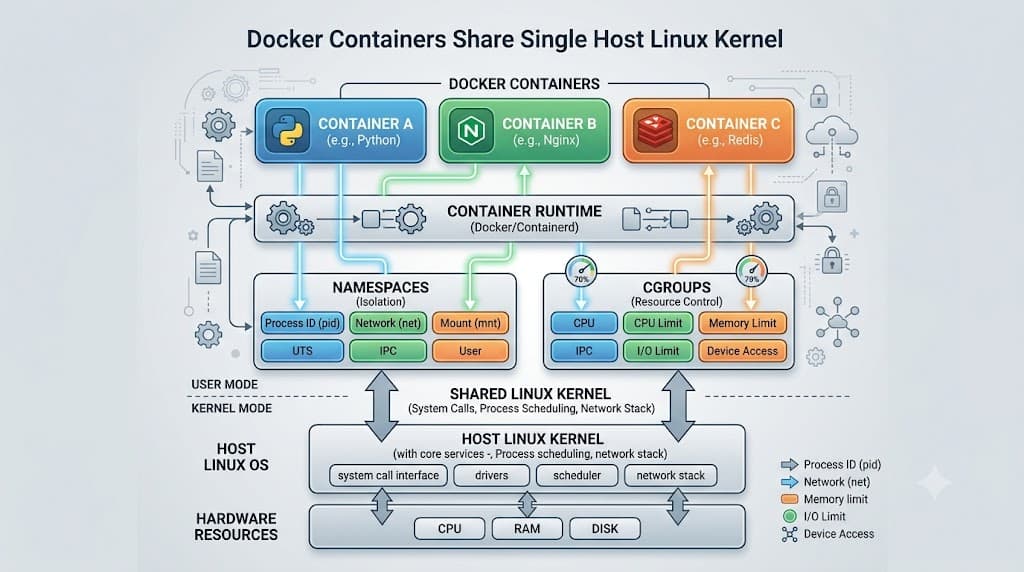
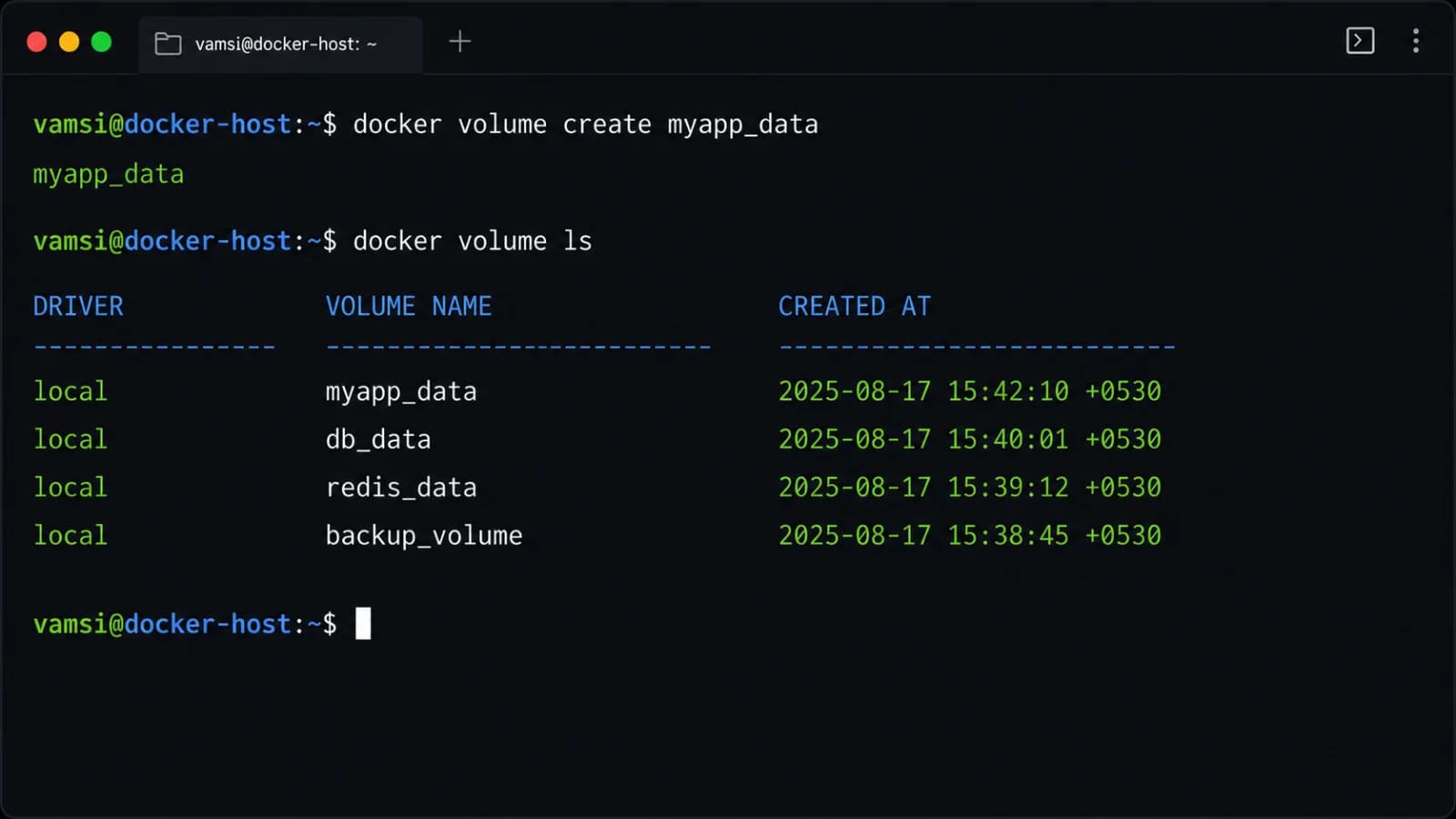
Because of this architecture, containers are lightweight and ephemeral. They do not bundle a full operating system kernel; instead, they share the kernel of the host machine while maintaining strict isolation for processes, memory, and disk space. You can start, stop, pause, or delete a container in a fraction of a second without affecting the underlying image or other running containers. When a container is deleted, any data written to its temporary writable layer is lost unless it has been safely persisted outside the container using Docker volumes or bind mounts.
How They Work Together: The Blueprint and the Building
To firmly cement this concept in your mind, consider the classic culinary analogy of a baking recipe versus a baked cake. A printed recipe for chocolate cake is immutable. You can photocopy it, share it with friends, store it in a drawer, or read it a hundred times, but the recipe itself never changes into a cake. However, that single static piece of paper can be used by multiple bakers simultaneously in different kitchens to bake dozens of distinct, independent chocolate cakes.
In this analogy, the recipe is the Docker image. It contains all the instructions and ingredients required to produce a specific outcome. The individual cakes sitting on kitchen counters are the Docker containers. You can bake five cakes from the exact same recipe, and while they all originated from the identical blueprint, each cake exists independently. If someone accidentally drops one cake on the floor, the other four cakes remain completely untouched, and the original recipe sheet in the drawer remains perfectly intact.
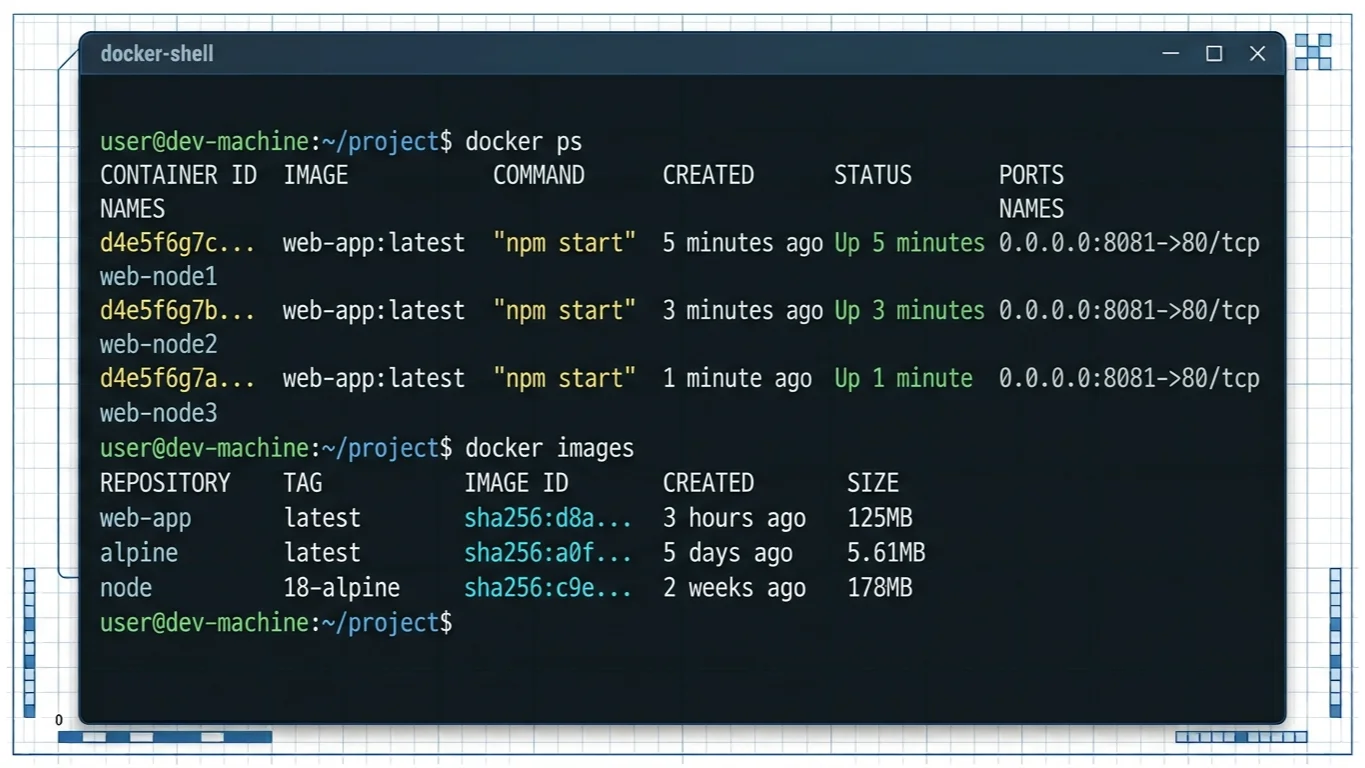
Similarly, a single Docker image can be used to launch multiple concurrent containers. For instance, you might pull an official Nginx web server image from a public registry and spin up three separate containers running that image on different ports to handle incoming web traffic. Each container has its own isolated memory space, IP address, and writable scratchpad, yet all three share the exact same underlying read-only image layers.
Key Differences at a Glance
When comparing a Docker image and a Docker container, several core characteristics highlight their divergent roles in the containerization ecosystem:
- Mutability: Docker images are completely immutable and read-only. Docker containers feature a thin writable layer on top, allowing runtime modifications.
- Lifecycle: Images are static assets stored in registries indefinitely until deleted. Containers are dynamic, ephemeral runtime instances that can be created, started, stopped, and destroyed rapidly.
- State: Images hold no state beyond their static files. Containers represent active state, holding runtime memory, active processes, and transient data.
- Purpose: Images are designed for packaging, distribution, and storage. Containers are designed for execution, processing, and handling workloads.
Understanding these distinctions helps clarify why troubleshooting requires different approaches. If an application bug is baked into the code, you must update the Dockerfile and build a new image. If a bug is caused by corrupted runtime data or bad configuration inside a running application instance, you typically restart or recreate the container.
Practical Example: Creating and Running a Container
To see these concepts in action, let's walk through the basic Docker command-line workflow that bridges images and containers. When you want to run an application, you typically use the docker run command in your terminal. For example, executing docker run -d -p 8080:80 nginx instructs Docker to perform several distinct steps behind the scenes.
First, Docker checks your local system to see if the nginx image is already present. If the image does not exist locally, Docker automatically pulls it down from Docker Hub. Once the image is secured, Docker provisions an isolated container environment, mounts the read-only image layers, adds the writable top layer, assigns a network port mapping from port 8080 on your host machine to port 80 inside the container, and finally executes the background process.
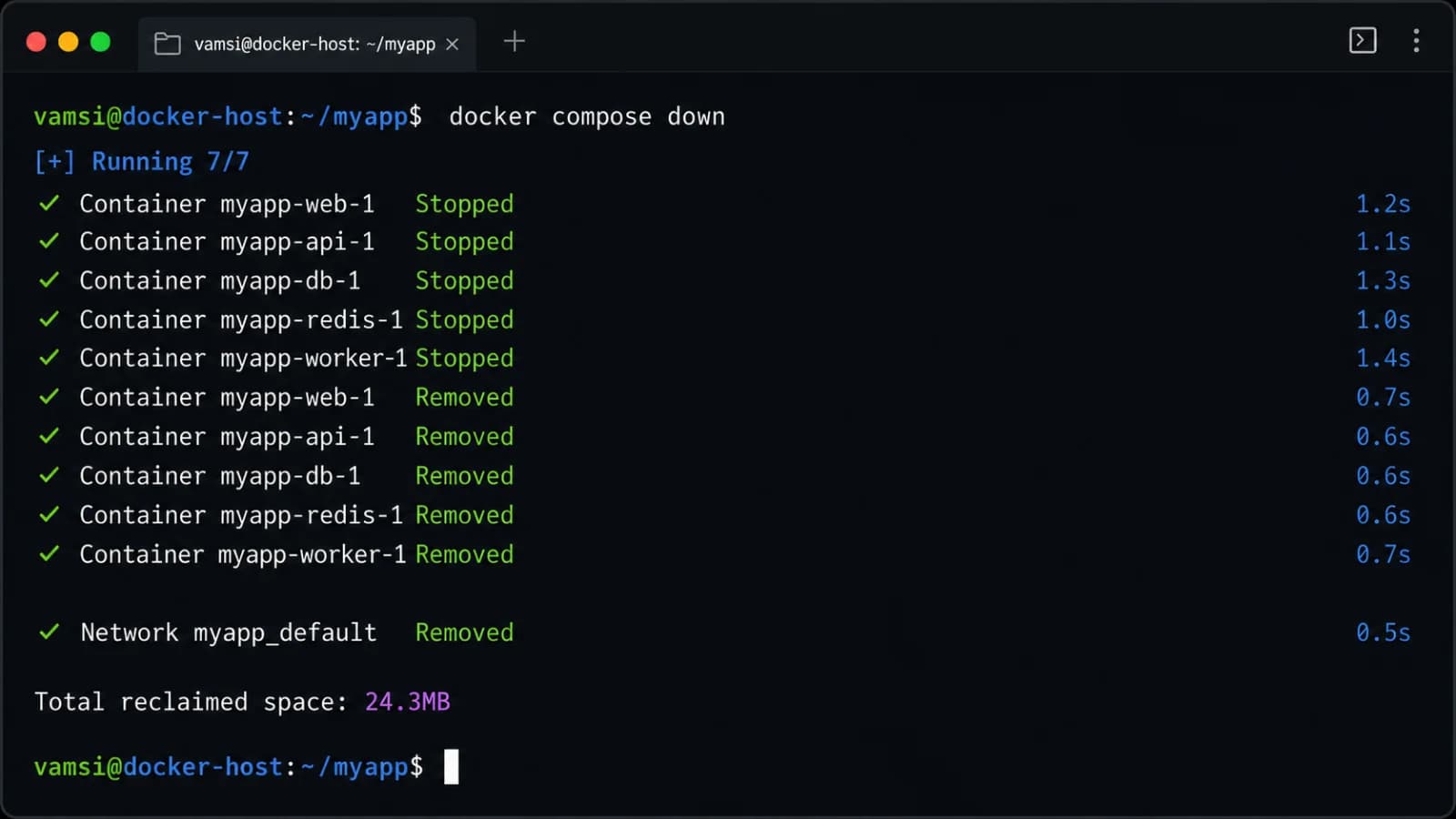
If you want to view all currently active containers on your system, you can run docker ps. This command lists running instances, showing their unique container IDs, status, and port mappings. Conversely, if you want to inspect the available images stored locally on your machine, you run docker images. You will notice that the size of the running container matches the size of the image plus a negligible amount of overhead for its writable layer. When you are finished with the application, running docker stop <container_id> followed by docker rm <container_id> terminates the active process and removes the container instance, while the underlying Nginx image remains safely stored on your disk, ready to spawn new containers whenever needed.
Conclusion
Mastering containerization requires a firm grasp of the fundamental separation between static blueprints and active runtime environments. A Docker image serves as your read-only, shareable template containing all necessary application code and dependencies, while a Docker container acts as the live, isolated instance executing that template with its own transient state. By keeping this distinction clear—much like separating a baking recipe from the cakes you bake—you can more effectively build, troubleshoot, and scale your applications across any environment.
📌 Recommended Next Guides & References
  <li>
    <a href="/article/docker-and-kubernetes-how-they-work-together-2" class="text-primary hover:underline font-semibold flex items-center gap-2">
      <span>→</span> <span>Docker and Kubernetes: How They Work Together</span>
    </a>
  </li>

  <li>
    <a href="/article/kubernetes-ingress-explained" class="text-primary hover:underline font-semibold flex items-center gap-2">
      <span>→</span> <span>Kubernetes Ingress Explained: Routing, Controllers, and TLS</span>
    </a>
  </li>

  <li>
    <a href="/article/kubernetes-ingress-controller-explained" class="text-primary hover:underline font-semibold flex items-center gap-2">
      <span>→</span> <span>Kubernetes Ingress Controller Explained: Architecture, Routing, and Implementation</span>
    </a>
  </li>