Quick Answer
Managing containerized applications requires a firm grasp of runtime states, particularly when troubleshooting unexpected application behavior or recovering from transient system errors. In the fast-paced world of container orchestration and localized development, knowing how to restart a Docker container quickly and reliably is an essential skill for developers, system administrators, and DevOps engineers. When an application inside a container stops responding or encounters a memory leak, you do not always need to tear down the entire environment. Instead, executing a targeted restart operation allows you to cycle the service while preserving its underlying file system state, network configurations, and temporary volumes. This tutorial explores the core mechanics of the Docker restart process, provides practical command-line examples, compares restarting with full container recreation, and highlights important operational considerations to keep your production and development environments running smoothly.
Definition of Docker Container Lifecycle and Restarting
To understand container operations, we must first examine the container lifecycle. A Docker container progresses through several distinct states: created, running, paused, restarted, and stopped or dead. The lifecycle begins when the Docker engine pulls an image, provisions an isolated execution environment, and launches the specified primary process. During its operational phase, the container processes requests, generates logs, and modifies its writable container layer. When a container is running, it consumes host resources such as CPU, memory, and network sockets. Restarting a container refers to the act of stopping this currently running or stopped instance and immediately starting it up again using the exact same configuration parameters, network attachments, and volume mounts. Unlike creating a brand-new container from an image, restarting retains the container ID and any local file modifications made within the writable layer since its initial creation. This operational distinction makes restarting a fast, lightweight intervention for clearing transient software states, resetting cached variables, or applying quick service recovery routines without altering the overarching deployment architecture or manual configurations applied post-deployment.
How Docker Container Restarting Works Under the Hood
For more detail, see stop a Docker container safely.
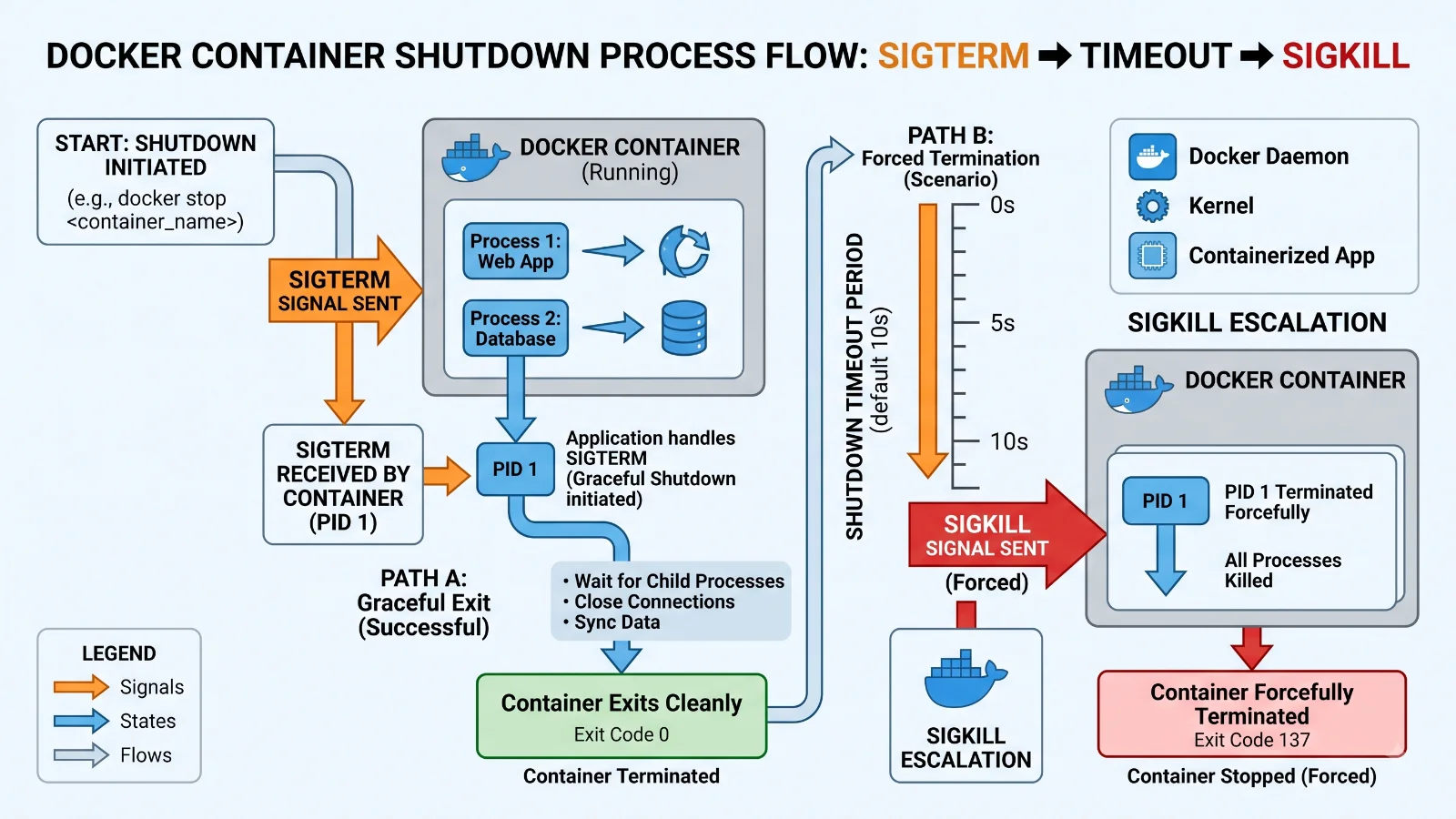
When you trigger a restart operation, the Docker daemon orchestrates a specific sequence of low-level signals to manage the containerized process safely. First, the Docker engine daemon receives the restart request via the Docker CLI or API. It then targets the main process running inside the container—often referred to as PID 1 inside the container's isolated namespace. The daemon issues a SIGTERM signal to this primary process, instructing it to gracefully shut down, finish active network connections, flush buffers to disk, and exit cleanly. If the process does not terminate within a specified timeout window—typically ten seconds by default—the Docker daemon escalates the command by sending a SIGKILL signal, which forcefully halts the process at the kernel level. Once the containerized process has fully stopped, the Docker daemon immediately initiates the start sequence. It re-allocates the necessary cgroups, mounts volumes, re-establishes virtual network interfaces, and spawns a fresh instance of the primary process using the original entrypoint and command arguments. This underlying mechanism ensures that while the application process is completely fresh, the surrounding infrastructure bindings remain intact.
Core Components of the Docker Restart Process
Executing a container restart relies on the interaction of several core components within the Docker ecosystem. Understanding these pieces helps clarify how commands translate into container actions. The primary components include the Docker CLI, the Docker Engine daemon (dockerd), the container runtime (such as containerd), and the host operating system kernel. The Docker CLI serves as the user-facing interface, translating human input into REST API requests sent to the Docker daemon. The daemon acts as the central controller, managing images, networks, volumes, and containers. Underneath the daemon, the container runtime handles the low-level execution details, communicating directly with the Linux kernel through namespaces and control groups (cgroups) to enforce isolation and resource limits. When you run a restart command, the CLI communicates with the daemon, which coordinates with containerd and the kernel to terminate the existing namespace processes and spin up a new container instance without needing to re-read the original image manifest from registry storage. This modular architecture allows for rapid execution times, often completing a full container power cycle in a fraction of a second.
Example Usage of the Docker Restart Command
Using the docker restart command is straightforward, but it offers flexible flags and options to accommodate different operational scenarios. The basic syntax requires passing either the container name or the container ID to the command. For instance, if you have a web server container named my-web-app, you can restart it by executing the standard command in your terminal. You can also target multiple containers simultaneously by appending their respective names or IDs separated by spaces, which is particularly useful during bulk maintenance updates. Another vital parameter is the time-out flag, designated as --time or -t, which allows you to specify how many seconds the daemon should wait for the container to exit gracefully before forcing termination with a SIGKILL signal. For example, setting a longer timeout gives database applications ample time to complete active transactions and close open file handles safely before the restart proceeds. Additionally, you can combine these commands with shell scripting utilities to automate routine maintenance tasks or recover failed services based on external monitoring triggers, ensuring high availability for your containerized workloads.
Benefits of Restarting Versus Recreating Containers
For more detail, see recreating a container.
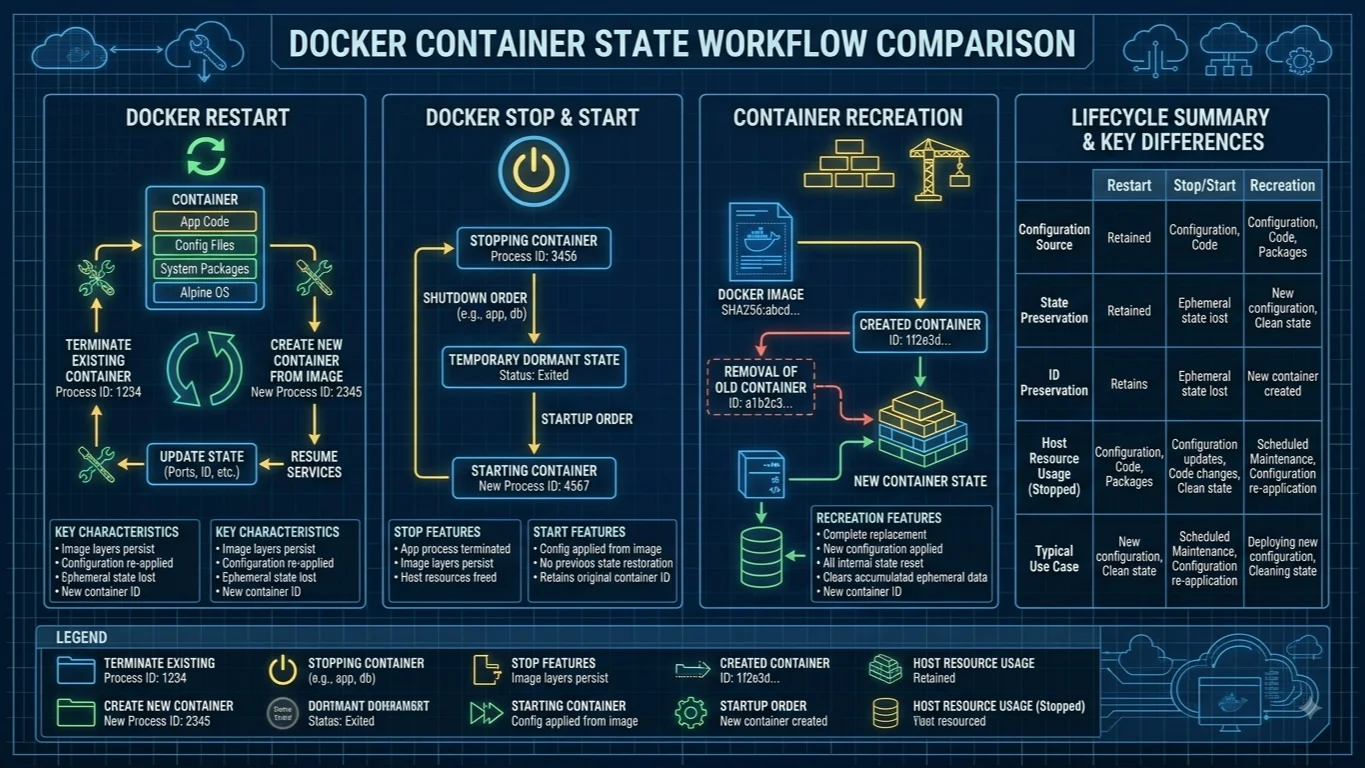
When managing Docker environments, operators often face a choice between restarting an existing container or recreating it entirely from an image. Understanding the trade-offs helps determine the appropriate action for a given situation. Restarting a container is exceptionally fast because it bypasses the image extraction, layer assembly, and initial provisioning phases. It simply halts the current process and starts a new one within the pre-existing container structure. This makes restarting the ideal choice for quick debugging sessions, clearing memory leaks, or recovering from temporary network partitions where preserving the container's current state and IP bindings is advantageous. Conversely, recreating a container—typically done by stopping and removing the old instance via docker rm, then running a new docker run command—is necessary whenever you update environment variables, modify port mappings, change volume configurations, or update the underlying container image. While recreation takes slightly longer and destroys any uncommitted changes in the writable layer, it ensures that your container matches the latest declarative configuration files or infrastructure-as-code definitions.
Limitations and Considerations When Restarting Containers
While restarting containers provides a quick fix for many operational issues, it comes with specific limitations that administrators must keep in mind. The most important constraint is that restarting a container does not apply configuration updates. If you modify a Dockerfile, update an environment variable file, or change docker-compose.yml settings, simply running a restart command will not inject those new values into the running environment. The container will continue using the exact environment variables, mounts, and network configurations it was originally instantiated with. To apply configuration changes, you must perform a full container recreation. Furthermore, relying heavily on manual restarts to mask recurring application crashes is an anti-pattern. If a container repeatedly fails due to unhandled exceptions, memory exhaustion, or database connection timeouts, restarting it only treats the symptom rather than the root cause. For resilient production architectures, combining proper application logging and monitoring with robust restart policies or orchestrators like Kubernetes ensures automated recovery while alerting engineering teams to underlying software defects.
Frequently Asked Questions
Container administration frequently raises specific operational questions regarding automation and data safety. A common query involves distinguishing between docker restart and docker start; while restart handles both the shutdown and startup phases for active or stopped containers, start is strictly used to launch containers that are currently in a stopped state. Another frequent question is whether restarting a container deletes data; data stored in named volumes or bind mounts persists safely across restarts, whereas data written solely to the ephemeral container writable layer is discarded upon container recreation but retained during a simple restart. Administrators also regularly ask how to set up automatic restart policies, which can be configured using flags like --restart unless-stopped or --restart always during the initial docker run command, ensuring containers automatically recover from host reboots or daemon crashes without manual intervention.
Conclusion
Mastering how to restart a Docker container is a fundamental competency for anyone working with containerized software deployments. By understanding the underlying container lifecycle, daemon signaling mechanisms, and the crucial differences between restarting and recreating, developers and system administrators can maintain high application uptime and streamline troubleshooting workflows. Whether you are executing a manual restart to clear a stuck application process or configuring automated restart policies for production resilience, knowing when and how to manipulate container states ensures your infrastructure remains reliable, performant, and easy to manage.
📌 Recommended Next Guides & References
  <li>
    <a href="/article/docker-and-kubernetes-how-they-work-together-2" class="text-primary hover:underline font-semibold flex items-center gap-2">
      <span>→</span> <span>Docker and Kubernetes: How They Work Together</span>
    </a>
  </li>

  <li>
    <a href="/article/kubernetes-ingress-explained" class="text-primary hover:underline font-semibold flex items-center gap-2">
      <span>→</span> <span>Kubernetes Ingress Explained: Routing, Controllers, and TLS</span>
    </a>
  </li>

  <li>
    <a href="/article/kubernetes-ingress-controller-explained" class="text-primary hover:underline font-semibold flex items-center gap-2">
      <span>→</span> <span>Kubernetes Ingress Controller Explained: Architecture, Routing, and Implementation</span>
    </a>
  </li>