Quick Answer
Managing the container lifecycle is a fundamental skill for any developer, system administrator, or DevOps engineer working with modern cloud-native applications. When working with containerized environments, knowing how to stop a Docker container properly is just as important as knowing how to build and run one. Improperly shutting down containers can lead to corrupted databases, unfinished file writes, and dropped network connections. This comprehensive guide explores the mechanics behind stopping Docker containers, examines the differences between graceful and forced termination, and provides practical troubleshooting techniques for unresponsive applications.
Definition
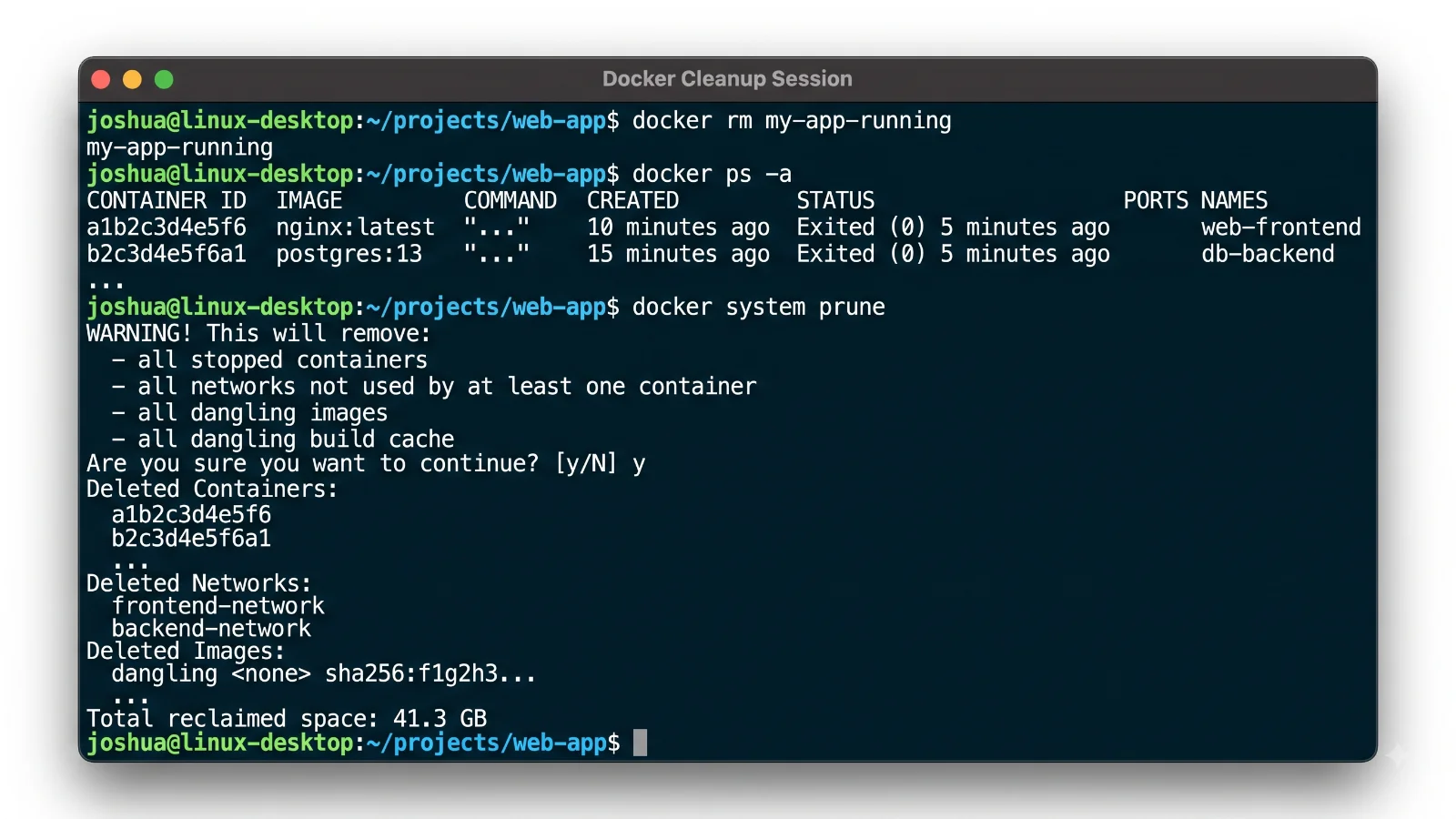
For more detail, see removing Docker containers.
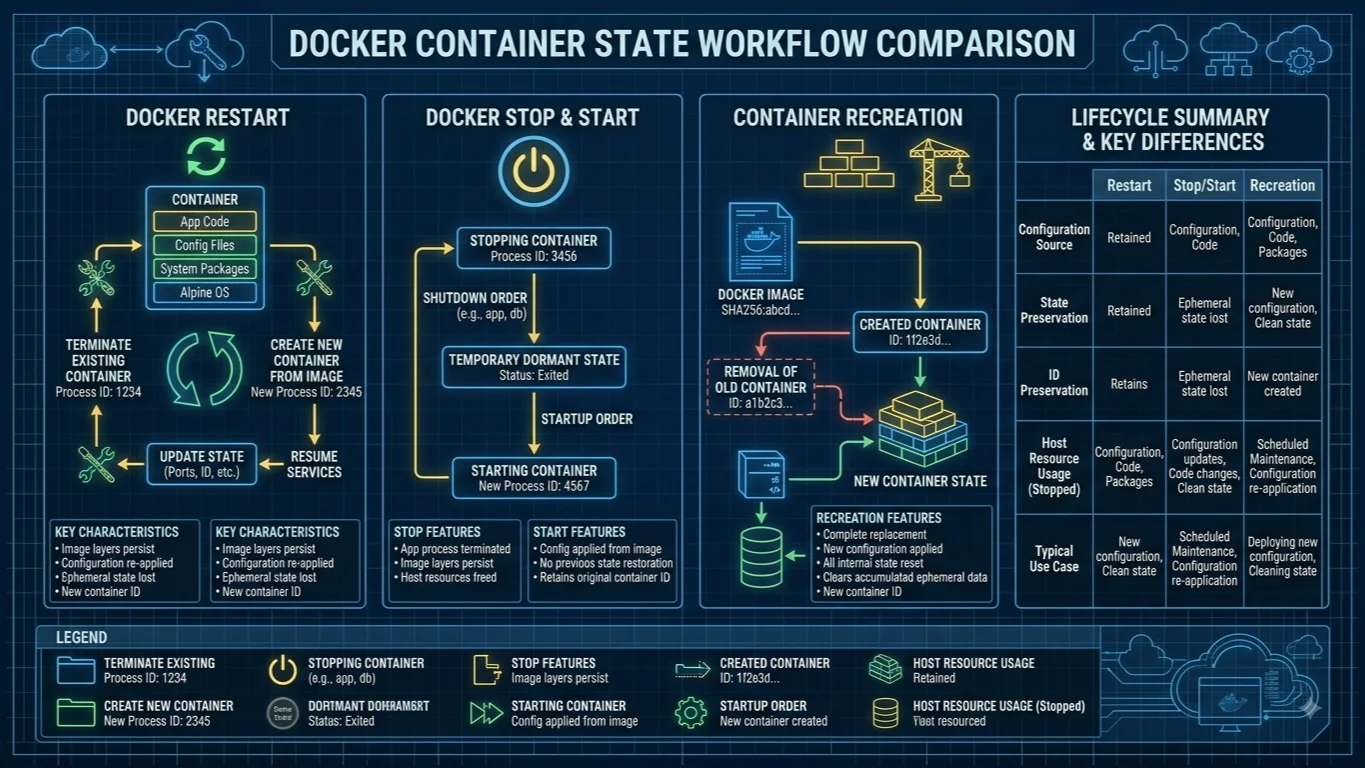
In the context of the Docker architecture and container runtime, stopping a container refers to the process of halting the primary execution process running inside that container namespace. When you issue a stop command, the Docker daemon interacts with the container runtime to transition the container from a 'running' state to an 'exited' state. Unlike deleting or removing a container, stopping a container preserves its file system modifications, configuration settings, and volumes. The container remains on the host system in a dormant state, ready to be restarted at any moment with its previous state fully intact. Understanding this distinction ensures that administrators do not accidentally purge persistent data when their primary goal is simply to halt a running service, pause resource utilization, or prepare a host environment for maintenance.
How it works
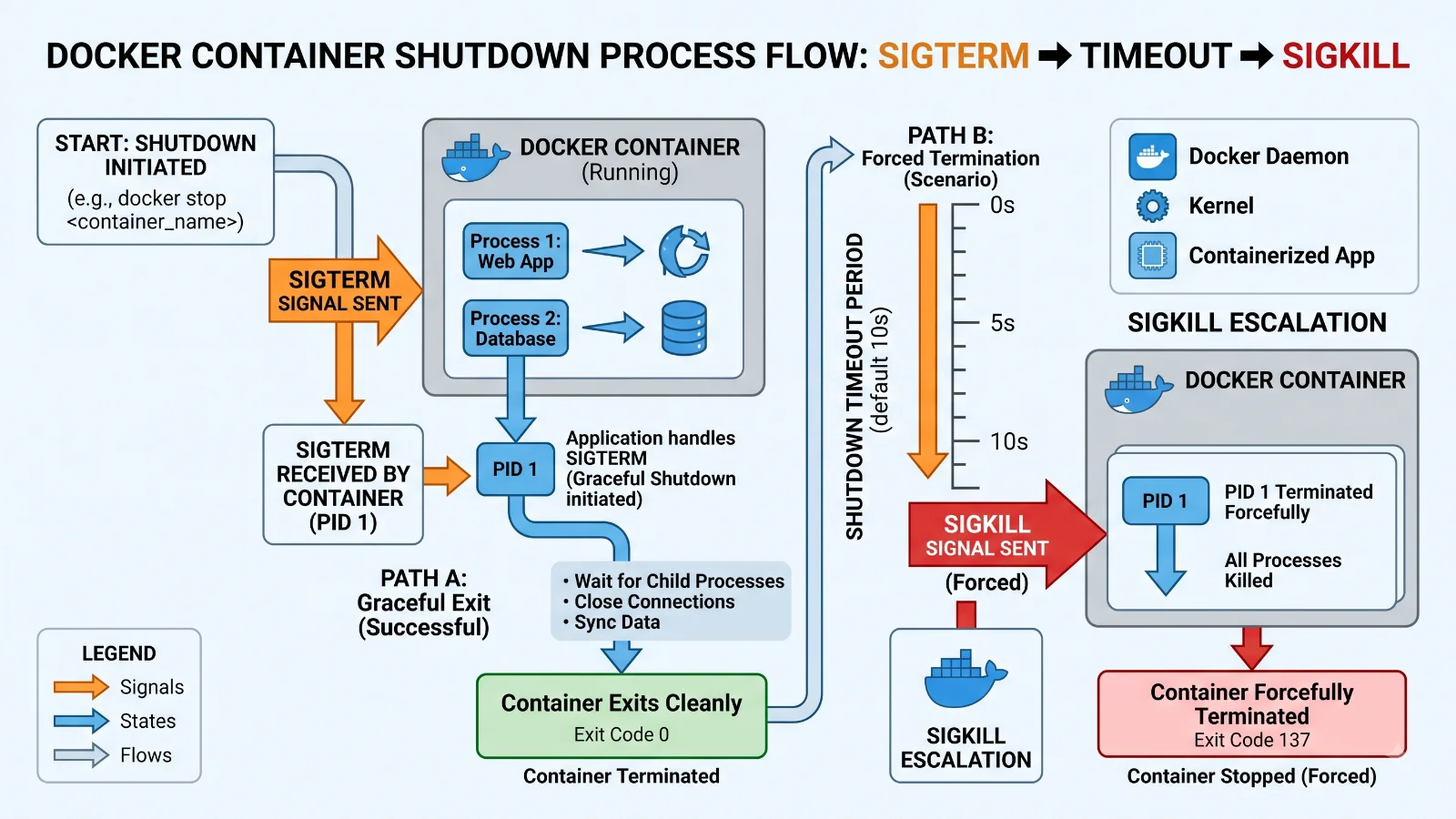
The underlying mechanism of the Docker stop process revolves around operating system signals and process management. When a user requests to stop a container, the Docker daemon does not instantly terminate the workload. Instead, it initiates a graceful shutdown sequence by sending a specific signal to the main process running inside the container with a Process ID of 1. By default, Docker sends the SIGTERM signal. This signal acts as a polite notification to the application, instructing it to finish ongoing tasks, close database connections, flush write buffers, and exit cleanly. To accommodate applications that require time to clean up resources, Docker enforces a default timeout period of ten seconds. If the application does not shut down before this timeout expires, Docker escalates its approach by sending a SIGKILL signal. The SIGKILL signal forces the kernel to immediately terminate the process without giving it any opportunity to execute cleanup routines, which can lead to data loss or file corruption if triggered unexpectedly.
Components
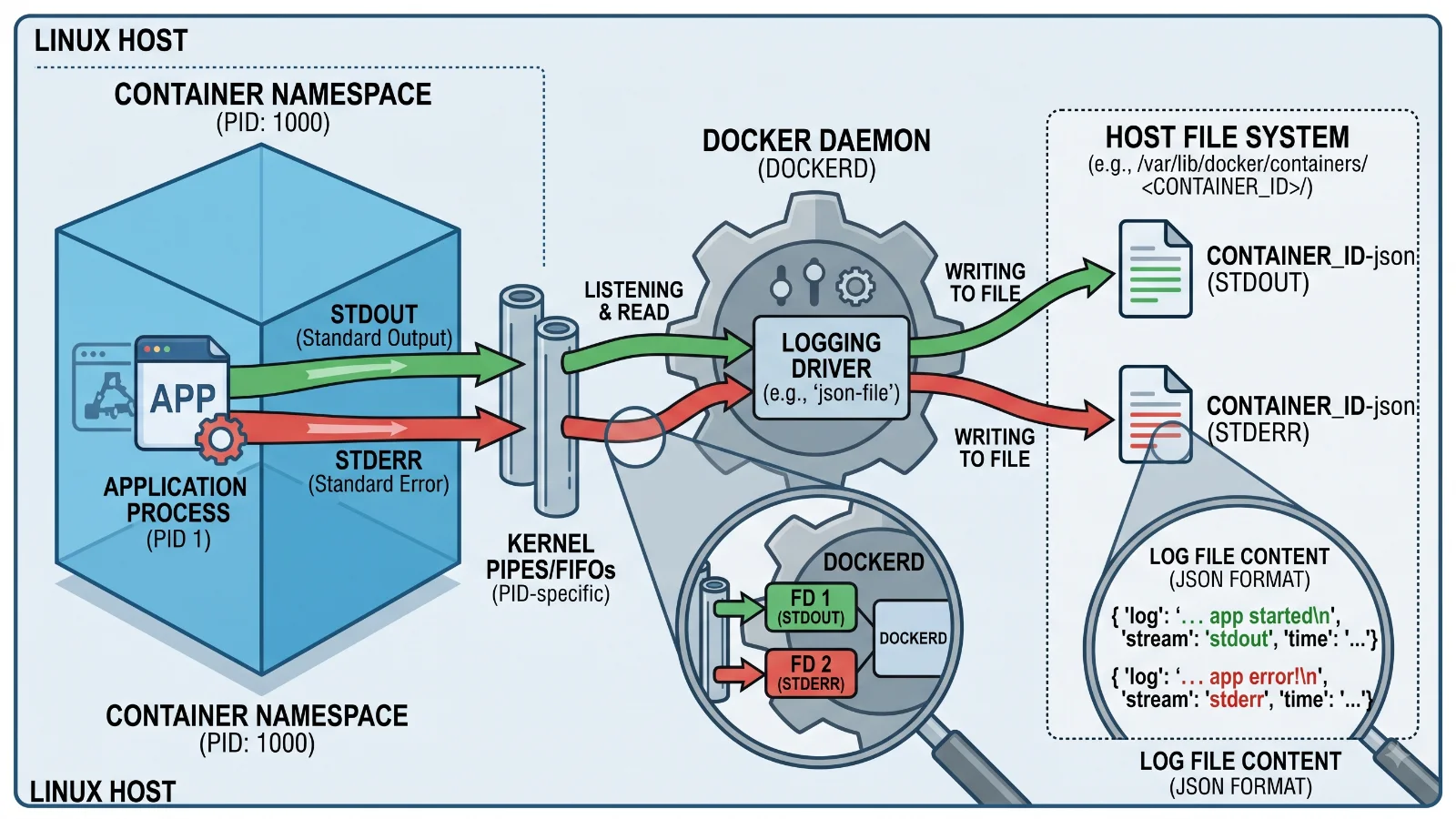
Several core components collaborate behind the scenes to execute a container shutdown successfully. At the center is the Docker daemon, the background service running on the host operating system that listens for Docker API requests. When a user invokes the CLI client, the request travels to the daemon, which then coordinates with container runtimes such as containerd to manage the lifecycle of target containers. Containers themselves are identified by unique alphanumeric container IDs or human-readable container names assigned at creation. Administrators can target either identifiers when managing workloads. Additionally, resource control groups and namespaces isolate the container environment, ensuring that when the main process receives the termination signal, the boundaries of the host operating system and other running containers remain entirely unaffected during the shutdown sequence.
Example
For more detail, see Docker Compose Down.
Executing a container stop operation is straightforward using the standard command-line interface, but it supports various flags to handle complex scenarios efficiently. The most basic usage involves passing the container name or ID directly to the command.
docker stop my-running-app
If you need to adjust the waiting period before a forced kill occurs, you can use the time flag to specify a custom timeout in seconds. For instance, giving an application thirty seconds to wrap up operations looks like this:
docker stop --time 30 web-server
In real-world production environments, administrators frequently need to stop multiple containers simultaneously. You can achieve this by listing multiple container names or IDs separated by spaces in a single command:
docker stop container-one container-two container-three
Furthermore, automation scripts often combine listing commands with the stop utility to target batches of containers dynamically. To stop all currently running containers in one concise command, you can query the runtime for active IDs and pass them directly:
docker stop $(docker ps -q)
Benefits
Adopting proper graceful shutdown practices offers substantial advantages for application stability and data integrity. Allowing applications to receive the SIGTERM signal and process a graceful exit prevents unexpected data corruption across databases, caches, and persistent volumes. When web servers or microservices receive this warning, they can safely complete active HTTP requests, respond to clients, and gracefully disconnect from message queues without leaving orphaned jobs. This proactive teardown also ensures that temporary lock files are removed, log files are properly flushed, and system resources are returned to the host kernel in a clean state. Consequently, CI/CD pipelines, automated testing suites, and production orchestration platforms experience fewer intermittent failures and significantly reduced operational overhead.
Limitations
Despite the robustness of Docker lifecycle management, certain situations cause standard stopping methods to fail or hang indefinitely. The most frequent culprit is an application that fails to handle the SIGTERM signal correctly. Many scripting languages or web frameworks intercept signals poorly or trap them without exiting, causing the container to ignore the initial shutdown request entirely. When this happens, the container hangs in a stopping state until the default timeout elapses and Docker forces a SIGKILL. Another common limitation involves child processes spawned by PID 1 that do not inherit signal forwarding correctly, leaving zombie processes lingering inside the container namespace. In extreme cases of disk input/output blocking or network lockups, even the kernel might struggle to terminate processes immediately, requiring manual intervention or host-level process inspection to clear out stubborn workloads.
FAQ
What is the difference between docker stop and docker kill? The primary difference lies in how they terminate the container. The docker stop command initiates a graceful shutdown by sending a SIGTERM signal and waiting for a timeout before resorting to a SIGKILL. Conversely, docker kill bypasses the graceful phase entirely, sending a SIGKILL signal immediately to force-stop the container without allowing cleanup.
How can I change the default timeout for stopping a Docker container? You can override the default ten-second timeout by using the --time or -t flag followed by the desired duration in seconds when executing your stop command, such as docker stop --time 60 my-container.
How do I stop all running Docker containers at once? You can stop all active containers simultaneously by passing the output of the quiet container listing command into the stop command, executing docker stop $(docker ps -q) in your terminal.
Conclusion
For more detail, see restart a Docker container.
Mastering container lifecycle management is essential for maintaining robust, reliable, and secure development and production environments. Knowing how to stop a Docker container safely ensures your applications protect vital data, release system resources properly, and avoid unexpected corruption caused by abrupt termination. By understanding the underlying mechanics of SIGTERM and SIGKILL signals, leveraging custom timeout configurations, and employing batch commands efficiently, developers and administrators can maintain complete control over their containerized infrastructure. Adhering to these best practices guarantees smoother deployments and minimizes troubleshooting downtime across all your container workloads.
📌 Recommended Next Guides & References
  <li>
    <a href="/article/docker-and-kubernetes-how-they-work-together-2" class="text-primary hover:underline font-semibold flex items-center gap-2">
      <span>→</span> <span>Docker and Kubernetes: How They Work Together</span>
    </a>
  </li>

  <li>
    <a href="/article/kubernetes-ingress-explained" class="text-primary hover:underline font-semibold flex items-center gap-2">
      <span>→</span> <span>Kubernetes Ingress Explained: Routing, Controllers, and TLS</span>
    </a>
  </li>

  <li>
    <a href="/article/kubernetes-ingress-controller-explained" class="text-primary hover:underline font-semibold flex items-center gap-2">
      <span>→</span> <span>Kubernetes Ingress Controller Explained: Architecture, Routing, and Implementation</span>
    </a>
  </li>