Quick Answer
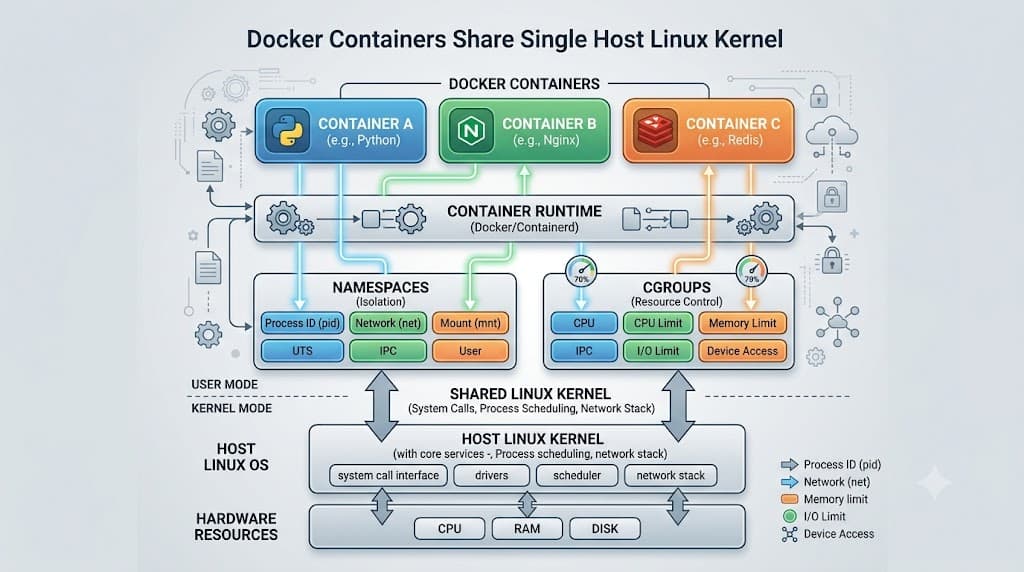
When managing containerized applications, understanding how to restart docker container instances correctly is a fundamental operational skill. The single most straightforward way to accomplish this is by running the built-in command docker restart followed by your container name or ID. Behind the scenes, Docker executes a graceful stop signal to the main process running inside the container—giving it a default grace period of ten seconds to finish ongoing requests and flush state—before immediately issuing a SIGKILL if the process fails to terminate. Once the stop sequence concludes, Docker immediately issues a start command to bring the container back online using its existing configuration, mounted volumes, and assigned network interfaces. This sequence allows you to quickly recycle an unhealthy, unresponsive, or newly updated application environment without needing to tear down or re-provision the entire container from scratch.
Quick Answer
To immediately restart a running or stopped Docker container, execute the command docker restart <container_name_or_id> in your terminal. This sends a stop signal followed immediately by a start command, preserving all existing volumes, environment variables, and network configurations while clearing the container runtime memory.
Restart a Docker Container
When working with a single instance, executing a standard container reboot requires knowing either the container's alphanumeric ID or its assigned human-readable name. To find these identifiers, you can query your active environment using docker ps -a to view both running and stopped workloads. Once you have identified your target, the syntax is extremely straightforward. For example, if you have a web server container named my-web-app, you would run docker restart my-web-app to cycle its internal processes. This specific command handles both running containers and stopped containers gracefully. If the container is currently running, Docker initiates the shutdown grace period. If the container is already stopped, docker restart acts as a start command, booting up the container immediately using its existing state. This makes it a versatile tool for quick troubleshooting when an application hangs or throws unhandled exceptions without requiring you to issue separate stop and start sequences manually.
Restart Multiple Containers
Managing multi-container environments often requires cycling more than one service at a time. Instead of executing commands sequentially for every single component, the Docker CLI allows you to pass multiple container names or IDs separated by spaces in a single invocation. For instance, you can restart several application workers simultaneously by running docker restart web-api-1 web-api-2 worker-queue. Docker will process these targets, sending restart signals across the specified containers in parallel or rapid succession. If you need to restart all Docker containers on your host machine—regardless of whether they are currently running, paused, or stopped—you can combine docker ps with command substitution. By executing docker restart $(docker ps -a -q), Docker evaluates the quiet flag (-q) to retrieve all container IDs and feeds them directly into the restart command. This technique is particularly helpful during host maintenance, bulk log clearing, or environment resets on development machines. However, use bulk operations with caution in production environments, as cycling every workload simultaneously can cause widespread service disruption and unexpected resource spikes.
Restart Containers with Compose
Modern multi-container architectures are frequently orchestrated using Docker Compose rather than raw CLI commands. When working within a directory containing a docker-compose.yml file, you do not need to look up individual container IDs or names. Instead, Docker Compose manages the lifecycle of your defined services as a cohesive stack. To restart an entire multi-service application, you can simply run docker compose restart from the directory containing your configuration file. If you only need to refresh a specific service—such as an application backend or a database cache—you can target that individual service explicitly by appending its name, such as docker compose restart backend-service. Behind the scenes, Docker Compose evaluates dependency trees defined in your configuration file. If your services utilize depends_on declarations, Compose ensures that dependent services are handled correctly during the restart sequence. This approach ensures that your networking links, environment variable files, and volume mounts defined in the YAML file remain completely intact while refreshing the application runtime.
restart vs stop + start vs Recreate
See also: recreate the container
See also: docker stop
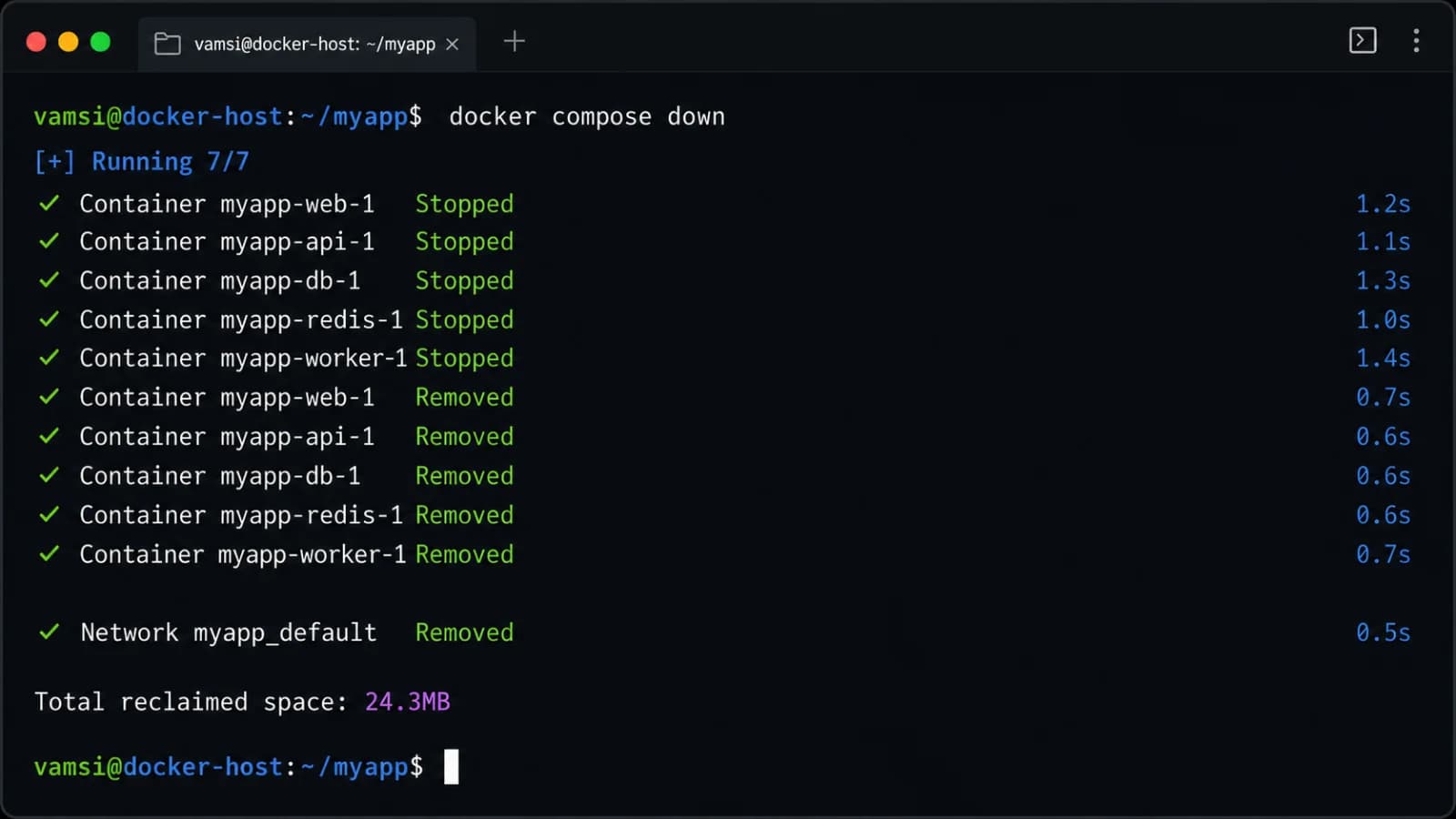
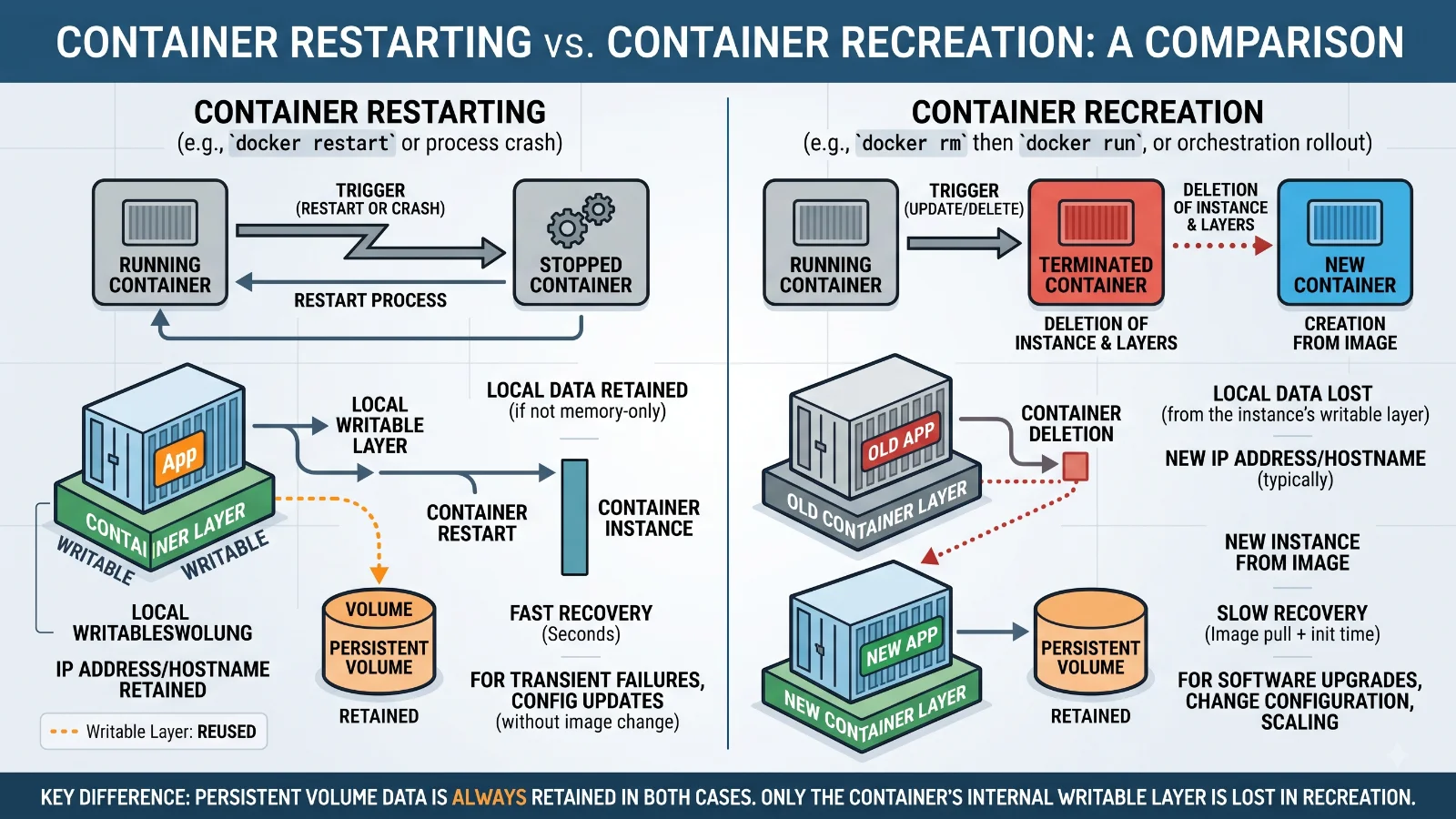
Choosing the right lifecycle command requires understanding what happens beneath the surface of your container infrastructure. The standard docker restart command stops and starts a container in place, meaning it retains any changes made to its writable layer and keeps all existing volume mounts, IP addresses, and runtime configurations. By contrast, executing a manual two-step process—running docker stop followed by docker start—results in the exact same container state as docker restart, though it requires two separate terminal commands. However, neither docker restart nor docker stop + docker start will pick up changes if you have updated your Dockerfile, modified your source code, or changed environment variables in your Compose file. To apply code or configuration updates, you must actually recreate the container. Recreation involves removing the old container instance using docker rm and spinning up a fresh instance from the updated image using docker run or docker compose up -d. Knowing this distinction prevents the common pitfall of endlessly restarting a container expecting it to run newly built code when the underlying image layer has not been rebuilt and replaced.
Restart Policies
See also: inspect the container logs
Docker provides automated resilience mechanisms known as restart policies that govern how containers behave when they exit unexpectedly. You can configure a policy when creating a container by passing the --restart flag to docker run. Available options include no (do not automatically restart), always (always restart the container regardless of exit status, including manual stops), unless-stopped (restart unless the container was explicitly stopped by the operator), and on-failure (restart only if the container exits with a non-zero status, optionally specifying a maximum retry count). It is important to understand how these automated policies interact with manual actions. For example, if you run docker restart on a container with an unless-stopped policy, Docker handles the manual command successfully, and the policy remains active for future system reboots or unexpected crashes. However, if a container is caught in an infinite crash loop due to a misconfiguration, an aggressive restart policy like always can cause Docker to hammer system resources repeatedly as it tries to bring the failing application back online. In such troubleshooting scenarios, you may need to inspect the container logs or temporarily update the policy before attempting fixes.
Verify the Restart
After executing a restart command, verifying that your container has recovered cleanly is essential for maintaining system reliability. You should never assume an application is healthy simply because the CLI command returned without an error. First, check the immediate operational status by running docker ps and inspecting the STATUS column, which should indicate that the container has been up for a short duration rather than restarting continuously. Next, inspect the container's internal metrics and restart metadata using the command docker inspect --format='{{.RestartCount}}' <container_name>. This command returns the exact number of times the container has restarted, helping you spot hidden crash loops. Additionally, examine the live application logs using docker logs --tail 50 -f <container_name> to verify that initialization scripts ran successfully, database connections were established without throwing exceptions, and the web server or application port is actively listening for incoming traffic.
Common Problems
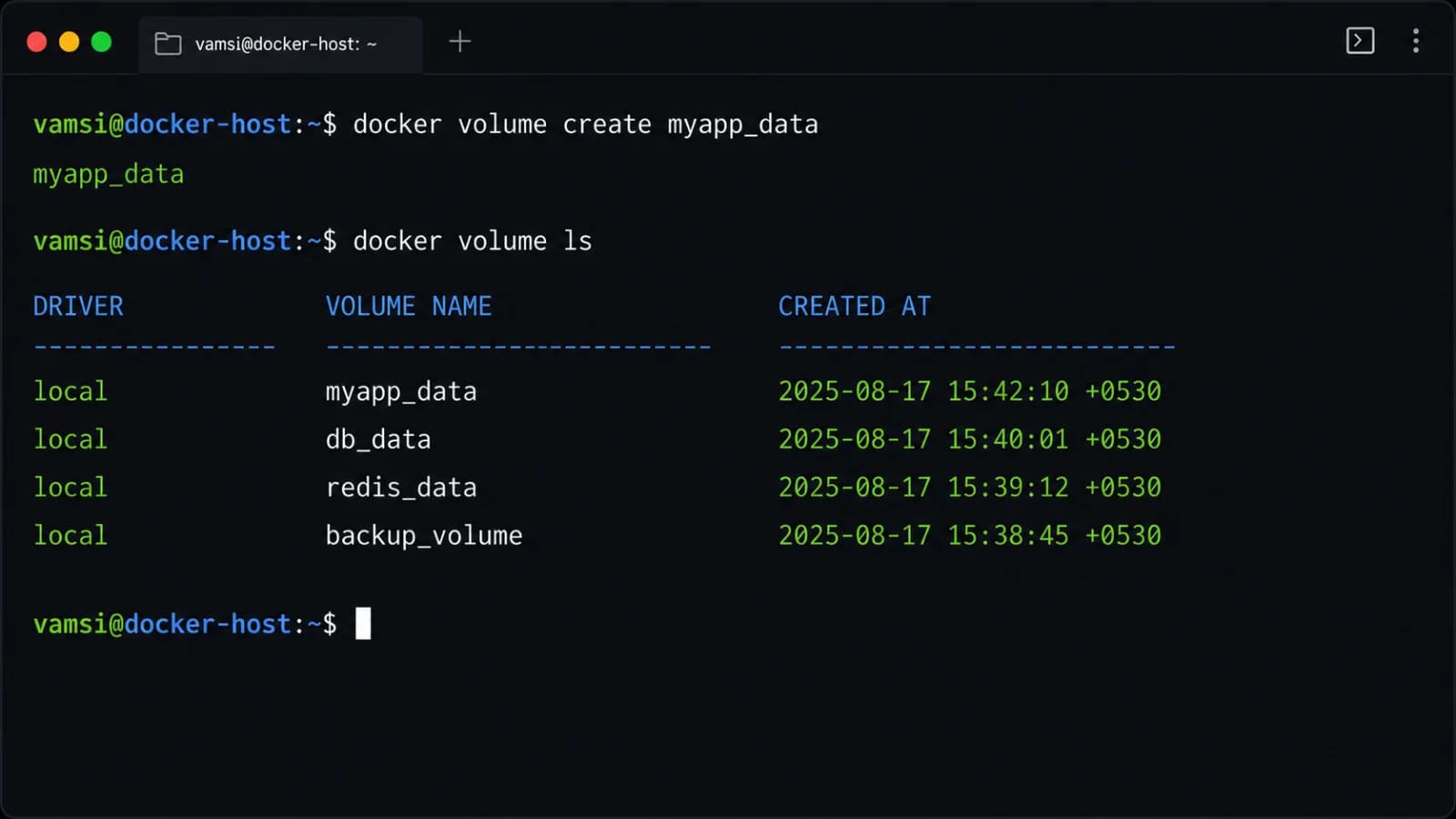
Even experienced developers encounter stumbling blocks when cycling container workloads. One frequent issue is encountering permission denied errors when attempting to execute lifecycle commands, which typically happens when your user account lacks membership in the local Docker Unix socket group, requiring you to prepend sudo or adjust your user permissions. Another common challenge involves persistent container exit loops, where a container restarts continuously due to an unhandled application exception, a missing configuration file, or an invalid environment variable. In these scenarios, running docker restart repeatedly is useless; instead, you must inspect the error output via docker logs to diagnose the root cause. Data-safety mistakes also plague production environments; developers occasionally assume that restarting a container wipes ephemeral storage, or conversely, they forget that files written outside of designated volumes or bind mounts will be completely destroyed if the container is accidentally recreated instead of simply restarted. Always ensure critical persistent data is stored in Docker volumes or external databases before performing destructive lifecycle operations.
📌 Recommended Next Guides & References
  <li>
    <a href="/article/docker-and-kubernetes-how-they-work-together-2" class="text-primary hover:underline font-semibold flex items-center gap-2">
      <span>→</span> <span>Docker and Kubernetes: How They Work Together</span>
    </a>
  </li>

  <li>
    <a href="/article/kubernetes-ingress-explained" class="text-primary hover:underline font-semibold flex items-center gap-2">
      <span>→</span> <span>Kubernetes Ingress Explained: Routing, Controllers, and TLS</span>
    </a>
  </li>

  <li>
    <a href="/article/kubernetes-ingress-controller-explained" class="text-primary hover:underline font-semibold flex items-center gap-2">
      <span>→</span> <span>Kubernetes Ingress Controller Explained: Architecture, Routing, and Implementation</span>
    </a>
  </li>